 IndieBase

Table of Contents
Understanding Shifts
How shifts organise your jobs and crews within an event, including the operational day, shift patterns, Daily Operations system events, the shift tab bar, and carry-over jobs.
Understanding Shifts
Shifts are how IndieBase organises the activity within an event — grouping jobs, crews, and status counts into distinct operational periods that can be viewed and managed independently.
Overview
Every event in IndieBase is divided into one or more shifts. A shift represents a bounded period of operational activity — for example, a single day of a multi-day festival, or a defined time block within a single-day event. Jobs are logged against a specific shift, crews are assembled per shift, and the status counts you see on the event page all reflect the currently selected shift.
Shifts are created automatically when you create an event, so you don't have to set them up from scratch. For most events, you'll simply see the shift tabs on the event page and switch between them as needed. If you need a custom arrangement — extra shifts, different time windows — admins can add and edit shifts manually.
The Operational Day and Shift Boundaries
Jobs created outside of any user-created event are automatically wrapped in a Daily Operations system event (see Daily Operations (System Events) below). IndieBase groups these records into operational days rather than calendar days. The operational day is a 24-hour window that starts at your team's configured hour — by default 06:00 — and runs through to the same hour the following day.
This means that work created at 02:00 on a Tuesday is treated as part of Monday's operational day, keeping night-shift activity together rather than splitting it across two calendar dates.
The operational day start hour is set per team. Most teams use 06:00, which suits standard day-shift and overnight coverage patterns. Teams running predominantly evening or night operations can change this — for example, setting it to 20:00 means the operational day would run from 20:00 one evening to 19:59 the next.
Your team's operational day start hour is configured by your team owner or administrator under Team Settings > Information Governance > Data Access Settings. See Information Governance for details.
Shifts within user-created events use their own explicitly set start and end times, defined by the shift pattern chosen during event creation. The operational day setting determines the boundaries for Daily Operations system events and how the home page groups jobs.
How Shifts Are Created Automatically
When you create a new event, you choose a shift pattern in Step 2 of the creation wizard. The pattern determines how shifts are structured for each day of the event:
| Pattern | Shifts per day | Description |
|---|---|---|
| Single Shift | 1 | One shift covering the full operational day |
| Day / Night | 2 | Two 12-hour shifts (day and night) |
| Thirds | 3 | Three 8-hour shifts |
| Custom | Varies | You define the shift names and times yourself |
For multi-day events, the chosen pattern is applied to every day in the date range. Shift times are based on your team's operational day start hour.
This means that as soon as you create an event, the shift structure is already in place and you can start logging jobs straight away.
Shift creation happens in the background when the event is saved. You don't need to do anything extra.
Daily Operations (System Events)
When a job is created outside of any user-created event — for example, a standalone call handled by your team — IndieBase automatically wraps it in a Daily Operations system event. Each such event is titled Daily Ops DD/MM/YY (for example, Daily Ops 11/04/26), using the operational day's date, so days with standalone calls are easy to distinguish. Each Daily Operations event covers a single operational day and contains one shift spanning that full period.
These system events:
- Are created automatically — no manual action is needed
- Appear in your events list marked as system-generated
- Have a single shift per operational day, named with the date (e.g.,
18/03/2026) - Are scoped to your team, just like regular events
This means every job in IndieBase always belongs to an event and a shift, even if you didn't explicitly create one. The Daily Operations system keeps standalone work organised without requiring you to set up an event in advance.
The Shifts Tab Bar
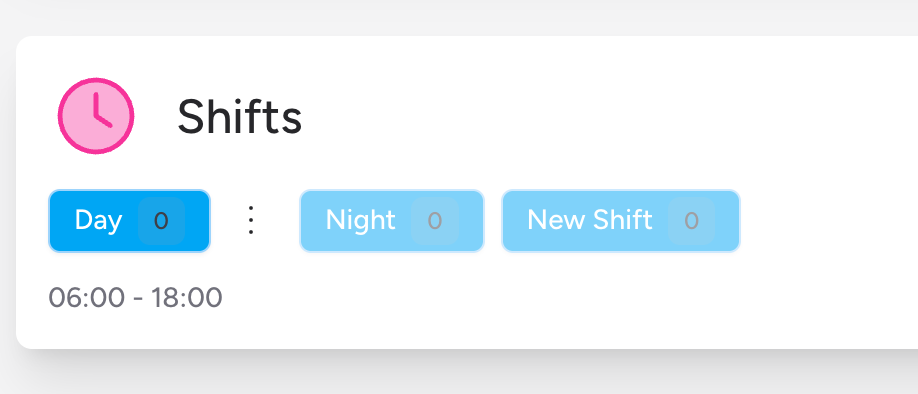
On the event detail page, a Shifts panel appears near the top of the page whenever your event has more than one shift, or when you have permission to edit the event. It contains a row of tab buttons — one per shift.

Each tab button shows:
- The shift name (e.g.,
Silverstone Day 1or01 Mar 2026) - A small count badge showing the number of jobs recorded in that shift
Below the tab row, IndieBase shows the time range for the active shift (e.g., 00:00 - 23:59). If the shift crosses midnight, a note is shown to make that clear.
Switching Between Shifts
Click any shift tab to switch to that shift. The Jobs, Status, and Crews sections all update to reflect the selected shift.
- The active tab is highlighted in the primary colour.
- The previously selected shift is remembered for the duration of your session, so switching to another page and returning will keep you on the same shift.
- When you first load an event page, IndieBase automatically selects the shift that is currently active based on the time now. If no shift is currently live, it defaults to the first shift.
Carry-Over Jobs
If a job was created in an earlier shift but was never marked as done, it automatically appears in any later shift's jobs list. This ensures that a patient from the previous day's shift is not lost during a handover — it stays visible until the job is completed.
Carry-over jobs are flagged clearly with an amber carry-over badge next to the job's status pill.
Hovering over the badge shows a tooltip: "This job was created in an earlier shift and hasn't been completed."
Carry-over jobs behave exactly like any other job in the current shift — you can assign crews, update the status, and mark them as done. Once a carry-over job is marked as done, it will no longer appear in subsequent shifts.
Crews Are Per-Shift
When you create a crew on an event, it is assigned to the currently active shift. This means you can have different crew rosters for different shifts — for example, a different set of responders covering Day 2 of a festival than Day 1.
The Crews section on the event page always shows the crews for the active shift. To see which crews are rostered for a different shift, click that shift's tab first.
When assigning a crew to a job, the Assign Crew dropdown lists only the crews from the currently active shift.
For instructions on creating and editing crews, see Creating Crews in an Event.
Adding a New Shift
Team admins and event admins can add extra shifts to an event at any time.
-
On the event detail page, scroll to the Shifts panel.
-
Click the Add Shift button (the plus icon, top-right of the Shifts panel).
The Add Shift button is only visible to users with the admin team role or the Event Admin designation. If you cannot see it, you don't have the required permission.
-
A new shift is created immediately. It is named
New Shiftand its start time is set to the end time of the last existing shift (or the start of the event day if no other shifts exist). Its end time is set 12 hours after that. -
Click the new New Shift tab to select it, then edit its name and times as described below.
Editing a Shift's Name and Times
Team admins and event admins can edit a shift's name, start time, and end time directly from the event page.
Click the active shift's ⋮ (ellipsis) button and select Edit Shift. A modal opens with the current values pre-filled. Update the name or times and click Save.
For full step-by-step instructions, see Editing and Deleting Shifts.
Deleting a Shift
A shift can only be deleted if it has no jobs logged against it. Shifts with jobs cannot be deleted — you would need to reassign or complete those jobs first.
Deletion follows the same permission rules as creating and editing shifts: team admins and event admins only.
For full step-by-step instructions, see Editing and Deleting Shifts.
Tips & Best Practices
- Check the active shift before logging a job. Jobs are always created in the context of the currently selected shift. Make sure the right shift tab is active before clicking New Job.
- Use carry-over to manage ongoing patients across shifts. If a patient needs care that spans a shift boundary — such as a long transport or overnight observation — simply don't mark the job as done. It will carry forward automatically.
- Set up crews at the start of each shift. Building the crew roster at the beginning of each shift means the Assign Crew dropdown is ready to go when the first calls come in.
- The shift tab bar is hidden on single-shift events. If your event has only one shift and you don't have edit permission, the Shifts panel is not shown. This keeps the screen uncluttered for straightforward deployments.
- Choose your shift pattern at event creation. The shift pattern is set during the event creation wizard and shapes the entire shift structure for the event. Consider your operational requirements before picking — you can add or edit shifts manually afterwards, but starting with the right pattern saves time.
Troubleshooting
The Shifts panel is not visible on the event page.
The Shifts panel is hidden when an event has only one shift and you don't have permission to edit the event. If you're an admin and can't see it, check that the event was created correctly and that at least one shift exists.
I created a new job but it appeared in the wrong shift.
Jobs are always logged against the active shift — whichever tab was selected at the time you clicked New Job. Check which shift was active when the job was created. If the job is in the wrong shift, contact your team administrator, as there is no self-service way to move a job between shifts once it has been created.
A carry-over job is cluttering my current shift's view.
Carry-over jobs appear because the job from the earlier shift has not been completed. Open the job, confirm whether the patient episode is genuinely ongoing, and if it is complete, mark the job as done. It will then stop appearing in subsequent shifts.
The Add Shift button is not visible.
You need either the admin team role or the Event Admin designation for this event. Ask your team administrator to grant the appropriate access, or ask them to add the shift on your behalf.
I can't delete a shift.
Shifts with jobs logged against them cannot be deleted. You would need to mark those jobs as done or have them removed before the shift can be deleted. Contact your team administrator if you're unsure how to proceed.
I can see a "Daily Ops ..." event I didn't create.
This is expected behaviour. IndieBase automatically creates Daily Operations system events (titled Daily Ops DD/MM/YY) to house any jobs that were created outside of a user-created event. You don't need to manage these — they are maintained by the system. See Daily Operations (System Events) above for more detail.
- Setting up a New Event — create an event and choose a shift pattern during the creation wizard
- Creating Crews in an Event — add crews to the active shift
- Creating Jobs in an Event — log a new job against the current shift
- Adding Admins to an Event — grant event-level permissions including shift management
- Information Governance — configure the operational day start hour for your team