 IndieBase

Table of Contents
Creating Jobs in an Event
How to create and manage jobs (incidents) within an active event in IndieBase
Creating Jobs in an Event
A Job in IndieBase is the core record for a call or incident that occurs during an event. Creating a job is typically the first thing you do when a patient needs attention — it's what lets you track the incident, assign a crew to respond, and attach a patient record once care begins.
Overview
Every patient care episode in IndieBase starts with a job. When an incident is reported at your event — whether it's a radio call, a bystander flagging someone down, or a direct request — you create a job to log it. From there you assign a crew to respond, track their progress through the incident, and ultimately attach a patient record containing the clinical documentation.
Jobs sit within events, so all jobs created during a deployment are automatically grouped together for reporting, statistics, and oversight.
Before You Start
- You must be navigated to a specific event — jobs are always created in the context of an event
- Only team admins and designated event admins can create jobs. Standard team members can view jobs but cannot create them from the event page
- Your event should already have at least one crew set up so you can assign the job once it's created — though you can create the job first and assign a crew immediately afterwards
Step-by-Step Guide
Step 1: Open the Event
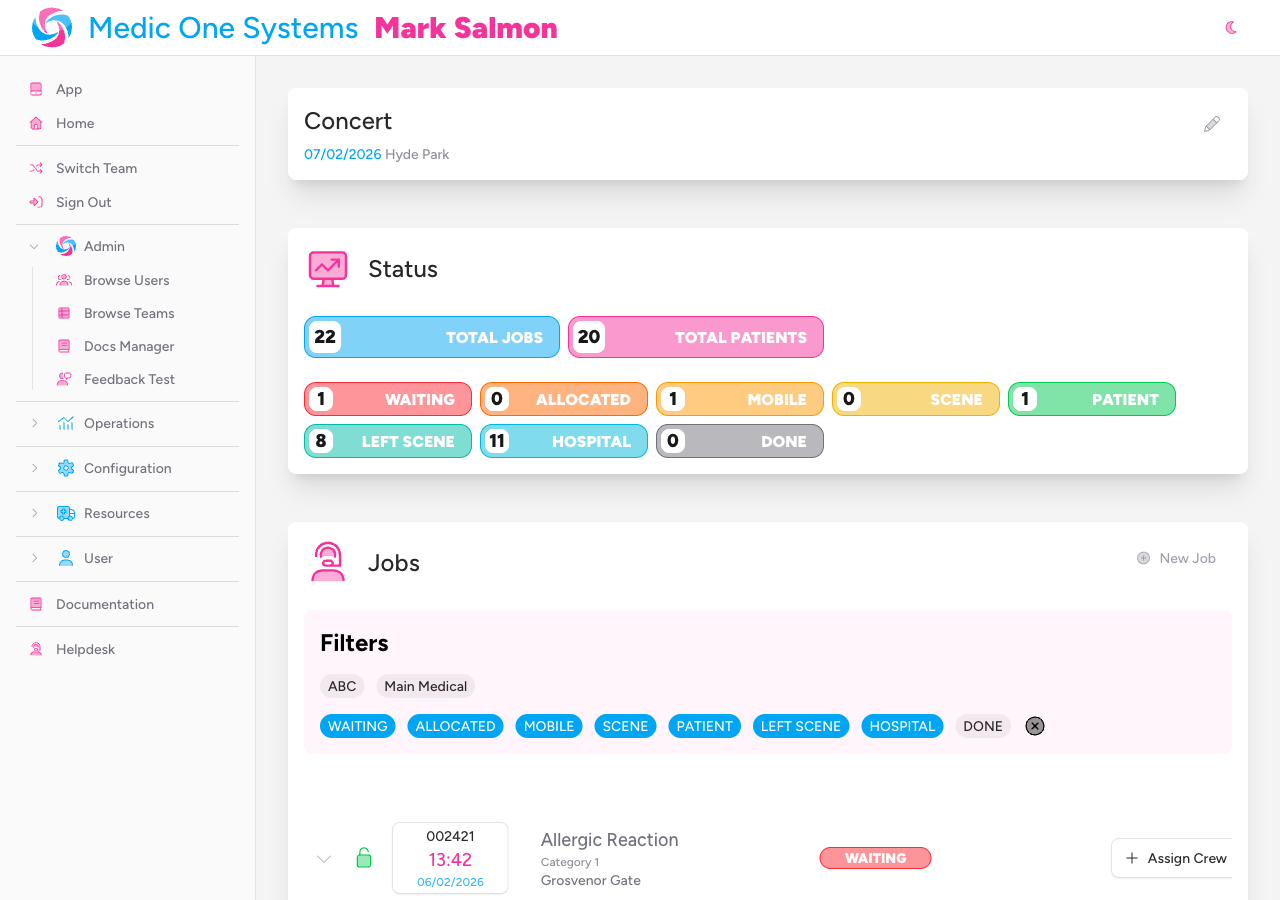
Expand the Operations section in the sidebar, click Events, and select the event you are currently running. This takes you to the event's management page, which shows the status overview, the jobs list, and the crews panel.
Step 2: Open the New Job Form
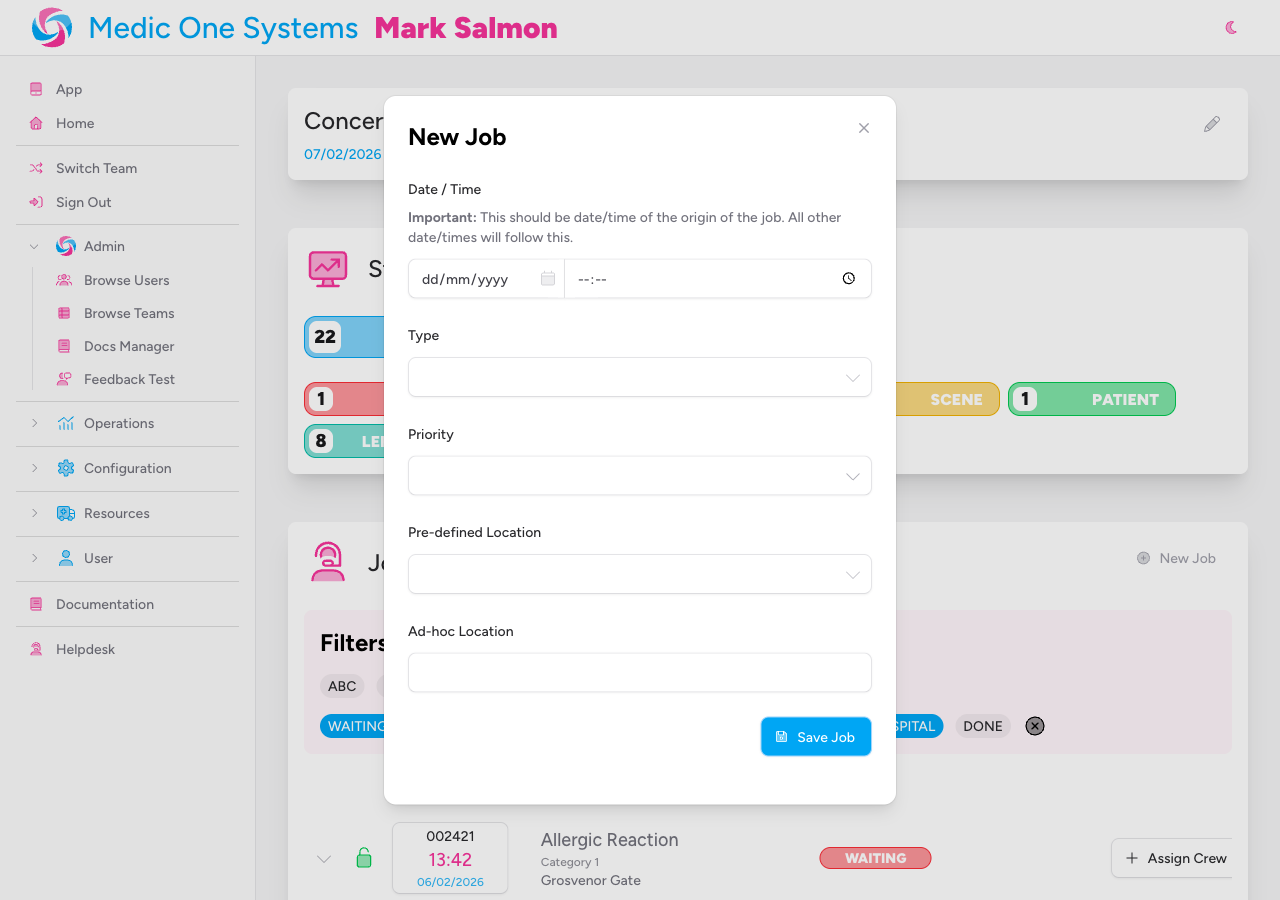
In the Jobs section, click the New Job button. A modal dialogue will appear with the job creation form.
You will only see the New Job button if you have the correct permissions. If the button is not visible, you are not an admin or event admin for this event.
Step 3: Set the Date and Time
The first field in the form is Date / Time. This is the date and time the job originated — for example, when the call was received or when the incident was first reported.
Use the date picker to select the date, then type the time in the time field alongside it.
Important: This date and time is the reference point for the entire job. All crew timestamps (dispatch, mobile, scene, patient contact) are recorded relative to this. Set it as accurately as possible — if you are logging the job retrospectively, use the actual time the call came in, not the time you are typing it up.
Both fields are required. You cannot save the job without a date and time.
Step 4: Select the Job Type
Use the Type dropdown to describe the nature of the incident. This is a searchable list — start typing to filter the options.
The default job types available are:
- Abdominal/Flank pain
- Alcohol Intoxication/Related
- Allergic Reaction
- Assault
- Back Pain
- Bleeding
- Breathing/ENT Problems
- Burns
- Cardiac/Respiratory Arrest
- Chemical Inhalation/Incident
- Chest Pain/Cardiac Problem
- Choking
- Diabetic Problems
- Drowning/Water Incident
- Electrocution/Shock
- Entrapments (non RTC)
- Eye Problems
- Falls <12ft / Falls >12ft
- Fire
- Fitting
- Fracture
- Generally Unwell
- Headache
- Heat/Cold Exposure
- HCP Admission Protocol
- Interhospital transfer
- Limb Pain/Injury
- Maternity Issues
- Mental Health Issues
- Minor Ailment/Injury
- Overdose/Ingestion - Accidental
- RTC variants (Difficult Access, Entrapment, Moderate/Major Injury, No/Minor Injury, Unconscious/Arrest)
- Shot/Stabbing (Central / Peripheral)
- Social/Domestic Issues
- Stroke/Neurological
- Trauma
- Unconscious/Faint
Your team may have a customised list of job types configured — if your list looks different from the above, that is expected and intentional.
Type is a required field.
Step 5: Set the Priority (Optional)
The Priority dropdown lets you indicate the urgency of the call. The default options are:
| Priority | Typical Use |
|---|---|
| Category 1 | Immediately life-threatening |
| Category 2 | Emergency |
| Category 3 | Urgent |
| Category 4 | Less urgent / routine |
Priority is optional — you can leave it blank if your team does not use a priority system, or if the priority is not yet known.
Your team may have configured different priority labels to match your organisation's protocols.
Step 6: Set the Location
Every job needs a location. There are two ways to provide one, and at least one is required.
Option A: Pre-defined Location (Venue Locations)
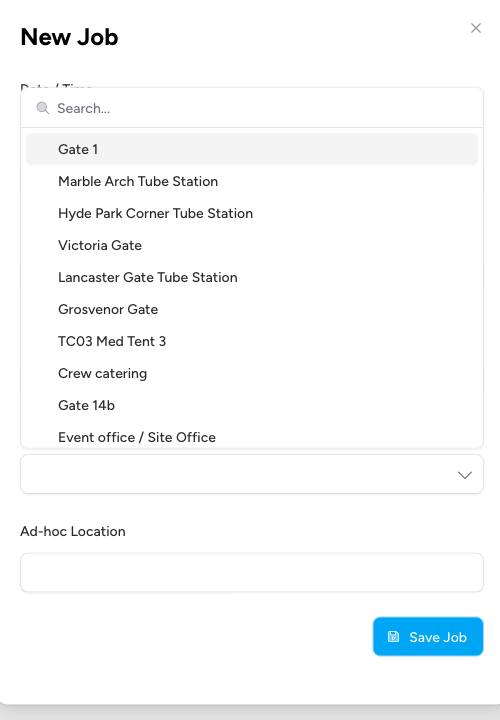
If your event's venue has pre-defined locations set up (sectors, posts, grid references, etc.), you will see a Pre-defined Location dropdown. Select the most appropriate location from the list.
Each option shows:
- The sector (e.g., "South Grandstand", "Campsite A")
- Any notes associated with that location
- The location name
Selecting a pre-defined location automatically populates the GPS coordinates for that point.
Option B: Ad-hoc Location
The Ad-hoc Location field is a free-text input. Type the location as it was described to you — for example, "Gate 3 car park", "Pit lane exit", or "Medical centre".
If your venue has pre-defined locations but the incident has occurred somewhere not on that list, use the Ad-hoc Location field instead. You don't have to use a pre-defined location just because they exist.
If you do not have a venue with locations set up, only the Ad-hoc Location field will appear.
Step 7: Save the Job
Once you have filled in the required fields (date/time, type, and at least one location), click Save Job.
The modal closes and the new job appears at the top of the jobs list on the event page. It will have a job reference number and will show the time you entered.

The job's initial status will be Waiting — meaning no crew has yet been assigned to it.
Assigning a Crew to the Job
Once a job is created, the next step is assigning a crew to respond. In the jobs list, find the new job and use the Assign Crew button on the right-hand side. A dropdown will appear listing all crews registered for this event — select the appropriate crew.
Once assigned, the job status automatically changes to Allocated.

Job Statuses
Job status in IndieBase is calculated automatically based on the timestamps recorded for the assigned crews. You do not set the status manually — it reflects what the crew is actually doing.
| Status | Colour | What It Means |
|---|---|---|
| Waiting | Red | Job created, no crew assigned yet |
| Allocated | Orange | A crew has been assigned (dispatch time recorded) but has not yet gone mobile |
| Mobile | Amber | At least one crew has a mobile time recorded — they are en route |
| Scene | Yellow | At least one crew has an on-scene time recorded — they have arrived |
| Patient | Green | A crew has a patient-contact time recorded — active treatment is underway |
| Left Scene | Teal | The patient has a departure time recorded but was not conveyed to hospital |
| Hospital | Cyan | The patient has a hospital arrival time recorded |
| Done | Grey | The job has been marked as complete |
Status progresses through this sequence as crew time fields are populated. The job automatically moves forward when the next timestamp is recorded — there is no manual status button to press.
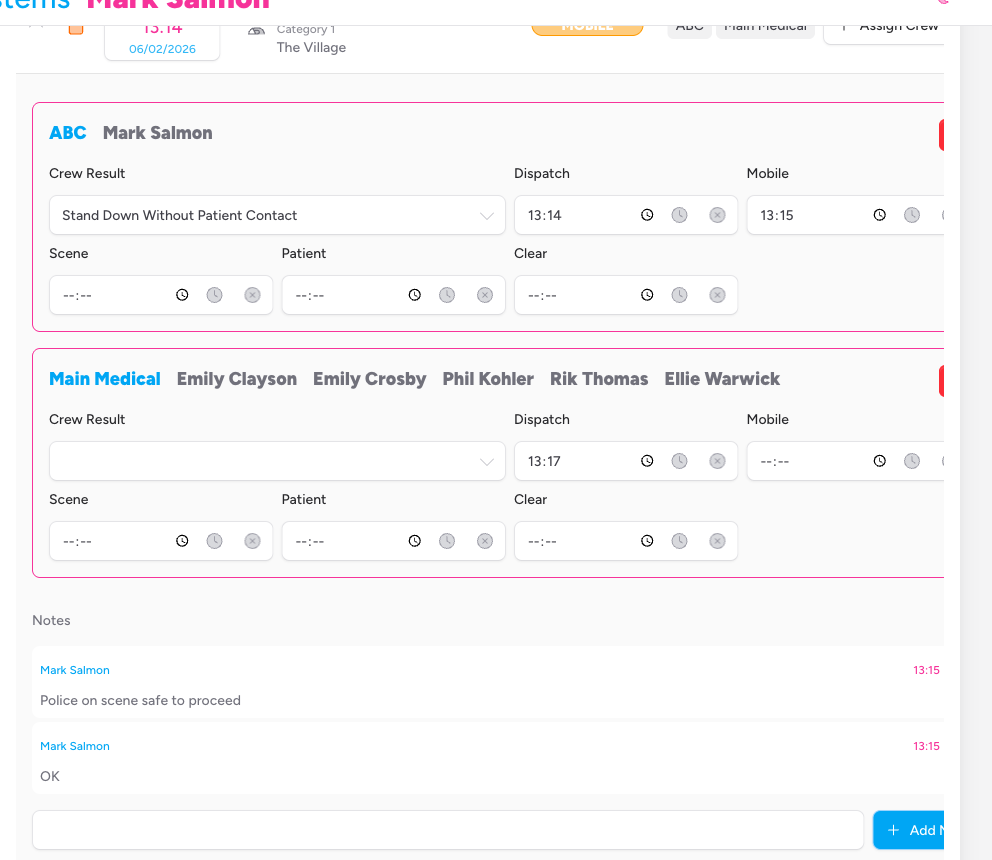
Crew timestamps (dispatch, mobile, scene, patient contact, clear) are recorded from within the job's expanded view on the event page. Click the chevron next to any job to expand it and access the crew timing controls.
Expanding a Job: Crew Timing and Notes
Clicking the chevron (▾) button on any job row expands a detail panel beneath it. This panel contains:
Crew Timing
For each crew assigned to the job, you can record the key timestamps that drive status changes:
| Field | What It Records |
|---|---|
| Dispatch | When the crew was notified and dispatched |
| Mobile | When the crew started moving towards the scene |
| Scene | When the crew arrived at the incident location |
| Patient | When the crew made first contact with the patient |
| Clear | When the crew cleared the scene and became available |
You can type a time directly into each field, or click the clock icon (now) to insert the current time instantly. Use the × button to clear a timestamp if it was entered in error.
Pressing N on your keyboard while a time field is focused will also insert the current time — a handy shortcut when working at speed during a busy incident.
You can also record a Crew Result for each assigned crew:
- Stand Down Before Mobile
- Stand Down Before Scene
- Stand Down Without Patient Contact
- Patient Treated
- Patient Conveyed
Notes
The job detail panel also includes a Notes section where any team member can add free-text notes to the job. Notes are timestamped and attributed to the person who added them. They are visible to anyone who can view the job.
To add a note, type in the notes field and click Add Note, or press Cmd/Ctrl + Enter.
Tips and Best Practices
- Create the job as soon as the call comes in. Even if you do not have all the details yet, getting the date and time right is the most important thing. You can update the type and location once the job is created.
- Use the correct call time. The date and time field represents when the incident was reported or the call was received — not when you opened IndieBase to log it. If you are a few minutes behind, enter the actual call time.
- Pre-defined locations speed things up. If your venue has locations configured, using them is much faster than typing an ad-hoc location, and ensures consistent reporting data.
- Assign a crew promptly. A job sitting in Waiting status means no one has been dispatched. At busy events, keep an eye on unassigned jobs.
- Use the "now" shortcut for timing. When the crew radios in that they're mobile, on scene, or with the patient, hit the clock icon immediately to capture the accurate time rather than typing it in later.
Troubleshooting
I can't see the New Job button. You do not have edit permissions for this event. Job creation requires team admin role or event admin designation. Contact your team administrator if you believe this is an error.
The Pre-defined Location dropdown is not showing. Your event's venue either does not have pre-defined locations set up, or the event is not linked to a venue with locations. Use the Ad-hoc Location field instead. Pre-defined locations are configured in the venue settings under your team's administration area.
I saved the job but it's not appearing in the list. Check whether a status filter is active — the jobs list can be filtered by status. If you have, for example, only "Done" selected, newly created jobs (which start as "Waiting") will not appear. Click the × next to the filter or reset the filter to see all statuses.
I entered the wrong time. You can edit the event page and update the job's call time. If you need to correct crew timestamps, expand the job using the chevron, find the relevant time field, and type the correct time.
The job type I need is not in the list. Job types are configured per team. Ask your team administrator to add the required job type via the team configuration settings.
- Filling In the Patient Record — How to complete the clinical documentation once a patient has been added to a job