 IndieBase

Table of Contents
Configuring Patient Feedback
How to set up and manage your team's patient feedback questionnaire, including activating feedback collection and customising the questions your patients receive.
Configuring Patient Feedback
IndieBase can automatically send a feedback questionnaire to patients by email after a job is marked as done — giving your team a straightforward way to capture patient satisfaction data.
Overview
The feedback system lets your team collect structured responses from patients after they've been cared for. You configure the questions once, and IndieBase handles the rest — sending the questionnaire email automatically when a job is completed, provided the patient has given consent and has a valid email address recorded.
Feedback configuration is per-team, so your questions, answer options, and activation status are entirely independent of other teams on the platform.
Before You Start
- You must be a team administrator to access feedback configuration. Team members will not see this option in the sidebar.
- Feedback collection requires an active subscription. If you do not see Feedback Config in the sidebar, check your team's subscription status.
- Before going live, make sure your team's patient consent workflow is in place. Feedback emails are only sent to patients who have explicitly given their consent.
Accessing the Feedback Configuration Page
From the sidebar, expand the Configuration section and click Feedback Config.
This takes you to the Feedback Configuration page for your team.
If your team does not yet have a feedback configuration, the page will show a No feedback configurations found message with a Create Feedback Configuration button. Click it to create your team's initial configuration using the default question set.
Activating and Deactivating Feedback
At the top of the Feedback Configuration page is a toggle with two options: Inactive and Active.
- Inactive — No feedback emails will be sent to patients, regardless of their consent status or job completion. This is the default state for a new configuration.
- Active — Feedback emails may be sent when the conditions are met (see When Feedback Emails Are Sent below).
Click either option to switch between them. The change saves automatically.
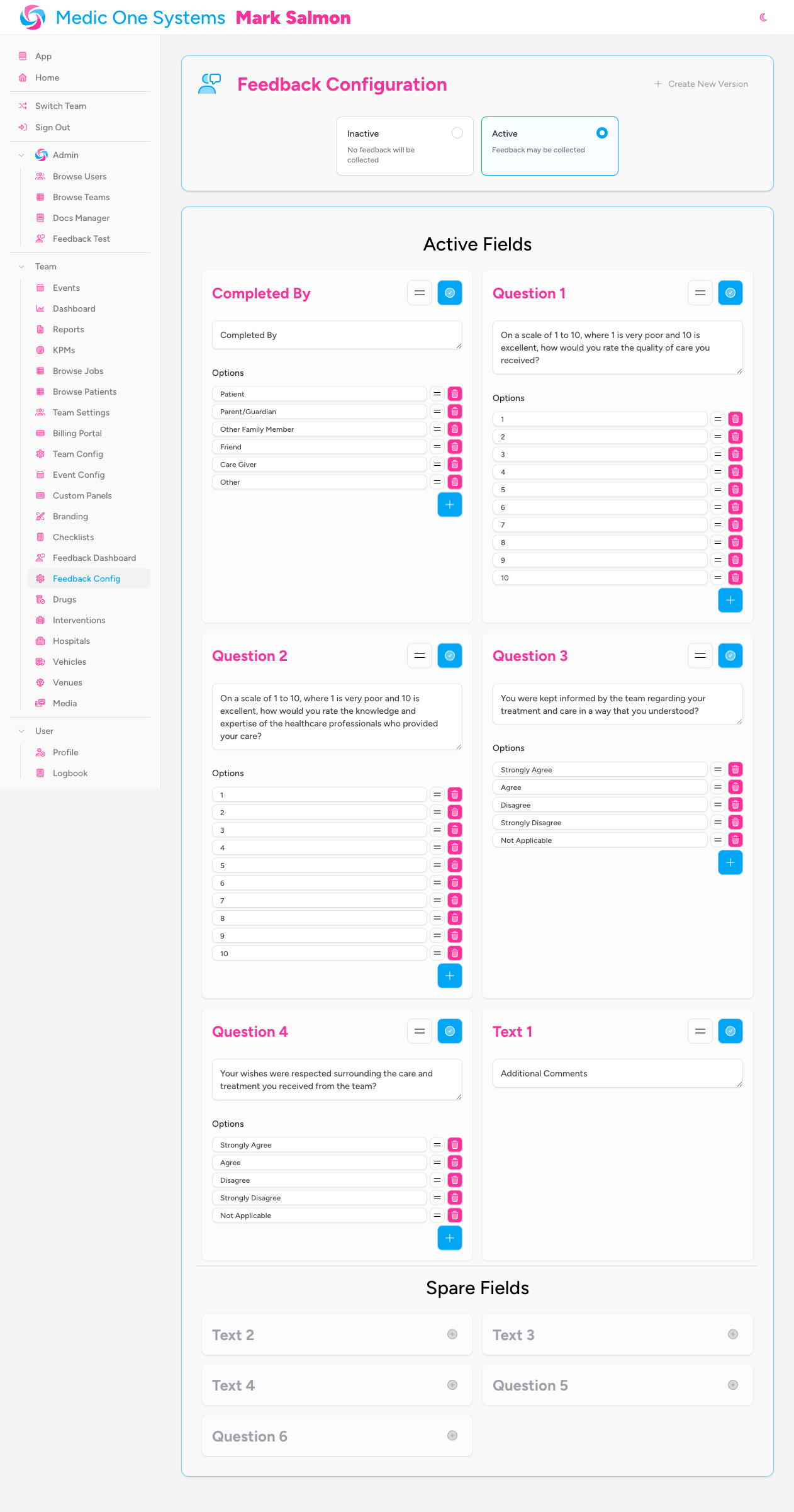
Toggling between Active and Inactive does not create a new configuration version. It is a simple administrative switch and has no effect on historical feedback data.
Configuring Questions
Questions are only visible when your feedback configuration is set to Active. Switch to Active to see and edit the question panels.
The question configuration area is split into two sections: Active Fields and Spare Fields.
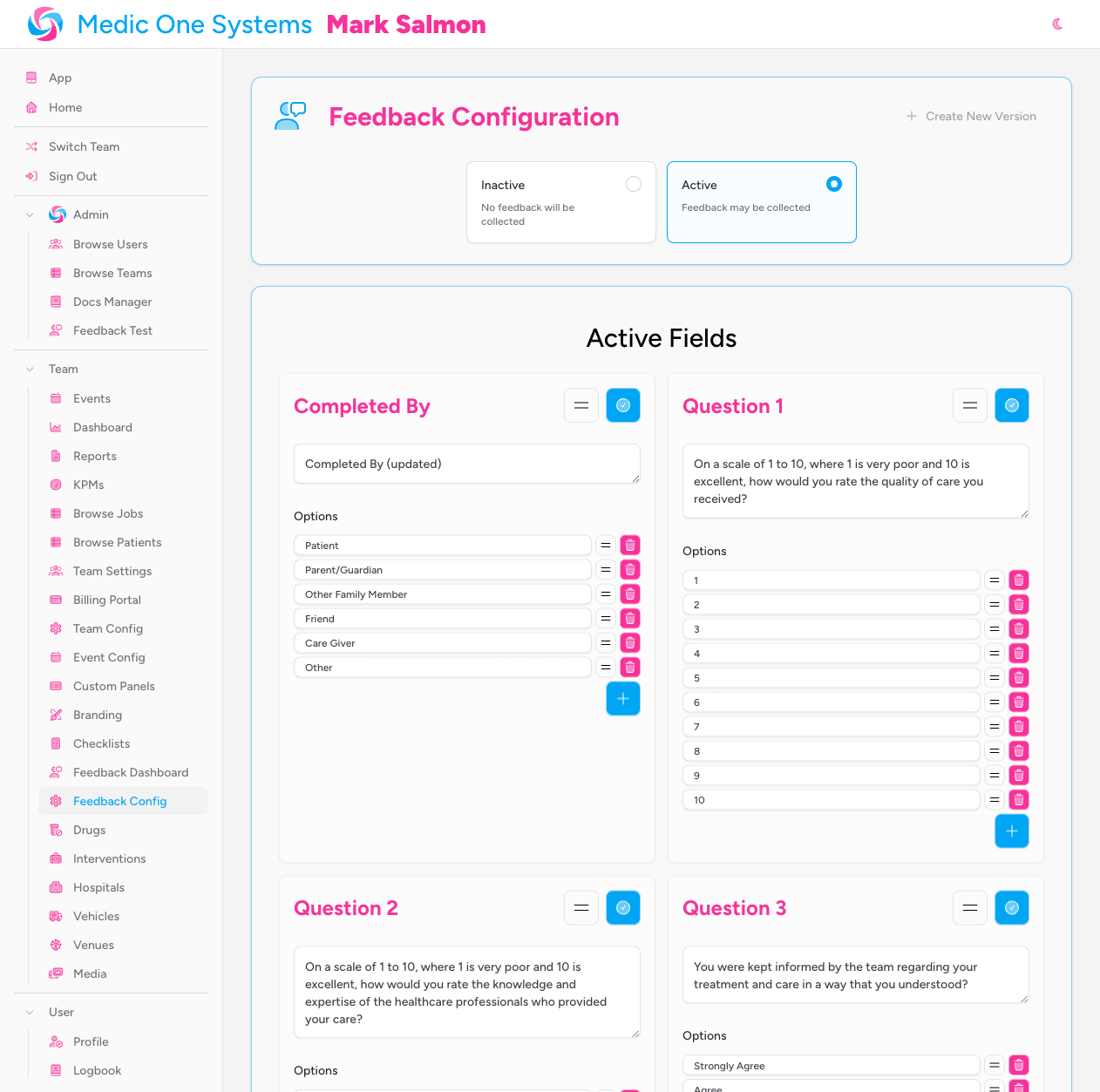
Active Fields
Active Fields are the questions that will be shown to patients in the feedback questionnaire. Each question appears as a card containing:
- The field name — displayed in the card header as a title (for example, "Question 1", "Completed By").
- The question text — a text area where you write or edit the question as the patient will see it.
- Options — the selectable answer choices for the question (not all fields have options — free-text fields do not).
Editing a question
Click into the text area beneath the field name and type your updated question wording. Changes are saved automatically when you click away from the text area.
Be careful when rewording questions. If you change the text of a question that has already had responses collected against it, IndieBase will detect this as a breaking change and ask you to confirm a new version. See Config Versioning for details.
Editing answer options
For questions with multiple-choice answers, the options are listed beneath the question text. You can:
- Edit an option — click into the option's input field and type your replacement text.
- Add an option — click the + button at the bottom-right of the options list to append a new empty option, then type the option text.
- Remove an option — click the bin icon to the right of any option to delete it. The bin icon is disabled if only one option remains — each question must have at least one option.
- Reorder options — drag the grip handle (the horizontal lines icon) next to any option up or down to change the order in which options are presented to patients.
Reordering questions
Drag the grip handle in the top-right corner of any question card to reorder the questions. The order you set here is the order patients will see the questions in the questionnaire.
Reordering questions does not count as a breaking change and will not trigger a new config version.
Spare Fields
Spare Fields are questions that are configured in the system but currently hidden from the questionnaire. They appear greyed out below the Active Fields.
To enable a Spare Field, click the + (Enable field) button on the field card. The field will move into the Active Fields section at the end of the current question order.
To hide an Active Field, click the tick (Disable field) button in the top-right of any active question card. The field moves into the Spare Fields section and will no longer appear in the questionnaire.
The default configuration includes Question 5, Question 6, and several free-text fields (Text 2, Text 3, Text 4) as spare fields. These are pre-built placeholders you can customise and enable whenever you need additional questions.
Config Versioning
IndieBase keeps a history of your feedback configurations so that the dashboard can always show you accurately grouped results. When you change the wording of a question, the system detects this as a breaking change — because a patient who answered under the old wording and a patient who answered under the new wording may not be directly comparable.
What triggers a new version
Only one type of change creates a new config version: changing the label (question text) of a visible question.
Everything else — adding or removing answer options, reordering questions, hiding or showing fields, toggling Active/Inactive — is saved in place without creating a new version.
The confirmation modal
When IndieBase detects a breaking change, saving your edits will trigger a Create new feedback version? modal.
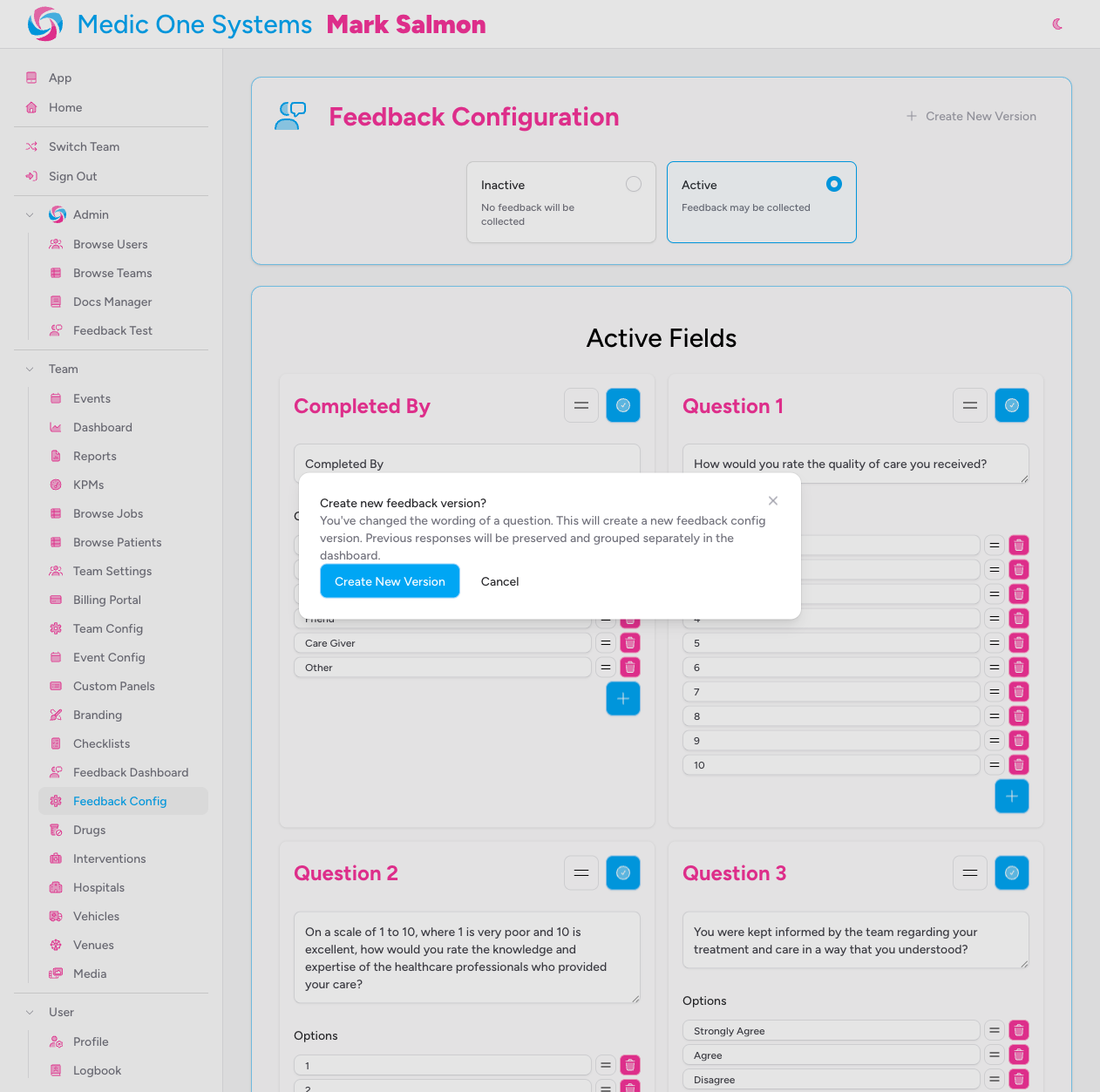
You have two choices:
- Create New Version — confirms the change and saves your edited config as a new version. Future feedback responses will be collected under this new version. Historical responses remain grouped under the previous version in the dashboard.
- Cancel — dismisses the modal and reverts your edits back to the saved config. No changes are made.
Creating a new version manually
You can force a new config version at any time — without changing any question wording — by clicking the Create New Version button in the top-right corner of the Feedback Configuration page. A confirmation prompt will appear before the version is created.
This is useful if you want to start a clean period of data collection mid-event, or to mark a significant point in time in your response history.
Viewing historical versions in the dashboard
If your team has more than one config version, the Feedback Dashboard will show a Config Version dropdown. Use this to switch between versions and view the responses collected under each.
When Feedback Emails Are Sent
For a feedback email to be sent automatically, all three of the following conditions must be true on the patient record at the point the job is marked as done:
| Condition | Where to set it |
|---|---|
| Team feedback config is set to Active | This page |
| Patient has a valid email address recorded | Patient Details panel in the job |
| Patient has given consent for feedback | Patient Details panel in the job — the consent toggle |
If any of these conditions are not met, no email is sent. The system will not retry — so make sure the patient's details are complete before marking the job as done.
If the patient's details panel shows the notice "Feedback questionnaire will be sent when job is marked as done", all three conditions are met and the email will be sent automatically when you tap Job Done.
A feedback email is only ever sent once per patient. If a job is reopened and marked as done again, the system will not send a second email.
Tips & Best Practices
- Start inactive. Set up and review your questions before switching to Active. You can refine the wording, add options, and adjust the order without any risk of accidentally sending emails.
- Use Spare Fields as drafts. Write your question text in a Spare Field first, check it reads well, then enable it. This lets you prepare questions without showing them to patients prematurely.
- Plan your question changes carefully. Each label change on a visible question creates a new config version and splits the dashboard data. If you are making multiple wording changes at once, save them all together — the system will still only create one new version per save.
- Keep question wording neutral. Avoid leading language in questions. The data you collect is only useful if the questions are balanced and unambiguous.
- Ensure consent is part of your workflow. The consent toggle and email field on the Patient Details panel are the gatekeepers for feedback collection. Build checking these into your standard patient documentation routine.
Troubleshooting
I cannot see the Feedback Config option in the sidebar. Feedback configuration requires an active subscription. If your team's subscription has lapsed, this section will not appear. Contact your team owner or check your billing settings.
Patients are not receiving feedback emails. Check all three conditions are met: your config must be Active, the patient must have a valid email address, and the patient must have feedback consent recorded as given. If any of these were missing when the job was marked as done, the email will not be sent — and will not be sent retroactively.
I changed a question and now the dashboard shows two separate data sets. This is expected behaviour. Changing the wording of a visible question creates a new config version, and the dashboard groups responses by version. Use the Config Version selector on the dashboard to view each version's data. If this was accidental, you cannot merge versions, but you can revert the question wording — though that will create a third version rather than restoring the original.
The Create New Version button created a version I didn't intend. Versions cannot be deleted, but they will only appear in the dashboard version selector if they have responses. An empty version has no impact on your data. Simply continue using the current (latest) version.
The question text area is not saving my changes. Click away from the text area to trigger the save (changes save on blur, not on each keystroke). If you see the version confirmation modal appear, it is because your change was detected as a breaking change — follow the modal prompts to either confirm or cancel.