 IndieBase

Table of Contents
Adding Admins to an Event
Grant trusted team members admin control over a specific event without giving them full team admin rights
Adding Admins to an Event
Grant trusted team members admin control over a specific event without giving them full team administrator rights.
Overview
Event admins are team members you've specifically authorised to manage a particular event. This is useful when you want someone — a clinical lead, a logistics coordinator, or a senior medic — to have full control over a single event without needing to make them a team administrator.
Once assigned as an event admin, that person can edit the event's details, create jobs, and manage crews for that event only. They cannot manage other events unless you explicitly assign them to those too.
Before You Start
- You must be a team administrator to add or remove event admins. Regular team members cannot access this feature.
- The event must already exist. See Setting Up a New Event if you haven't set one up yet.
- The person you want to assign must already be a member of your team. If they're not on the team yet, add them first — see Definition of User.
What Can an Event Admin Do?
An event admin has the following permissions for the specific event they've been assigned to:
| Action | Event Admin | Regular Member |
|---|---|---|
| Edit event details (title, date, type, venue) | Yes | No |
| Create and manage jobs | Yes | No |
| Create and manage crews | Yes | No |
| View the Events section | Yes | No |
| Add or remove other event admins | No | No |
| Access other events on the team | No (unless assigned) | No |
Important: Event admins can only see the events they've been assigned to. A regular team member who isn't an event admin on any event won't see the Events section in the sidebar at all. Team administrators always see all events.
Step-by-Step Guide
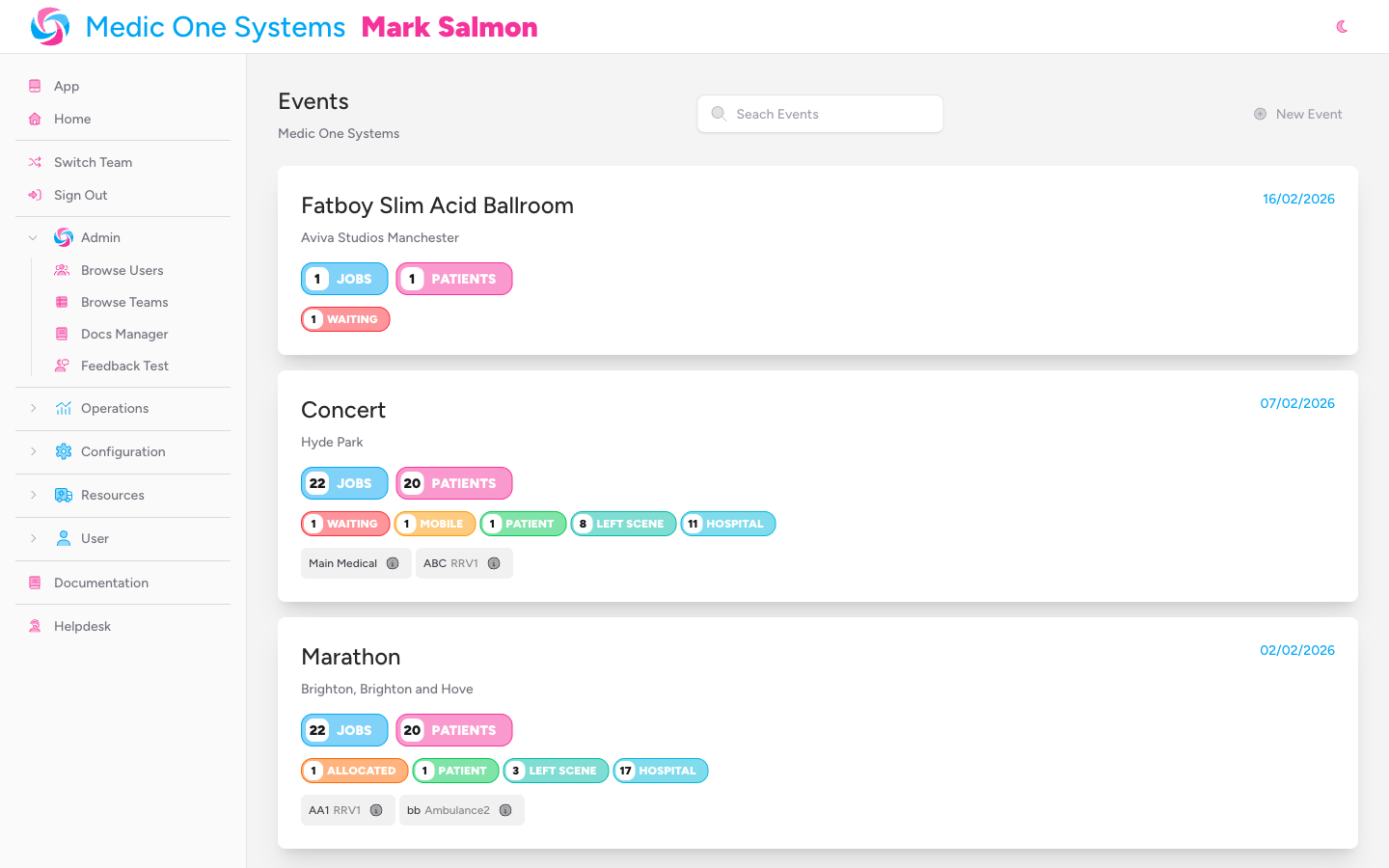
From the sidebar, expand the Operations section and click Events, then click on the event you want to manage.
Step 2: Locate the Event Admins Section
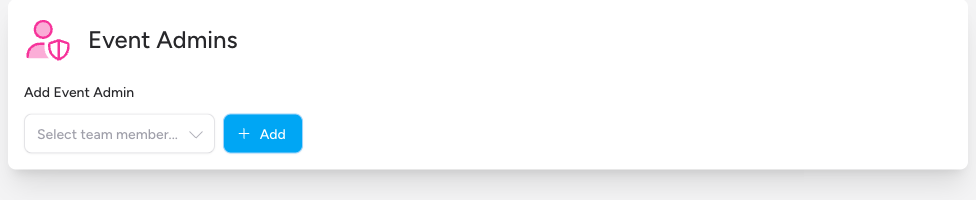
Scroll down the event page past the Jobs and Crews sections. At the bottom of the page, you'll see the Event Admins section — identifiable by the shield icon.
This section is only visible to team administrators. If you can't see it, your account doesn't have the team admin role.
Step 3: Select a Team Member to Add
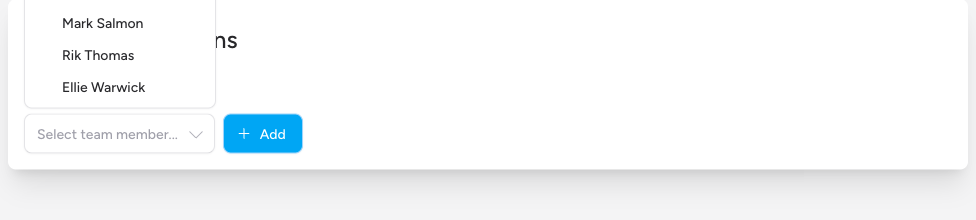
The Add Event Admin field is a searchable dropdown labelled Add Event Admin. Click it and start typing a name to filter the list, or scroll through it to find the person you want to assign.
The list only shows team members who aren't already event admins for this event, sorted alphabetically by surname.
Step 4: Click Add
Once you've selected a name, click the Add button to the right of the dropdown.
The new event admin's name immediately appears as a pill badge in the Event Admins section above the dropdown.
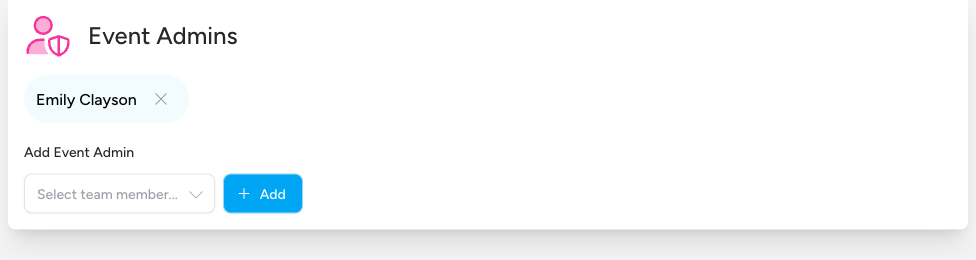
That's it. The person can now log in and access this event with admin privileges.
Removing an Event Admin
To remove someone as an event admin, click the × button on their name badge in the Event Admins section. You'll see a confirmation prompt asking you to confirm the removal before it takes effect.
Once confirmed, their name is removed from the badges list, and they'll lose admin access to the event immediately.
Removing someone as an event admin doesn't remove them from the team or from any crews they belong to. It only removes their elevated event management permissions.
Tips & Best Practices
- Assign event admins before the event day. Give them time to familiarise themselves with the event setup — crews, jobs, and venue details — ahead of the day itself.
- Keep the list short. Assign only the people who genuinely need to manage the event. The fewer people with elevated access, the easier it is to maintain accountability.
- Event admins cannot add other event admins. If someone needs to delegate further, they'll need to come back to a team admin to do so.
- Clean up after the event. There's no automatic expiry on event admin assignments. Once an event is complete, consider removing event admins who no longer need access.
Troubleshooting
I can't see the Event Admins section on the event page.
Only team administrators can see and use this section. If you don't see it, your account has the member role, not the admin role. Ask your team administrator to either promote your account or add the event admin directly themselves.
A team member isn't showing in the dropdown.
The dropdown only lists current team members. If the person you're looking for isn't listed:
- Confirm they have an IndieBase account.
- Confirm they've been added to your team. See Definition of User.
- If they're already an event admin for this event, they'll be excluded from the list (they're already assigned).
The person I assigned says they can't see the Events section.
Ask them to refresh the page or log out and back in. Event admin permissions apply immediately, but a browser refresh is sometimes needed to reflect the change in the sidebar navigation.
- Setting Up a New Event — Set up an event before assigning admins
- Definition of User — Add people to your team so they can be assigned as event admins