 IndieBase

Table of Contents
Definition of User
What a user account is in IndieBase, how it relates to team membership, and what a user can do in the system.
Definition of User
A user is the individual behind an IndieBase account. One account, one person — but that person can belong to multiple teams, hold different roles in each, and work across both team operations and personal solo jobs.
Overview
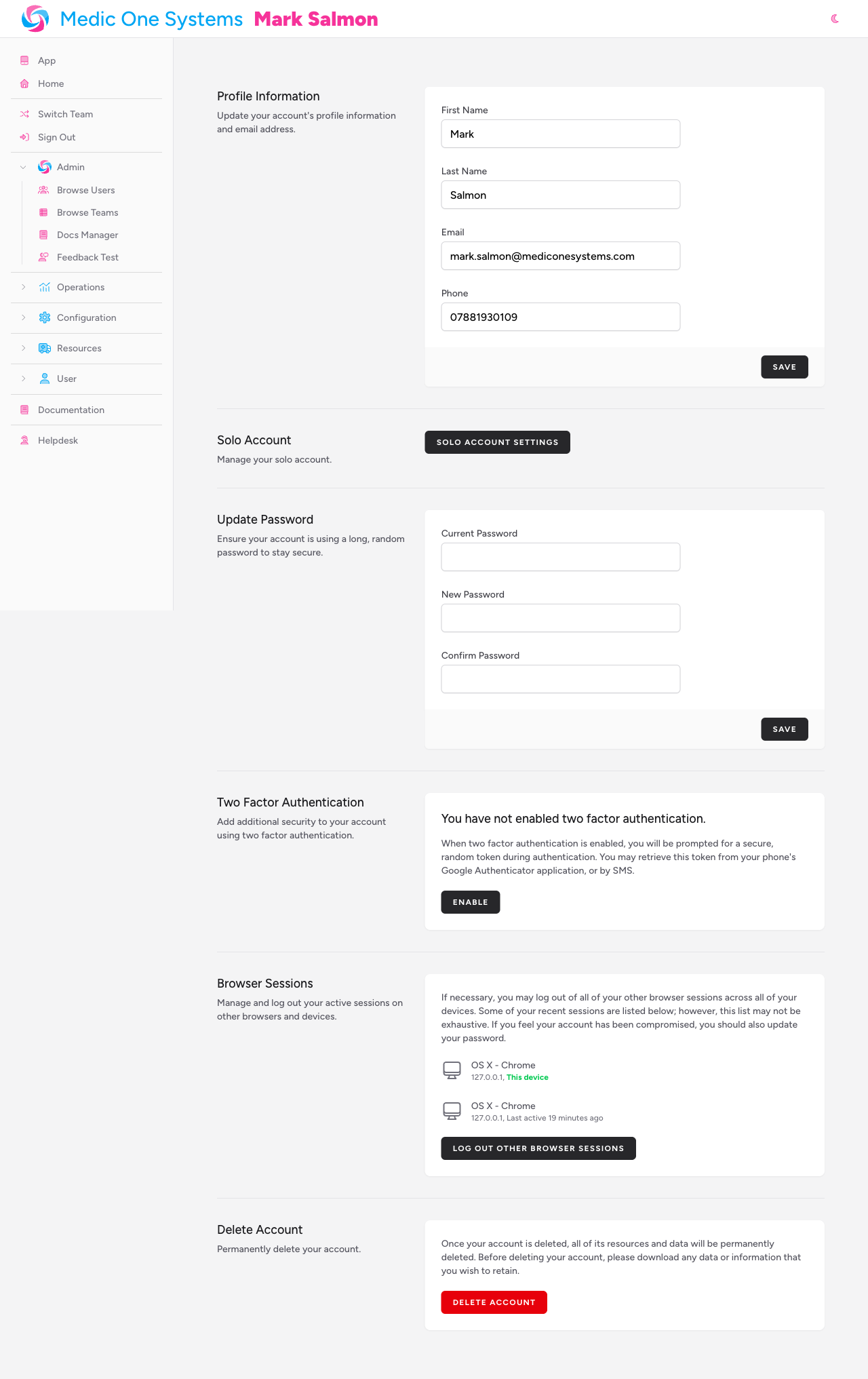
In IndieBase, your user account is your identity across the entire platform. It holds your name, email address, profile photo, and contact details. It's also where your security settings live — password, two-factor authentication, and active sessions.
Your account is separate from team membership. Registering gives you an IndieBase account; being invited to (or creating) a team is what lets you start working with patient records, events, and jobs. You can belong to as many teams as you like, and your account remains the same across all of them.
Because IndieBase handles sensitive medical data, all accounts require email verification before you can access the system. Some teams also enforce two-factor authentication — in which case you'll be prompted to set it up before you can access that team's data.
Before You Start
- To use IndieBase, you need a registered account with a verified email address.
- You must belong to at least one team to access jobs, events, and patient records.
- If you've been invited to a team, you'll receive an email invitation — accepting it creates your account (if you don't have one) and adds you to the team in a single step.
Your Account
When you register, IndieBase creates a personal account with:
- First and last name — used across the app and in crew assignments
- Email address — your login and the address used for notifications and invitations
- Phone number (optional) — used for SMS-based two-factor authentication if you enable it
- Profile photo — shown to teammates and on crew records
Your account also has a personal team created automatically when you first register. This is the home for your solo jobs — jobs you create and manage independently, outside of any organisation's team structure.
Users and Teams
Signing up for an account doesn't automatically put you inside an organisation. You become part of a team either by:
- Creating a team — you become its owner with full administrator access
- Accepting an invitation — a team administrator sends you an email invitation; accepting it links your account to their team
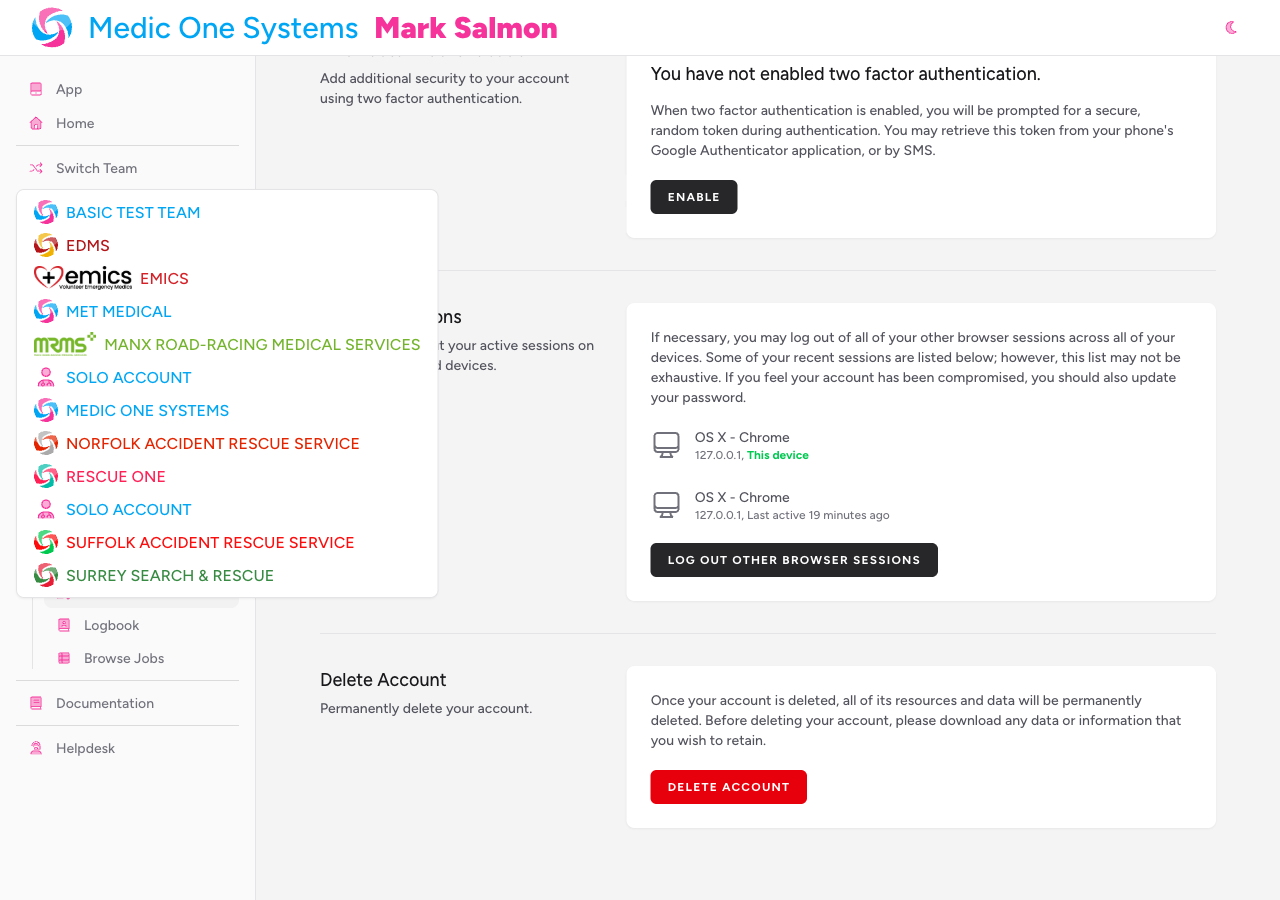
You can belong to multiple teams at the same time. When you sign in, IndieBase loads your current team — you can switch between your teams at any point from the team switcher in the navigation.
Roles and permissions
Every team membership has a role attached to it — either Member or Administrator.
| Role | What you can do |
|---|---|
| Member | Read, create, and update records within the team |
| Administrator | Everything a Member can do, plus delete records and manage team settings, members, and billing |
The team owner (the person who created the team) always has administrator-level access.
Clinical role
In addition to the system role above, each membership also has an optional clinical role. This is separate from permissions — it's a professional classification that appears on crew records and in reports. The available clinical roles are:
- Doctor / Consultant
- Paramedic
- Newly Qualified Paramedic (NQP)
- Nurse
- Ambulance Technician (EMT)
- Associate Ambulance Practitioner (AAP)
- Emergency Care Assistant (ECA/ECSW)
- Community First Responder (CFR)
- First Aider
- Student Paramedic
A team administrator sets your clinical role when they manage your membership.
What a User Can Do
What you can see and do in IndieBase depends on the team you're currently active in and your role within it. In general:
- All users can view jobs and events, add patients to jobs they're crewed on, complete patient records, and access their personal logbook.
- Administrators can also create and delete jobs and events, manage team members, configure team settings, and manage billing.
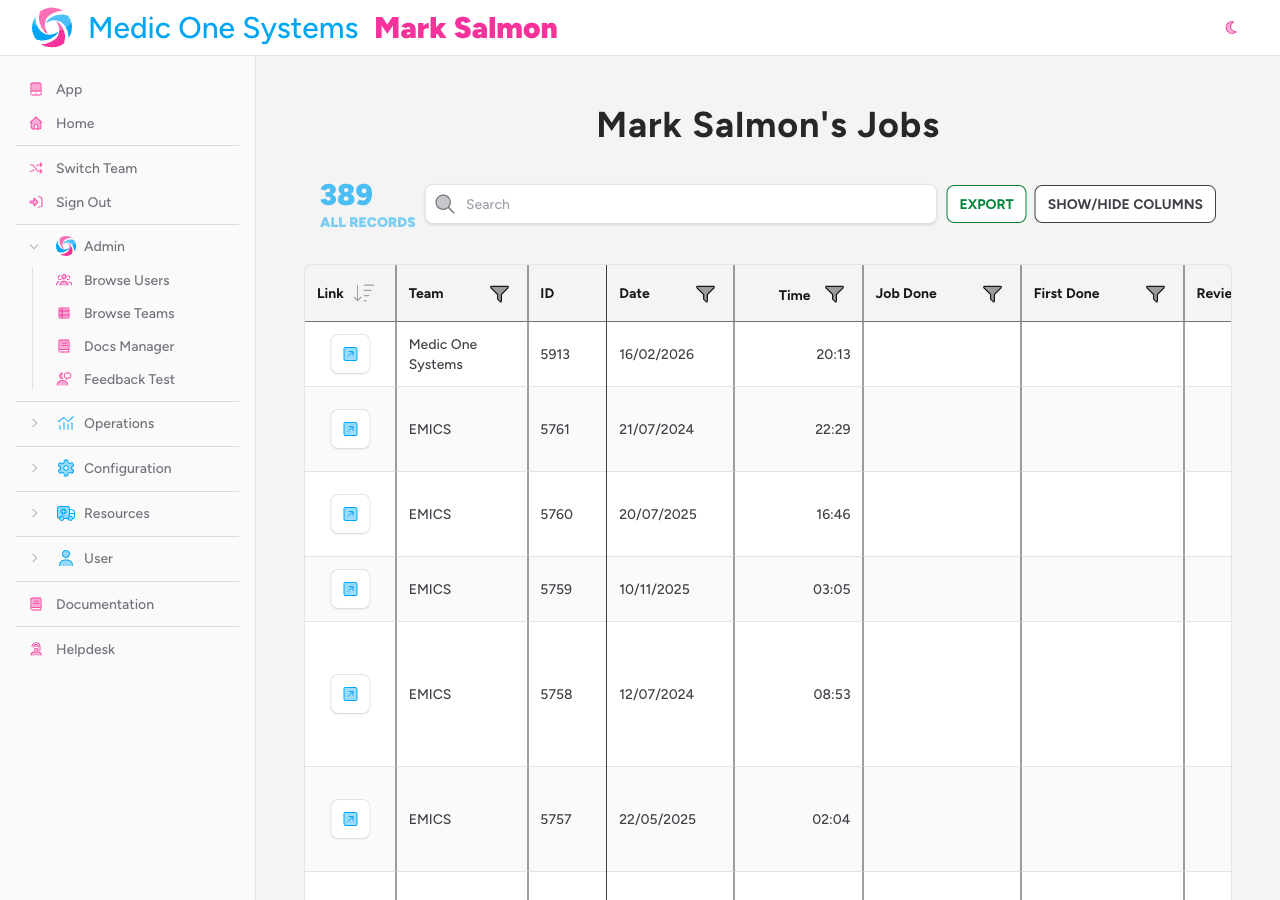
Outside of team operations, you can always access your solo jobs — personal patient records tied to your individual account rather than any team. These are useful for private work, training scenarios, and independent contractor jobs.
Tips & Best Practices
- Use a professional email address — it appears in notifications sent to your team and in exported reports.
- Set up two-factor authentication proactively, even if your team doesn't require it. IndieBase handles sensitive patient data and 2FA significantly reduces the risk of unauthorised access. You can use an authenticator app or SMS if you've added a phone number.
- Keep your clinical role up to date — ask your team administrator to update it if your qualifications change. It appears on patient records and in clinical governance reports.
- Switch teams deliberately — make sure you're in the right team context before creating jobs or patient records. Records are always attached to the current team.
Troubleshooting
I've registered but can't access any jobs or events. You need to belong to a team to access team records. Either create a new team or ask the administrator of an existing team to send you an invitation. Your personal team (created automatically on registration) gives you access to solo jobs in the meantime.
I was invited to a team but the invitation link didn't work. Invitation links expire after a period of time. Ask the team administrator to resend the invitation. Make sure you're signing in with the same email address the invitation was sent to.
I can see some features but not others in my team. Some features — such as events, custom panels, and checklists — are only available on paid subscription plans. If you expect to see something that isn't there, check with your team administrator about the team's current plan.
My team administrator says I'm a Member but I need to delete a record. Delete permissions are reserved for Administrators. Ask your team administrator to update your role if that level of access is appropriate for your position.
- User Profile & Logbook — managing your personal details, photo, and viewing your clinical activity history
- Your Solo Jobs — creating and managing jobs outside of team operations
- Account Settings — password, two-factor authentication, and session management
- Subscription — how your team's subscription affects what features are available