 IndieBase

Table of Contents
Retrieving a PRF from the Portal
How an external clinician uses a reference code to securely retrieve and download a Patient Report Form from the portal.
Retrieving a PRF from the Portal
If a medical team has shared a patient report with you via the portal, this guide explains how to retrieve and download it using the reference code they provided.
Overview
The PRF Portal is a secure, public-facing page that lets external clinicians — such as hospital doctors or receiving nurses — download a patient's report form without needing an IndieBase account.
To access a report you will need:
- The portal URL (the web address of the portal page)
- The reference code (three groups of letters and numbers, for example K7PX-9QF2-RM4T)
- The confirming detail — either the patient's date of birth or a pass phrase given to you by the team
The team who sent the link can also tell you these details, typically via a handover message or phone call.
Before You Start
- You need a modern web browser. No IndieBase account is required.
- The link has a time limit — if too much time has passed since it was created, it will no longer work. Contact the team to request a new link.
- You have five attempts to enter the confirming detail correctly. After five wrong attempts the link is locked and cannot be used again.
Step-by-Step Guide
Step 1: Open the portal page
Open the portal URL in your browser. The team will have sent you this as part of their handover message, typically in the format:
Portal: https://[portal-address]/prf · Code: K7PX-9QF2-RM4T · They'll need the patient's date of birth
Navigate to the URL shown after "Portal:".
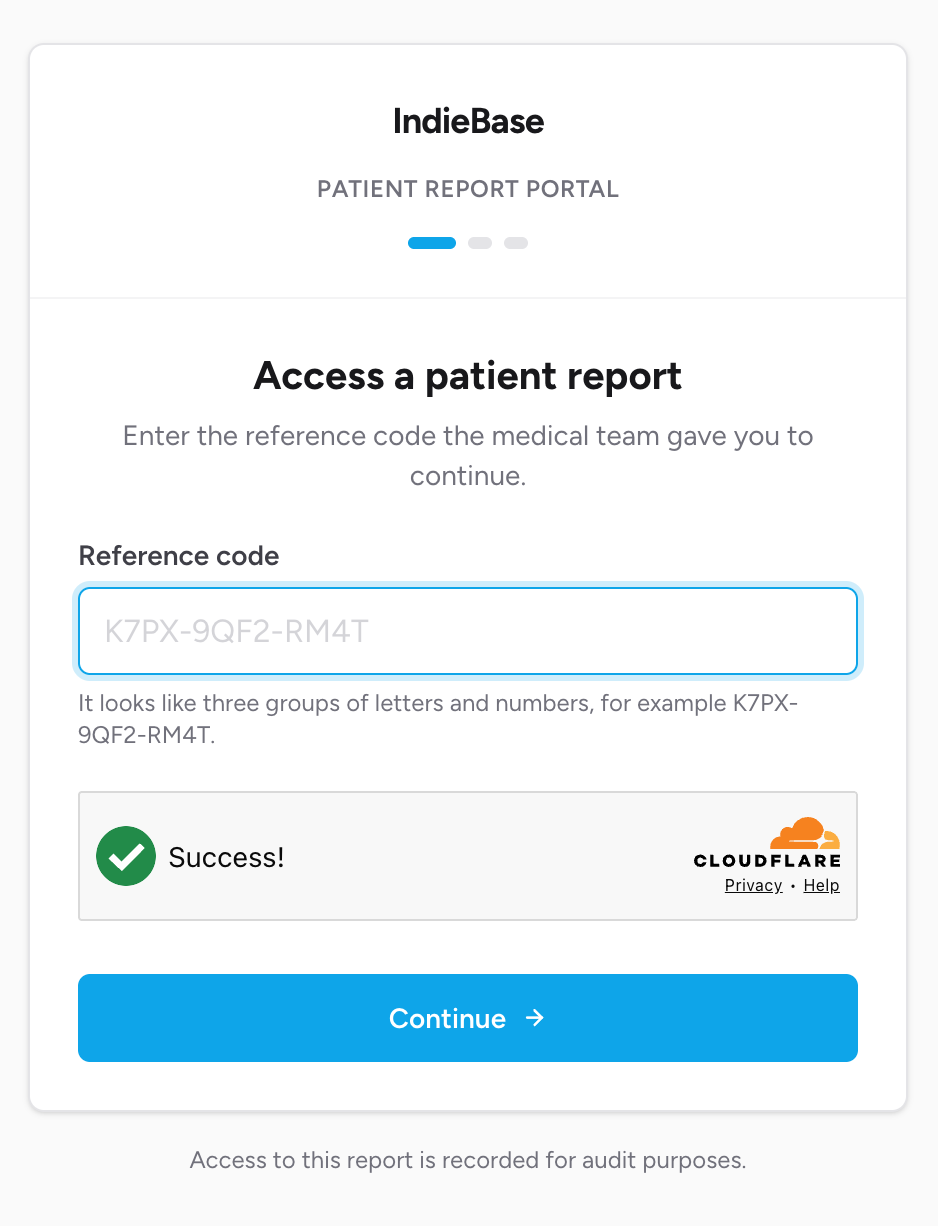
You will see the Access a patient report page.
Step 2: Enter the reference code
Type or paste the reference code into the Reference code field. The code is three groups of letters and numbers separated by hyphens, for example K7PX-9QF2-RM4T. The field formats it automatically as you type — you do not need to add the hyphens yourself.
The code is not case-sensitive.
Step 3: Complete the human verification
The page includes a Cloudflare verification widget. Depending on your browser and network, this either completes automatically or asks you to tick a box. Complete it before clicking Continue.
If the verification widget does not appear, check that JavaScript is enabled in your browser.
Step 4: Click Continue
Click Continue. If the code is valid and the verification passed, you move to the confirmation step. If the page shows an error, see Troubleshooting below.
Step 5: Confirm the patient detail
On the Confirm your access page, enter the confirming detail the team gave you.
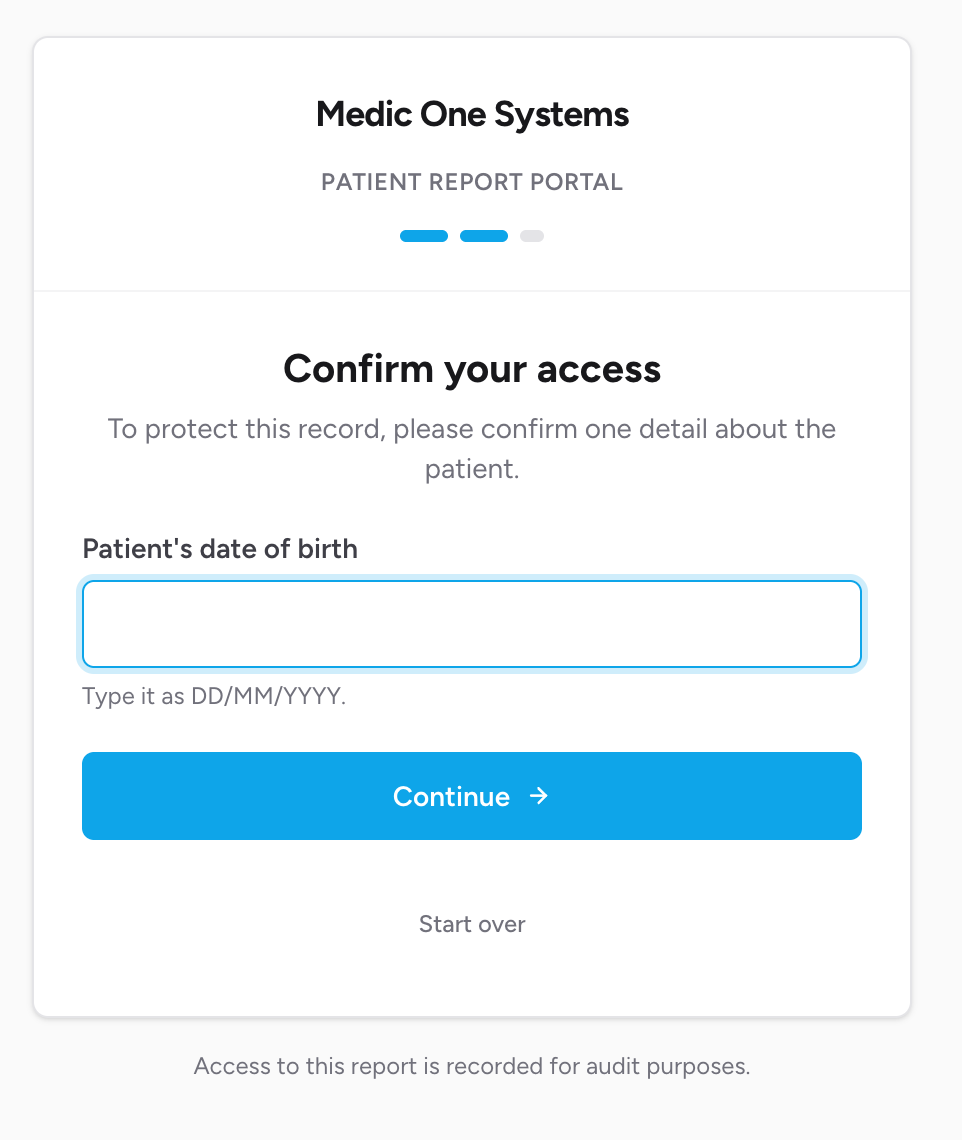
There are two types of confirming detail:
Date of birth — enter the patient's date of birth in the format DD/MM/YYYY. For example, for 15 March 1982 you would enter 15/03/1982. The field formats itself as you type.
Pass phrase — type the word or phrase the team shared with you. This is case-insensitive, but must otherwise match exactly.
The page will tell you which type is required and show a hint below the field.
Click Continue.
Step 6: Accept the disclaimer and download
The Before you download page shows a short disclaimer. Read it, then tick the confirmation checkbox:
I confirm I am authorised to access this record and accept responsibility for it.
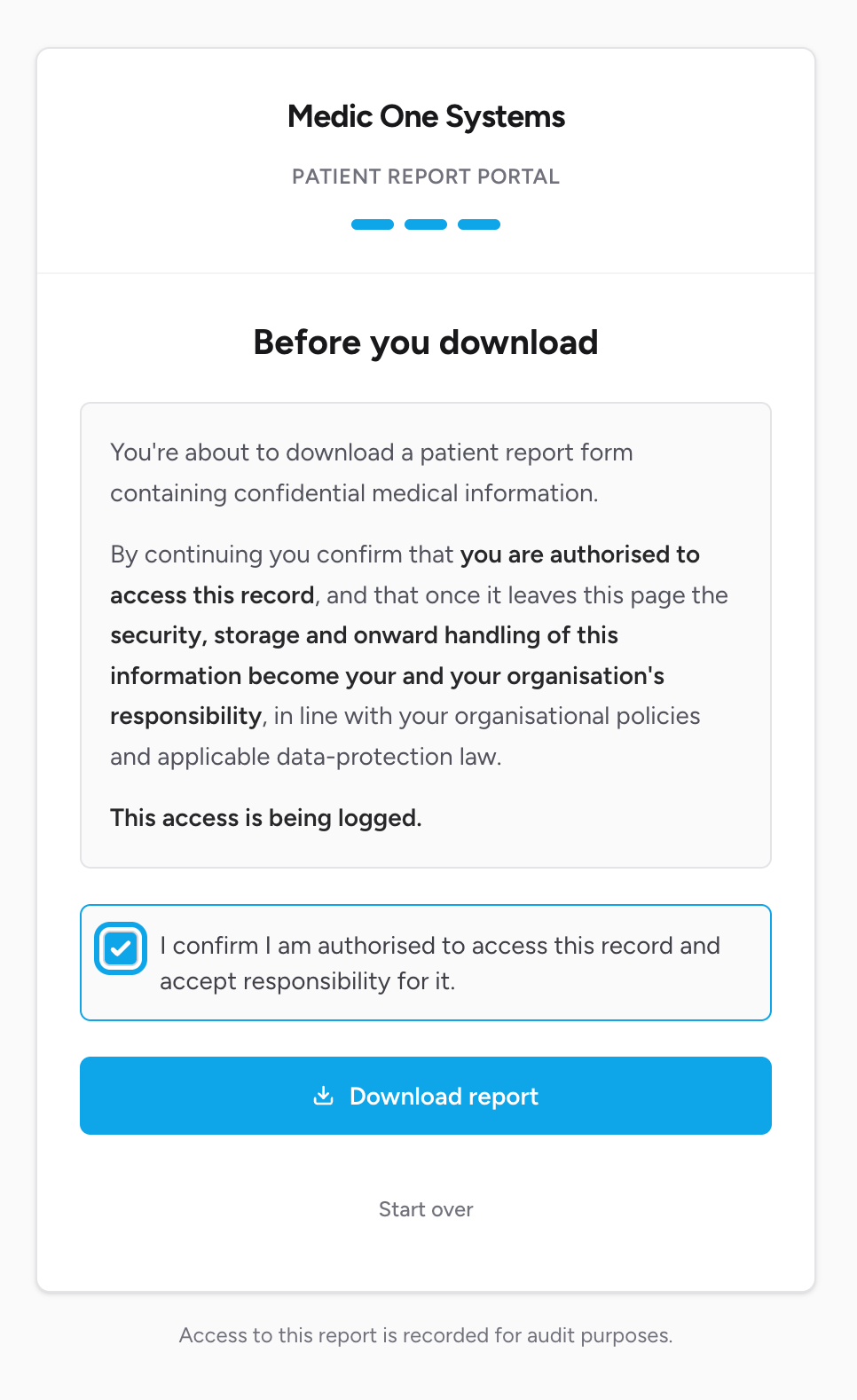
Once you tick the checkbox, the Download report button becomes active.
Click Download report. The PDF downloads to your device.
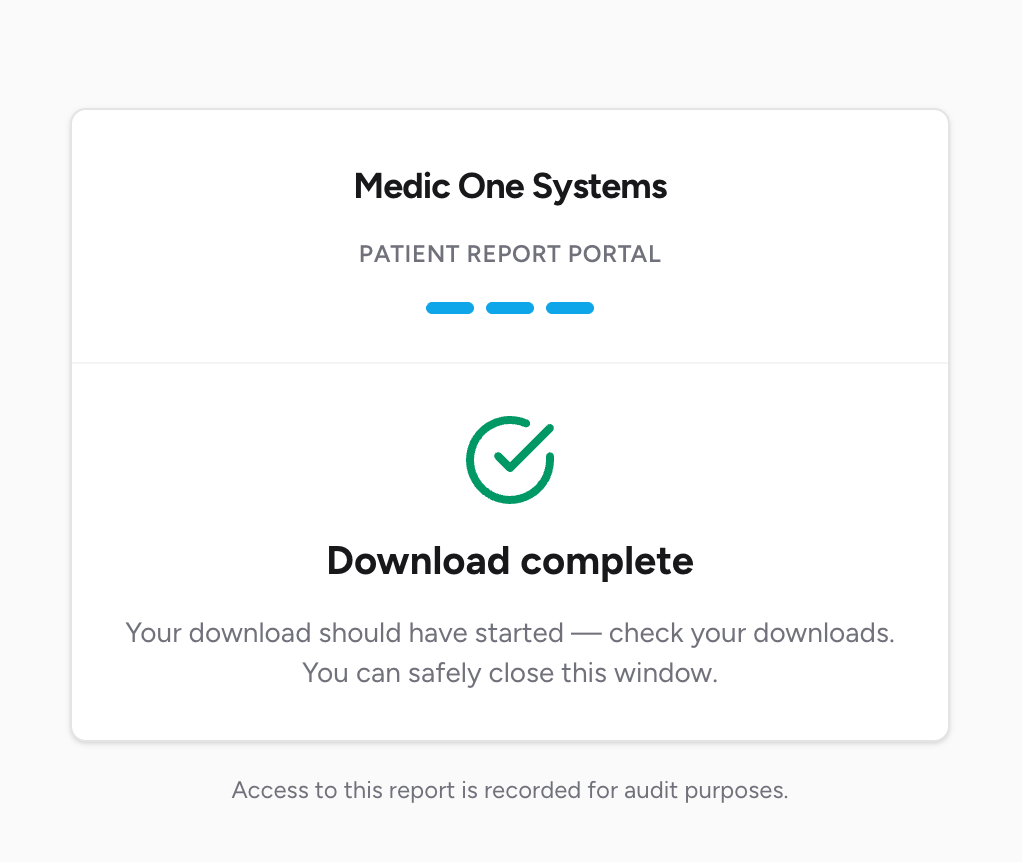
After the download starts, the page switches to a Download complete confirmation screen. You can safely close the browser tab.
This access has been logged. Every download through the portal is recorded in the sending team's audit trail, including the time of access.
Security Notes
- The link is time-limited — it stops working automatically after the team's configured duration (typically between 1 and 48 hours).
- After five incorrect entries of the confirming detail, the link is permanently locked.
- The confirming detail (date of birth or pass phrase) is a second security factor. Without it, the reference code alone will not grant access to the report.
- The downloaded PDF is a confidential medical document. Once it leaves the portal it is your and your organisation's responsibility to store and handle it in line with your organisational policies and applicable data-protection law.
Troubleshooting
"This link isn't valid or has expired. Contact the team who sent it to you."
This message covers several situations, all handled the same way to avoid revealing details:
- The reference code was typed incorrectly - check each character, including the hyphens
- The link has expired - the team needs to create a new one
- The link has been revoked by the team
- The link has been locked after too many failed attempts on the confirming detail
In all cases, contact the medical team who sent you the link and ask them to issue a new one.
The Cloudflare verification widget is not appearing.
The verification widget requires JavaScript. If you have JavaScript disabled, enable it and reload the page. If you are using a browser extension that blocks scripts, temporarily disable it for this page.
I entered the date of birth in the wrong format and it was rejected.
The portal expects dates as DD/MM/YYYY. Make sure you are using day-month-year order and that each part is two digits — for example 05/07/1990 rather than 5/7/1990. The field should auto-format as you type.
The download did not start.
Click Download report again. If it still does not start, check your browser's download settings and make sure pop-ups or downloads are not being blocked for this page. If the issue continues, try a different browser.
I need the report again but the page now shows "Download complete".
Once the page shows Download complete, the form is removed and you cannot download again from the same browser session. Check your downloads folder first — the file should be there as patient-report-form.pdf. If you genuinely need to download again, contact the medical team and ask them to issue a new portal link.
- Sharing a PRF via Portal — the guide for IndieBase users creating and sending portal links