 IndieBase

Table of Contents
Managing an Event
Your event command centre — manage jobs, crews, crew times, and notes for a live event from one page.
Managing an Event
The event page is your command centre for a live event. Everything you need — jobs, crews, crew times, patient counts, and notes — is here in one place, auto-refreshing every 30 seconds so your picture of the ground stays current.
Overview
The event page gives you full visibility and control over a single event. You can see job status at a glance via the status dashboard, create and manage jobs, build and assign crews, record crew times, add operational notes, and manage who has admin access to the event itself.
Administrators (both team admins and event admins) have full write access. Team members who are not administrators get a read-only view of the same data.
Like the home page, the event page refreshes automatically every 30 seconds while it is open in your browser.
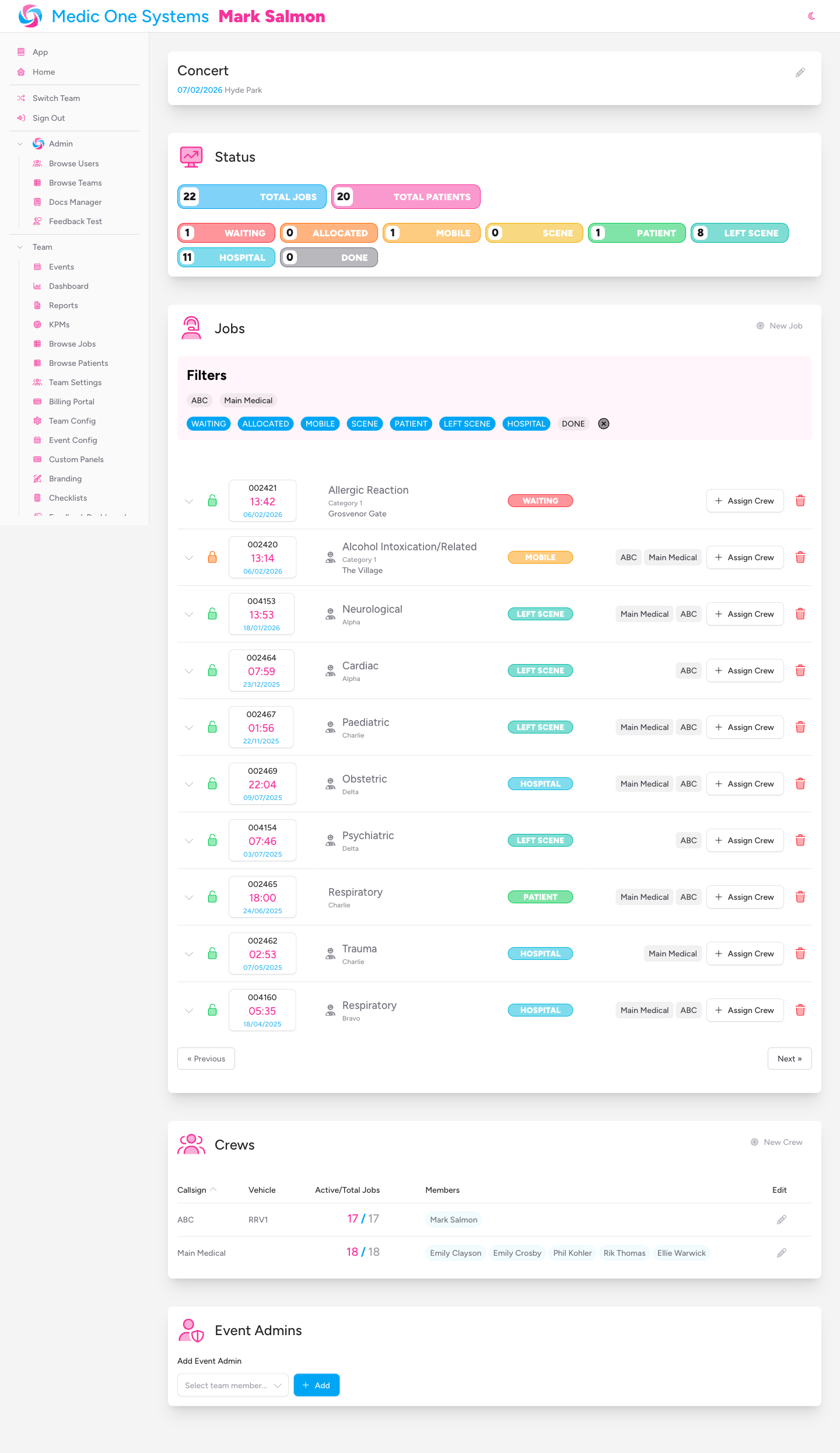
The Event Header
At the top of the page, the event header shows the event's title, date, and venue or location.
If you are a team admin or event admin, a pencil icon appears next to the event title. Click it to switch the header into edit mode.

Editing event details
Click the pencil icon to reveal the editable fields:
| Field | Description |
|---|---|
| Date | The date of the event |
| Title | The event's display name |
| Event Type | Sport, Motorsport, Music, Equestrian, or Other (Configurable in Event Config) |
| Venue | Select from your team's configured venues |
| Location | The precise location — set via postcode, latitude/longitude, What3Words reference, or map zoom |
If you select a venue, job locations within the event can be selected the pre-configured location points for that venue. This helps keep location data consistent across all jobs at the same site.
Click the save button to exit edit mode and save your changes.
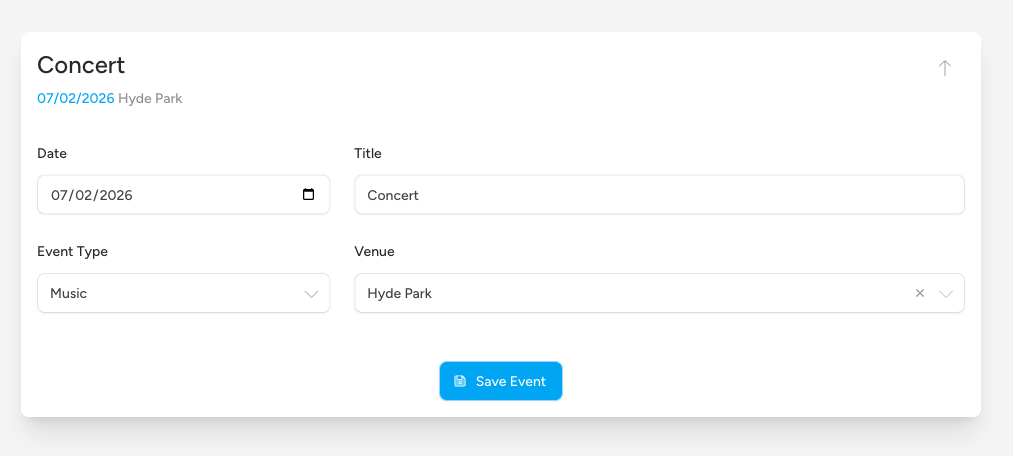
Status Dashboard
Just below the event header, the status dashboard gives you a real-time count of jobs and patients, broken down by status. It refreshes automatically every 30 seconds.
The dashboard shows:
- Jobs — total number of jobs for this event (blue badge)
- Patients — total number of jobs with a patient record attached (secondary badge)
- Status breakdown — colour-coded badges showing how many jobs are in each status
| Status badge colour | Status |
|---|---|
| Red | Waiting |
| Orange | Allocated |
| Amber | Mobile |
| Yellow | Scene |
| Green | Patient |
| Teal | Left Scene |
| Cyan | Hospital |
| Zinc | Done |
Incidents
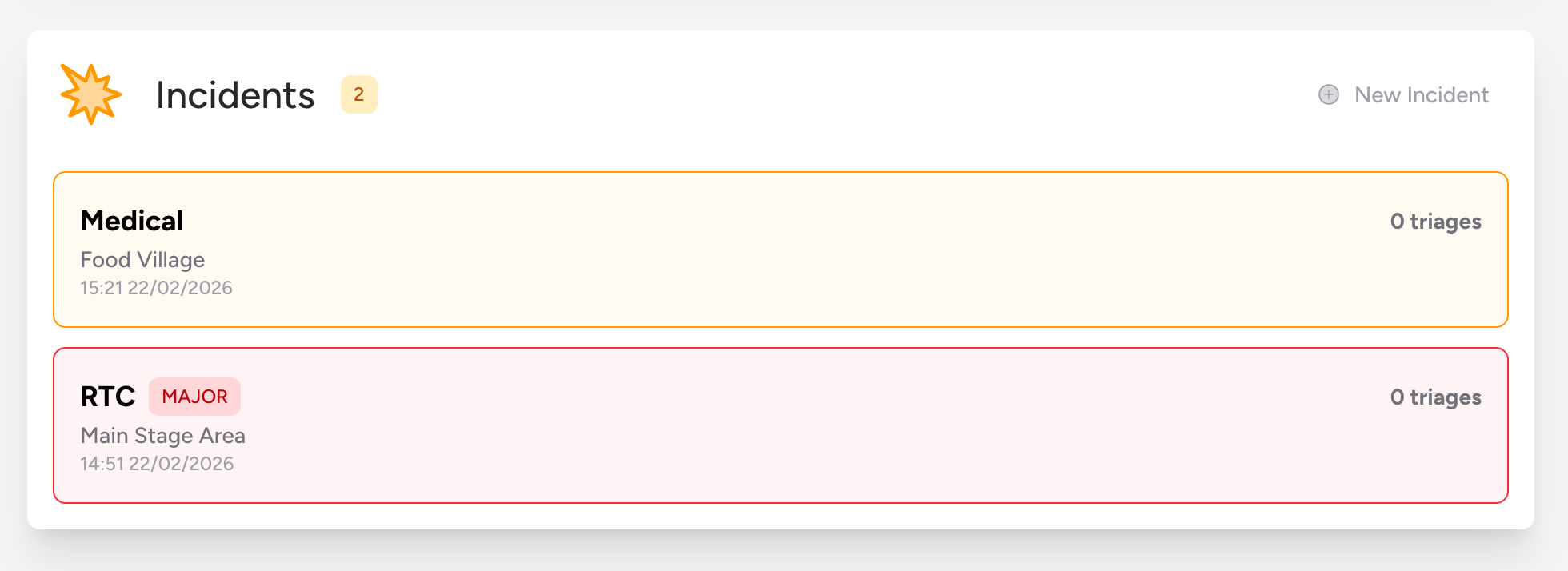
The Incidents section shows all active M/ETHANE incident command records attached to this event. An amber badge next to the heading shows the count of active incidents.
When a crew raises an M/ETHANE incident from the app while working at this event, it appears here automatically — no manual linking needed. Incidents remain active until they are marked as done.
Incident cards
Each incident card shows:
- Type — the incident type (shown as "M/ETHANE" if no type has been set yet)
- Location — the incident location ("Location TBC" if not yet set)
- Date and time — when the incident was called
- Crew badges — any crews assigned to the incident
- Triage count — the number of triage records attached to the incident
Incidents declared as major are highlighted with a red border and a MAJOR badge. All other incidents use amber.
Creating a new incident (admins only)
Team administrators can create an event-scoped M/ETHANE incident directly from the event page, without needing the app.
- Click New Incident at the top right of the Incidents section.
The incident is created immediately and appears in the list. It is pre-scoped to this event with the current date and time as the call time. Open the incident record from the app or the command console to fill in the M/ETHANE details.
New Incident is only visible to team administrators. Event admins and team members cannot create incidents from the event page.
If there are no active incidents, the section shows a No active incidents placeholder.
Jobs
The Jobs section lists every job attached to this event. It refreshes automatically every 30 seconds.
Creating a new job (admins only)
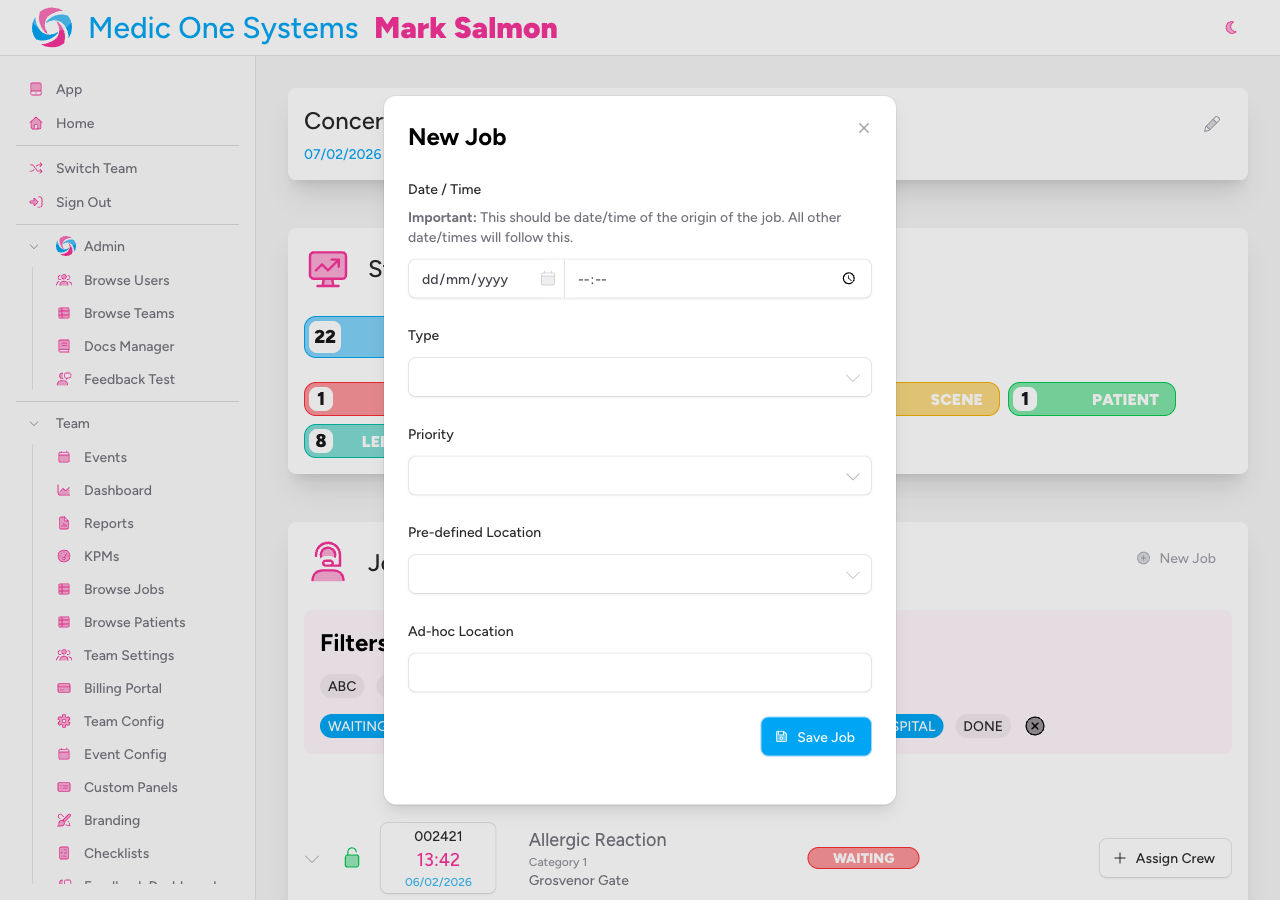
Team admins and event admins can create new jobs using the New Job button at the top of the Jobs section.
-
Click New Job.
-
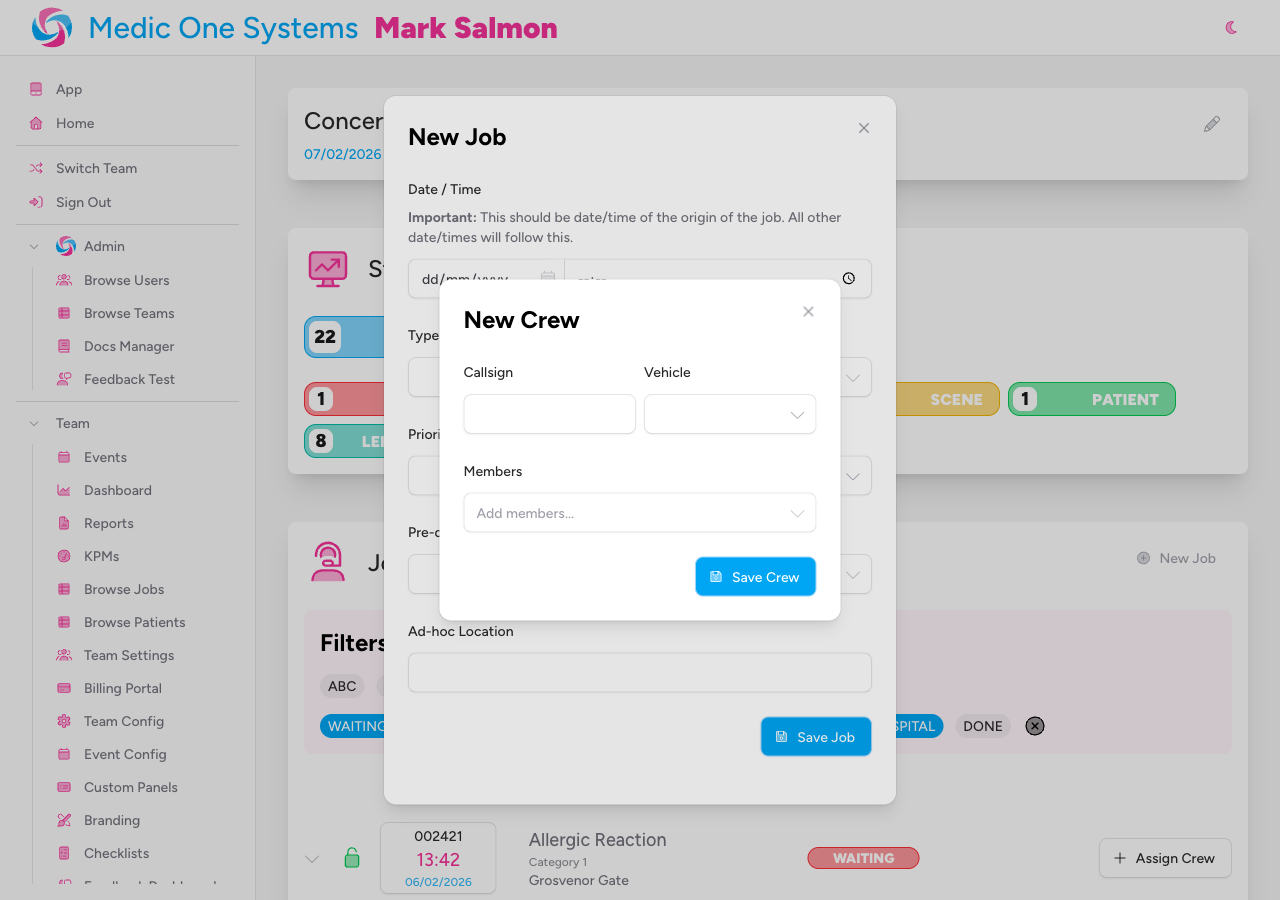
The New Job modal opens.
-
Fill in the following fields:
- Date / Time — the date and time the job originated. Use the date picker for the date and the time input for the time. Enter the actual call time, not the time you're creating the record.
- Type — select the job type from your team's configured options.
- Priority — select the priority level from your team's configured options.
- Location — if the event has a venue selected, choose from the pre-configured venue location points. Otherwise, type the location as free text.
-
Click Save.
The job appears immediately in the jobs table.
The Date/Time fields are pre-filled with the current date and time as a convenience — but always check and correct them to reflect the actual time of the job, not the time you're entering it.
Filtering jobs
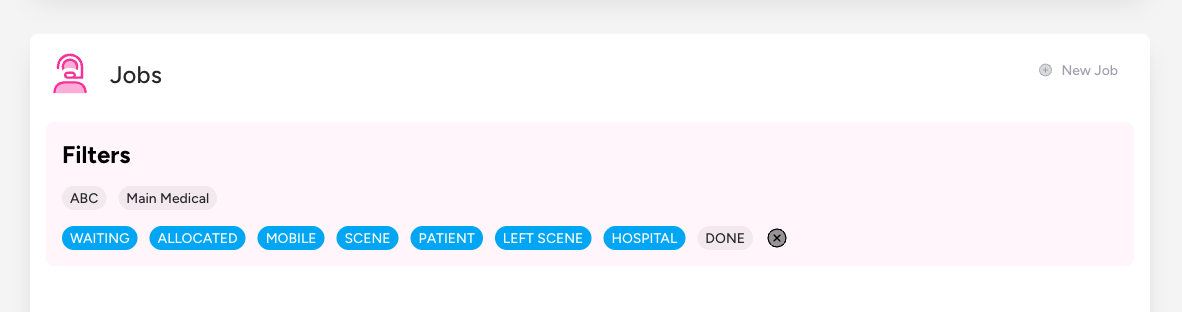
Two filter bars sit above the jobs table, letting you narrow down the list by crew or status. Your filter selections are saved to your session, so they persist if you navigate away and come back.
Crew filter — a row of checkbox pills, one for each crew attached to the event. Click a pill to include or exclude jobs assigned to that crew. A Clear button resets all crew filters.
Status filter — a row of checkbox pills, one for each job status. Click a pill to toggle that status. You can also:
- Cmd+click (Mac) / Ctrl+click (Windows) a status pill to select only that status, deselecting all others in one go.
- Shift+click a status pill to toggle it without affecting the others.
🅧 button resets all status filters.
The jobs table
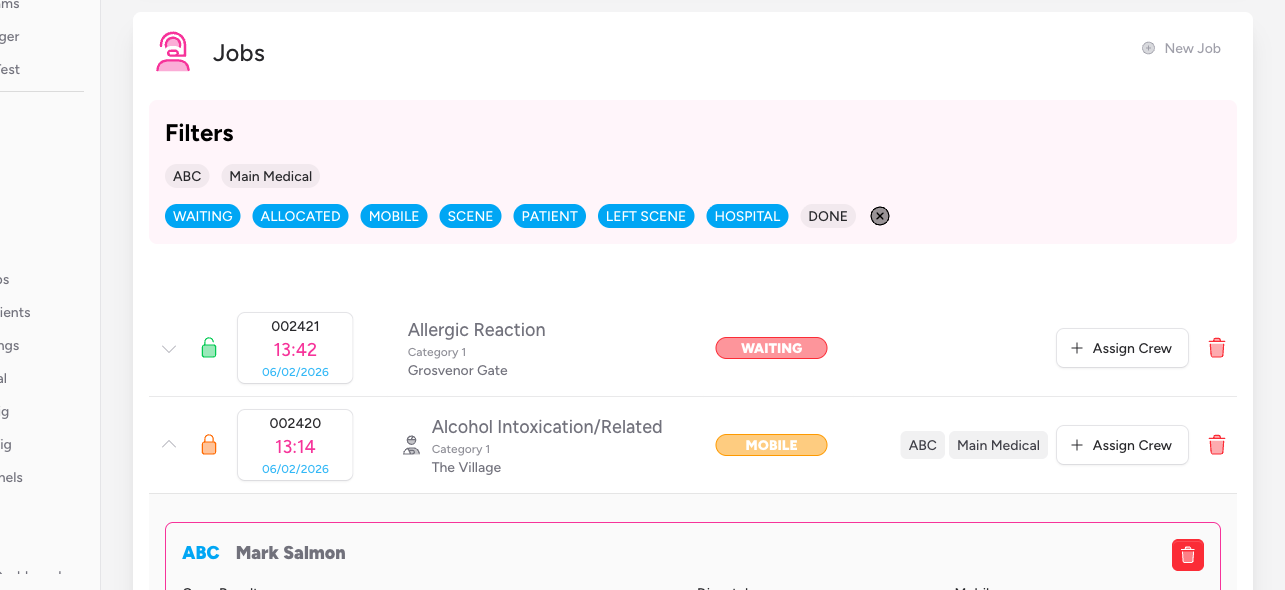
Jobs are listed in a paginated table, showing 10 jobs per page.
| Column | Description |
|---|---|
| Job | Expand chevron, job ID link, call time and date |
| Type / Priority / Location | The job type, priority, and incident location |
| Status | A colour-coded status badge (see Job Statuses above) |
| Crews | Crew badges, the Assign dropdown, and the Delete job button |
- Avatar badge(s) — one or more users are actively editing this job. Each badge shows the user's initials
- No badge — no one is currently editing this job
Click the job ID link in the first column to open the full job record.

The Delete job button (trash icon) in the Crews column removes the job permanently. Use this with care.
Expanding a Job Row (Admins Only)
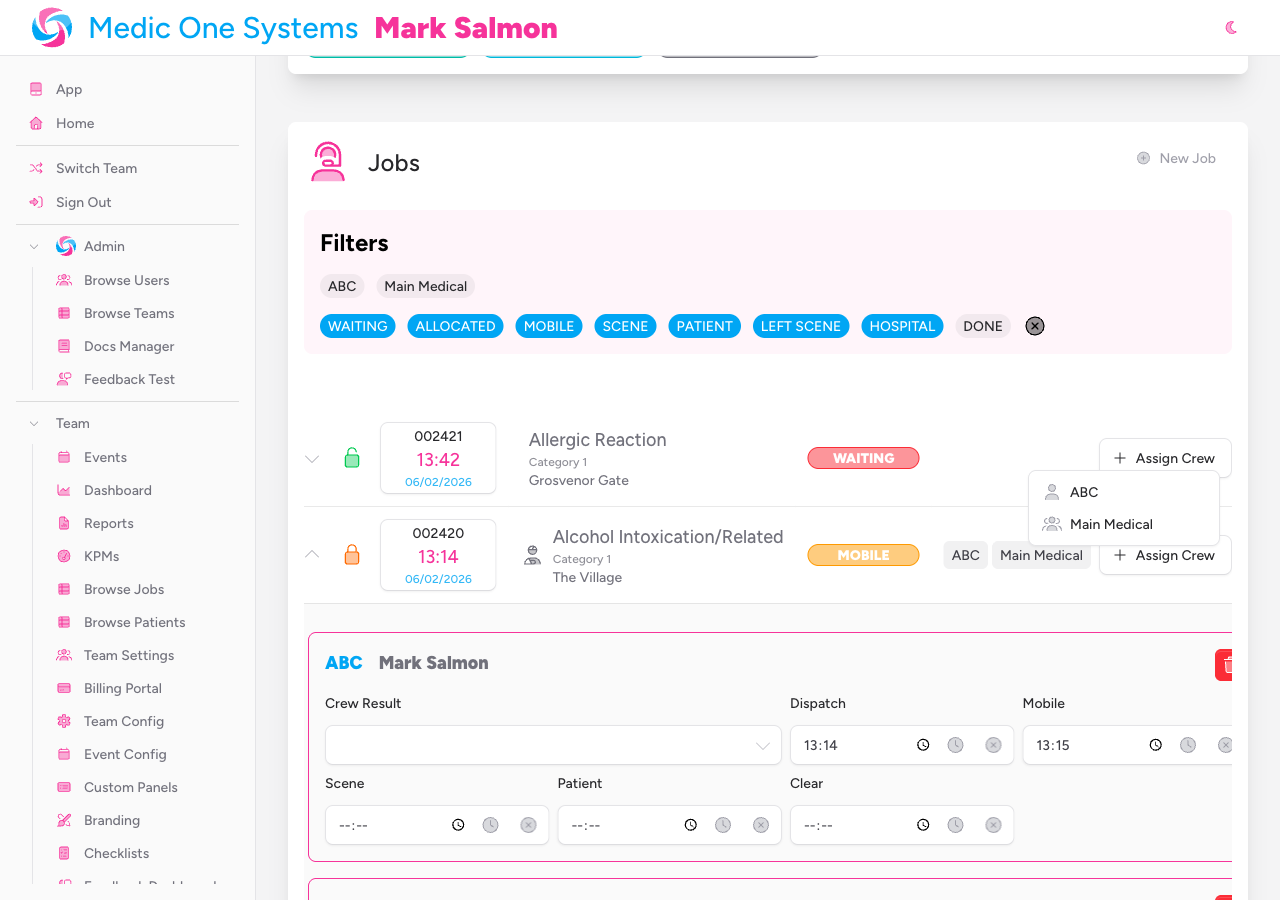
Click the chevron button on the left of a job row to expand the detail panel. The panel shows a card for each crew assigned to the job, plus the Notes section below.
Click the chevron again to collapse the panel.
The chevron button is only visible to team admins and event admins. Team members cannot expand job rows or access crew detail panels or notes.
Crew Details and Time Tracking
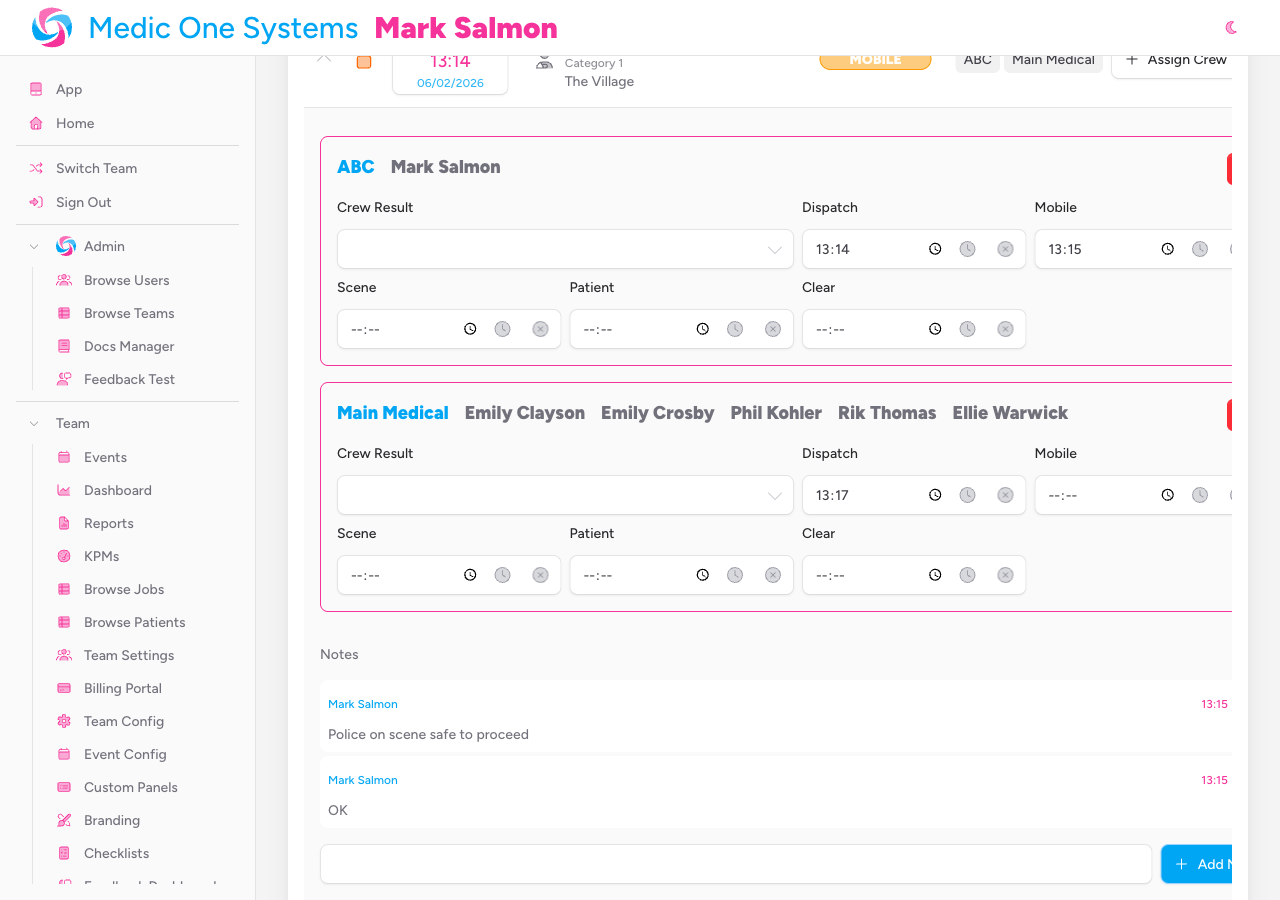
Inside an expanded job row, each assigned crew appears in its own bordered card showing the callsign and crew member names. A Delete crew from job button lets you remove a crew from the job without deleting the crew itself.
Crew result
Each crew card includes a Crew Result dropdown for recording the outcome of the crew's attendance:
- Stand Down Before Mobile
- Stand Down Before Scene
- Stand Down Without Patient Contact
- Patient Treated
- Patient Conveyed
Time fields
Five time fields let you track a crew's progression through the job:
| Field | What it records |
|---|---|
| Dispatch | When the crew was dispatched |
| Mobile | When the crew went mobile (en route) |
| Scene | When the crew arrived on scene |
| Patient | When the crew made patient contact |
| Clear | When the crew cleared the job |
Each field has:
- An HH:mm time input
- A Now button — fills the field with the current time in one click
- A Clear button — removes a time that was entered in error
Times are in 24-hour format and are interpreted as UK local time (Europe/London). If a shift crosses midnight, IndieBase handles the date rollover automatically.
Notes
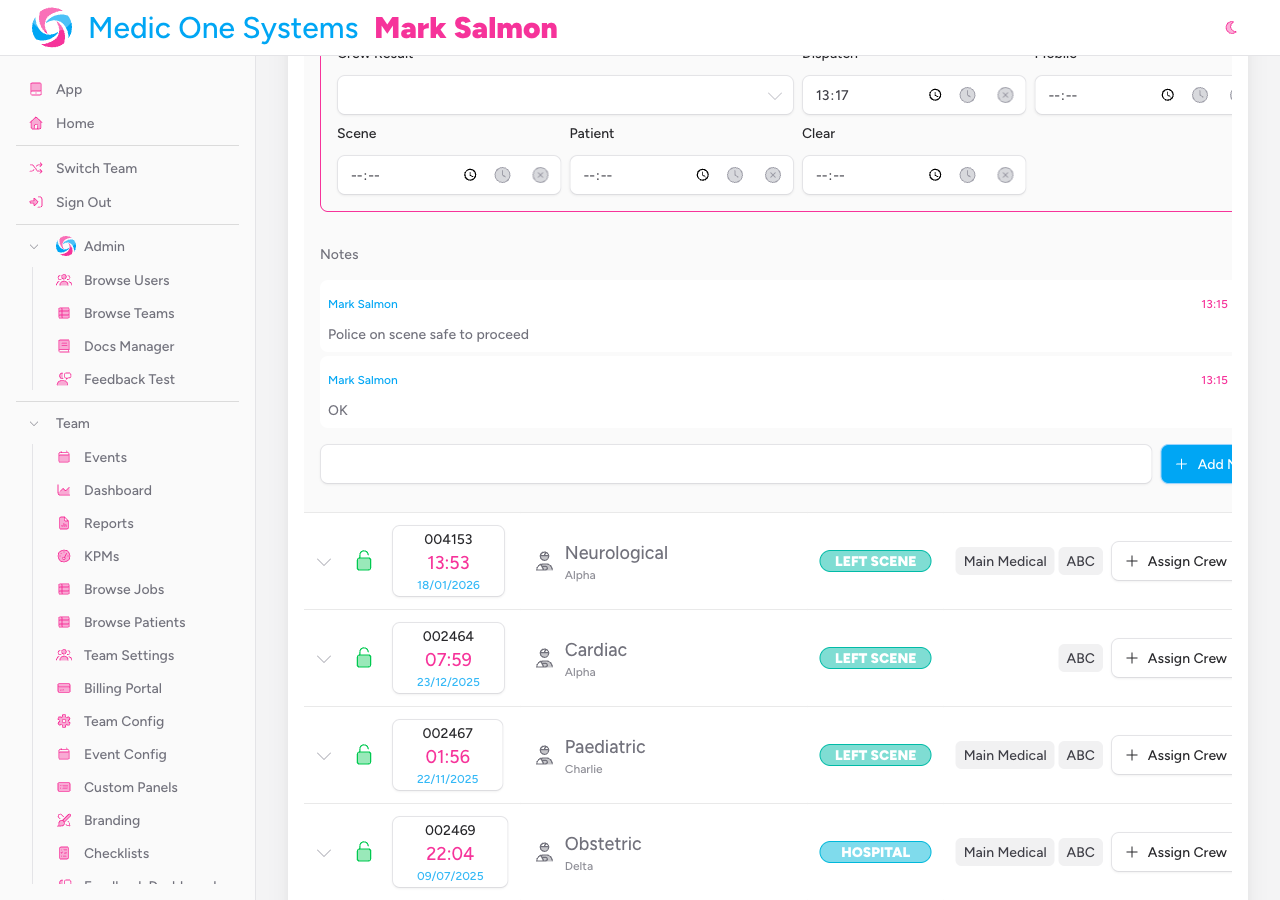
The Notes section appears inside every expanded job row, below the crew cards. Notes let team admins and event admins record operational information against a job — handover details, scene context, reminders.
Each note shows the author's name (highlighted in your team colour if it's yours) and the time it was posted.
Adding a note (admins only)
Only team admins and event admins can add notes. The note input is not visible to team members.
- Expand the job row by clicking the chevron.
- Click the text input in the Notes section and type your note.
- Click Add or press Cmd+Enter (Mac) / Ctrl+Enter (Windows) to save it.
The note appears immediately in the list.
Deleting a note (admins only)
A delete button (trash icon) appears next to your own notes. Team admins can delete any note; event admins can only delete their own.
There is no confirmation prompt when deleting a note, so take care.
Assigning a Crew to a Job (Admins Only)
- Find the job in the jobs table.
- In the Crews column, click the Assign dropdown button.
- A dropdown list appears showing all crews attached to this event.
- Click the crew you want to assign.
The crew is immediately attached to the job and a crew badge appears in the Crews column. Expand the job row to see the crew's time fields.
The Assign button is disabled when a job's status is Done.
The Event Control Room
The event page is designed for setup, configuration, and after-the-fact administration. For live operations — where jobs are being dispatched in real time and crews are in the field — the Event Control Room offers a faster, card-based view of the active job feed.
Open the control room from the Control Room button at the top of the event page, or navigate directly to /event/{event}/control-room. The event page remains available for crew management, time editing, and configuration while the control room is open.
The Event Control Room requires the same admin access as the event page — team admins and event admins only.
The Active Jobs Feed
Active jobs appear as a stack of cards. Each card shows:
- Job number, type, and priority — the job reference (padded to six digits), job type, and priority label in a colour matching its urgency (red = highest, zinc = lowest)
- Call time and elapsed time — the logged call time plus a running count of minutes since the call came in. The elapsed timer turns amber after 10 minutes and red after 20
- Location — the incident location with a pin icon
- Crew badges — one badge per crew assigned to the job. Tap a badge to open a popover showing the crew's member names and their five time fields (Dispatch, Mobile, Scene, Patient, Clear). Each time field has a Now button to stamp the current time and a clear button to remove a time. A Remove Crew button at the bottom of the popover detaches the crew from the job
- Status — the derived job status (e.g. WAITING, ALLOCATED, SCENE) shown as a small uppercase label
- Patient badge — see The Patient Badge below
If no crew is assigned yet, a Waiting label appears in the crew area. Select a crew from the crew picker at the top of the page and click Assign to attach them to the job.

Every active job card has a ⋮ button (three vertical dots) labelled Job actions in the top-right corner. Tap it to open a menu with the following options:
| Option | When available | What it does |
|---|---|---|
| View record | Always | Opens the full job record in the view panel on the right |
| Edit job | Always | Opens the Edit Job modal to update the type, location, or priority |
| Mark done | Job has a patient record | Closes the job and moves it to the Completed section |
| Stand down | Job has no patient record | Stands the job down without a patient treatment record |
| Delete job | Always | Permanently removes the job after a confirmation prompt |
The close-out option is contextual — you will see either Mark done or Stand down, never both. The system derives which is appropriate from whether the job currently has a patient record, and enforces this at the moment of saving.
Deleting a job is permanent. A confirmation dialogue appears before the deletion proceeds.

The Patient Badge
The patient badge appears on the right side of each job card, beside the status label.
- When a patient exists — the badge shows the patient's age in words (for example, 33 years or 4 months) and their sex when known (for example, 33 years · Male). Tap the badge to open the patient edit modal.
- When no patient has been added — a dashed + Patient button appears instead. Tap it to open the patient edit modal and add a patient to the job.
Closing a Job: Mark Done vs Stand Down
When a job is complete, use the ⋮ Job actions menu on the card to close it. The close-out option shown depends on whether a patient record exists:
Mark done — shown when the job has a patient record. This closes the job, records the completion timestamp, and moves the job to the Completed section at the bottom of the feed. A confirmation modal appears first showing the job reference and an option to cancel. If any required clinical or job fields are still missing, the system lists them and gives you the option to open the patient record directly and complete them before closing. Once all required fields are satisfied, confirming closes the job.
Patient feedback questions (post-discharge satisfaction surveys) are collected via the feedback email or portal after the patient has left — they are not required fields for closing a job. If you are prompted about missing fields, these will be clinical or job-level fields, not feedback.
Stand down — shown when the job has no patient record. Use this when a crew was dispatched but the incident did not result in patient contact — for example, a crew stood down en route, or the caller could not be located. Standing down closes the job without requiring any clinical data. A confirmation modal appears showing the job reference and describing that the job will be closed without a treatment record.
If a clinician is actively editing the patient record when you close the job, you will see a warning to this effect inside the confirmation modal. Closing the job does not block their work, but it is worth a check before proceeding.
Completed Jobs
Completed jobs appear in a collapsible Completed section at the bottom of the feed. Click the section header to expand it. Each completed job card shows the call time and completion time.
From a completed job card you can:
- View record — opens the full job record in the view panel
- Re-open job — moves the job back to the active feed if it was closed in error. A confirmation prompt appears before re-opening
Crews
The Crews section lists every crew attached to this event. It is not shown for personal teams.
Creating a new crew (admins only)
-
Click New Crew.
-
The New Crew modal opens.
-
Fill in the following fields:
- Callsign — the crew's identifier (e.g.
MED1,ALPHA-2). - Vehicle — select a vehicle from your team's configured vehicles. This field is optional and can be cleared.
- Members — use the searchable multi-select to add team members to the crew. At least one member is required. Selected members appear as tags above the input.
- Callsign — the crew's identifier (e.g.
-
Click Save.
The new crew appears in the crews table and becomes available to assign to jobs.
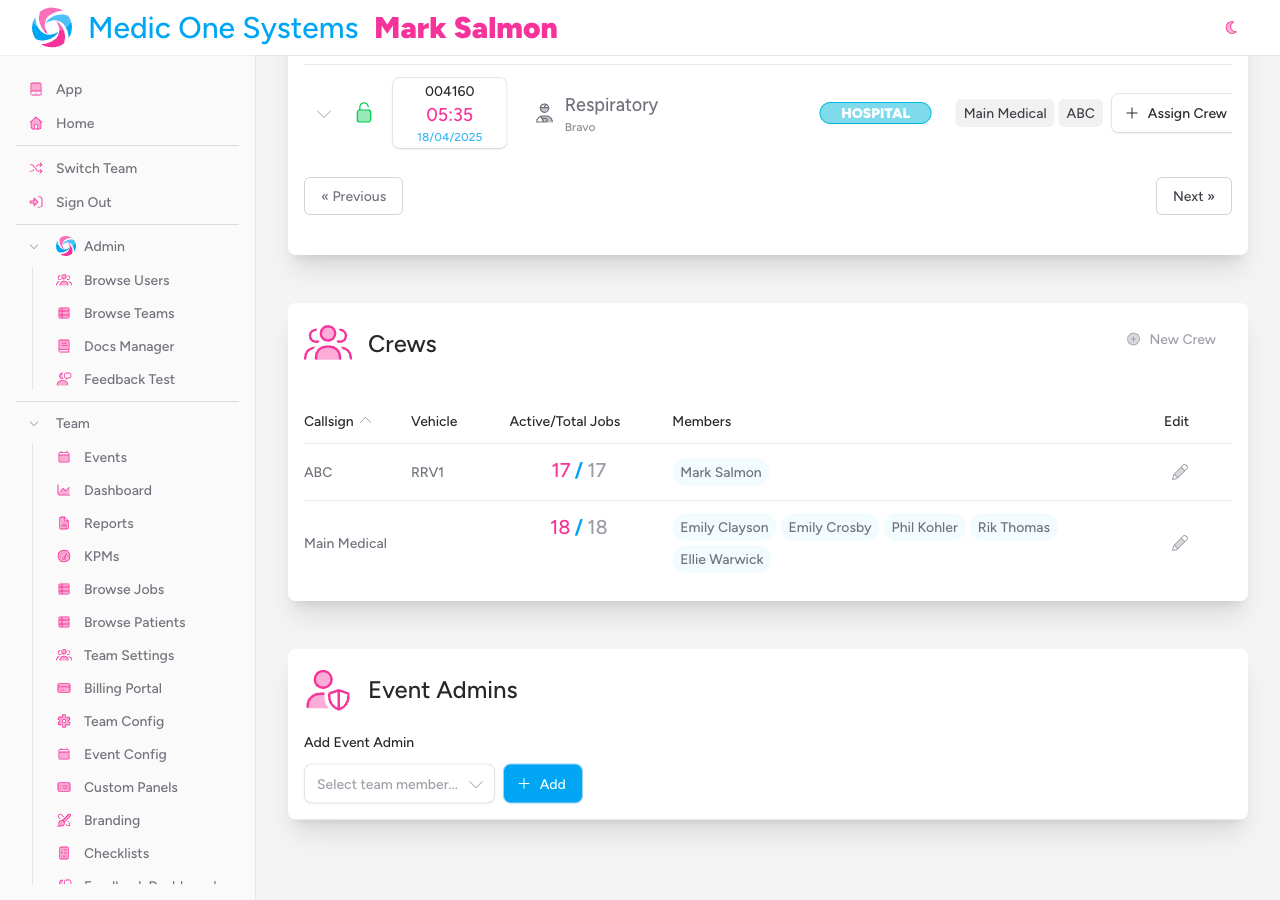
The crews table
| Column | Description |
|---|---|
| Callsign | The crew's identifier (sortable) |
| Vehicle | The assigned vehicle, if any (sortable) |
| Jobs | Active jobs / total jobs for this crew (sortable) |
| Members | Pill badges for each crew member |
| Actions | A pencil icon to edit the crew |
Click the pencil icon to reopen the crew modal and update the callsign, vehicle, or members.
Event Admins (Team Admins Only)
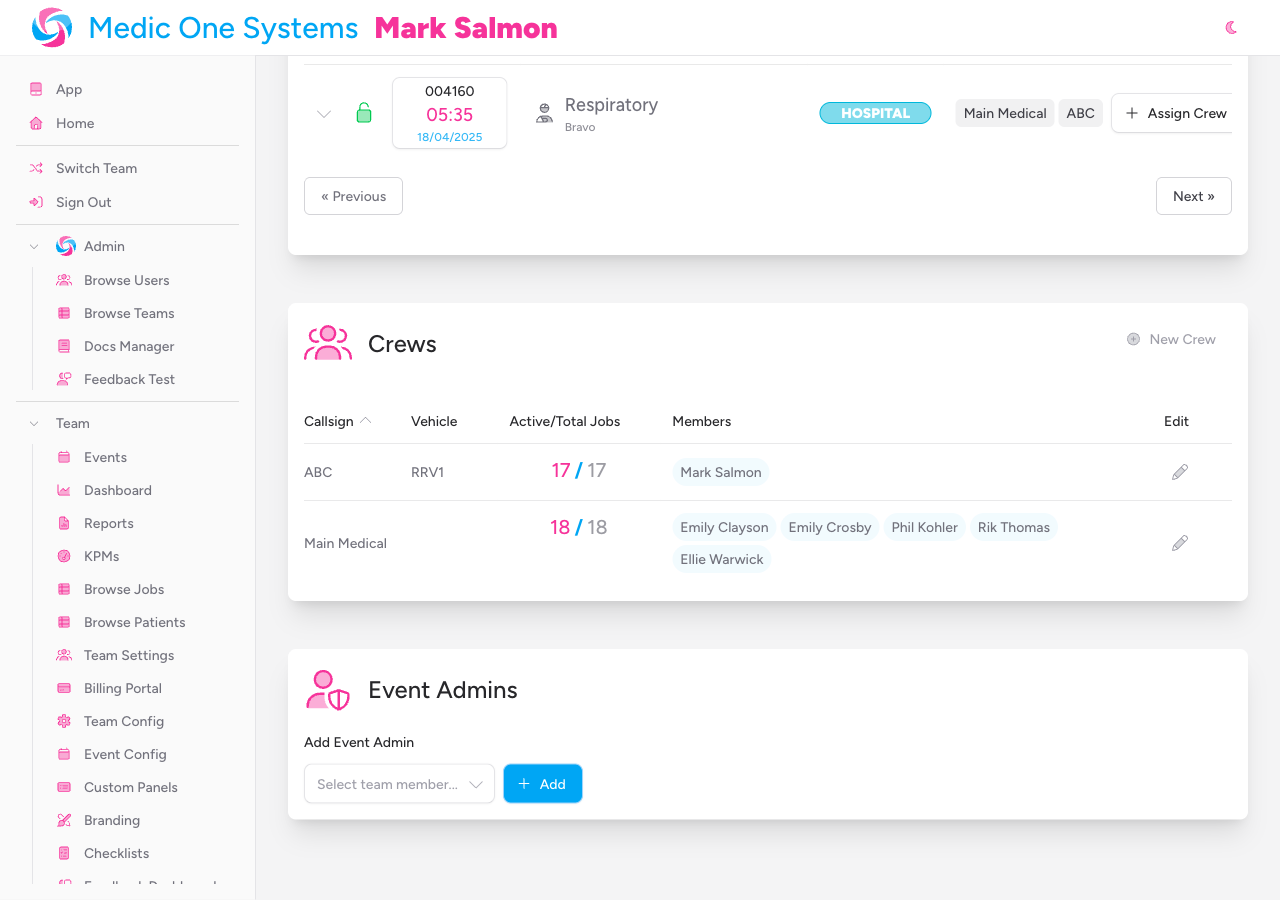
The Event Admins section is only visible to team administrators. It lets you grant elevated access for this specific event to team members who are not full team admins.
Event admins can create and delete jobs, create and edit crews, assign crews to jobs, update crew times, and add notes — but they cannot manage the Event Admins section itself.
Adding an event admin
- Use the searchable select dropdown to find a team member. Only members who are not already event admins for this event are shown.
- Select the member.
- Click Add.
The member appears as a pill badge in the event admins list.
Removing an event admin
Click the × remove button on any event admin pill badge to revoke their event admin access. This does not affect their role on the team.
Job Statuses
Job status is derived automatically from the crew times recorded. You don't set it manually — it updates as your crew progresses through the job:
| Status | What it means |
|---|---|
| Waiting | No crew times recorded yet |
| Allocated | A crew has a Dispatch time |
| Mobile | A crew has a Mobile time |
| Scene | A crew has a Scene time |
| Patient | A crew has a Patient time |
| Left Scene | The patient record has a departure time |
| Hospital | The patient record has a hospital arrival time |
| Done | The job has been marked as done |
Role-Based Access
What you can do on the event page depends on your role.
| Action | Team Admin | Event Admin | Team Member |
|---|---|---|---|
| View the event page | Yes | Yes | Yes |
| Edit event details | Yes | Yes | No |
| Create and delete jobs | Yes | Yes | No |
| Create and edit crews | Yes | Yes | No |
| Assign crews to jobs | Yes | Yes | No |
| Update crew times | Yes | Yes | No |
| Set crew result | Yes | Yes | No |
| Add and delete notes | Yes | Yes | No |
| Create incidents | Yes | No | No |
| View incidents | Yes | Yes | Yes |
| Manage event admins | Yes | No | No |
Team members get a read-only view. They can see the jobs table (job ID, type, priority, location, status, and crew badges) but cannot expand job rows, access the detail panel, or see crew time fields or notes.
The read-only state is automatic and reflects your role within the current team. If you need admin access for an event, ask a team admin to add you as an event admin.
Tips and Best Practices
- Record times as they happen. Crew time fields are designed for real-time use. Entering times accurately as events occur keeps job statuses correct and makes your performance data reliable.
- Use the Now button. Each time field has a Now button that fills in the current time in a single click — much faster than typing, especially in a busy environment.
- Filter by status to triage quickly. Use the status filter to show only Waiting or Allocated jobs when you need to identify unresourced jobs fast.
- Use notes for anything that doesn't fit the structured fields. Scene updates, handover information, and contextual details are all good candidates for notes.
- Create crews before you need them. The Assign dropdown only lists crews that already exist for the event. Set up your crews at the start of the event so they're ready to assign when jobs come in.
- Grant event admin access sparingly. Event admins have write access to all jobs and crews within the event. Only grant it to people who genuinely need it for the duration of the event.
- The page auto-refreshes every 30 seconds. You don't need to reload manually — changes made by other team members will appear within half a minute.
- Incidents from the app scope automatically. Crews working at this event don't need to do anything special — when they raise an M/ETHANE incident from the app, it's automatically linked to this event and appears in the Incidents section.
Troubleshooting
I can't see the New Incident button. The New Incident button is only visible to team administrators. Event admins and team members cannot create incidents from the event page. If you need to raise an incident, ask a team admin to do it, or create it from the app.
An incident raised from the app isn't appearing in the Incidents section. The Incidents section auto-refreshes every 30 seconds alongside the rest of the page. If an incident was just created, wait for the next poll. If it still doesn't appear, check that the crew was assigned to this event when the incident was raised — incidents created outside of an event context appear on the home page under Active Incidents instead.
I can't see the New Job or New Crew buttons. These buttons are only visible to team admins and event admins. If you need to create jobs or crews and cannot see the buttons, ask a team admin to either update your team role or add you as an event admin for this event.
The Event Admins section is not visible. The Event Admins section is only shown to team administrators. Event admins and team members cannot see or manage this section.
A job I just created isn't appearing in the table. Check whether a status or crew filter is active — the new job may be filtered out. Click Clear on both filter bars to reset them and show all jobs.
The Assign button is greyed out. The Assign button is disabled when a job's status is Done. If the job has been closed in error, it will need to be reopened from within the full job record.
Times I entered are not saving. Times save when focus leaves the field (on blur). Make sure you've clicked away from the field or pressed Tab after entering the time. The page also requires an active internet connection to save changes — check your connection if times are not persisting after a page refresh.
Another user's avatar is showing on a job. This means another user is currently editing that job. IndieBase supports concurrent editing, so you can still open and work on the job at the same time. If you both edit the same field, the app will detect the conflict and prompt you to choose which version to keep.
The status badge on a job isn't updating. Job status is derived from crew time fields and updates on the next auto-refresh (every 30 seconds). If a status seems stuck, wait for the next poll. Admins can also try collapsing and re-expanding the job row.
I can see the event page but cannot expand jobs or see any controls. Your account has the Member role on this team and you have not been granted event admin access. The read-only view is automatic. Contact a team admin if you need write access for this event.
My crew filter selections disappeared. Crew and status filter selections are stored in your browser session. They will be cleared if you open the event page in a new browser tab or if your session expires.