 IndieBase

Table of Contents
PRF Portal
Configure how your team distributes completed patient report forms — via secure portal link, hospital email, or patient email.
PRF Distribution Setup
The PRF Distribution settings let your team admin choose which report-sharing channels are available to crew members. All three options are off by default — enable only the ones your team uses.
Overview
IndieBase supports three ways to share a completed Patient Report Form (PRF) from the Patient Reports panel:
- PRF Portal — a secure, time-limited link an external clinician can use to download the report, with no IndieBase account required
- Email to hospital — emails the report PDF directly to the receiving hospital's configured addresses
- Email to patient — emails the report to the patient's own email address
Each channel is an independent opt-in switch. All three live in a single PRF Distribution card under Team Settings > Information Governance.
Before You Start
- You need the config-manage permission to change these settings. This is held by the team owner and users with an administrator role.
- For the Email PRF to hospital switch to be useful, you must also have email addresses configured against the relevant hospitals. See Managing Hospitals.
- Navigate to Team Settings and scroll down to the Information Governance section.
The PRF Distribution Card
Click Team Settings in the sidebar, then scroll down past the Data Access Settings card. The PRF Distribution card contains all three switches.
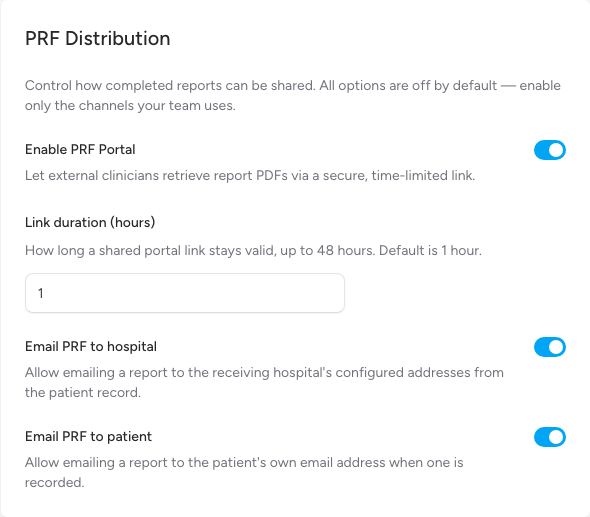
Every toggle saves instantly — there is no separate Save button.
Enable PRF Portal
The PRF Portal lets crew members generate a one-time reference code for a specific report PDF. An external clinician — such as a receiving hospital doctor — enters that code on a public portal page and confirms a piece of patient information to download the document.
Step 1: Turn on the toggle
Flip Enable PRF Portal to on.
Step 2: Set the link duration
The Link duration (hours) field controls how long each shared link remains valid after it is created. The minimum is 1 hour, the maximum is 48 hours, and the default is 1 hour.
Enter the number of hours that fits your team's handover workflow. For most clinical handovers, 1-4 hours is sufficient.
A shorter duration reduces the window during which a link could be accessed if the reference code were intercepted. If your team is unsure, start with the default of 1 hour.
Disabling the PRF Portal
Flipping the toggle back to off takes effect immediately — any link previously issued stops working at once, even if it has not yet reached its expiry time.
Email PRF to Hospital
When this is on, crew members can email a selected report PDF directly to a hospital's configured addresses from the Patient Reports panel.
Prerequisites
The Send PRF to Hospital button in the patient record only appears when:
- The Email PRF to hospital switch is on, AND
- The patient's selected hospital (set in the Outcome panel) has at least one email address configured for your team
If a hospital does not yet have email addresses set up, add them first under Team Settings > Hospitals. See Managing Hospitals.
Step 1: Turn on the toggle
Flip Email PRF to hospital to on.
That is all the team-settings configuration needed. Email addresses are managed per hospital — see Managing Hospitals.
Email PRF to Patient
When this is on, crew members can email a selected report PDF to the patient's own email address from the Patient Reports panel.
Prerequisites
The Send PRF to Patient button in the patient record only appears when:
- The Email PRF to patient switch is on, AND
- The patient has an email address recorded in the Patient Details panel
When the switch is on, an Email field appears in the Patient Details panel (in the PID section) so crew members can record the address.
If your team also has the Patient Feedback feature active, the email field is shared between the two features and is already visible regardless of this switch.
Patient emails are sent with a password-protected (encrypted) PDF. The password is never included in the email — instead, a one-time password is shown to the crew member after sending, which they give to the patient separately (read aloud, or texted by SMS to the mobile number recorded in Patient Details). No extra admin configuration is required; the password is generated automatically for each send. See Sending a PRF to Patient for the crew workflow.
Step 1: Turn on the toggle
Flip Email PRF to patient to on.
Tips & Best Practices
- Enable only what you use. Each channel is off by default for a reason — enabling all three adds buttons crew members may not need and increases the chance of accidental sends.
- Keep the portal duration short. Most handover scenarios complete within the hour. Longer durations increase the window during which a link could be used unintentionally.
- Add hospital emails before enabling the hospital toggle. If you turn the toggle on but hospitals have no email addresses configured, the button simply will not appear to crew members — but it is cleaner to set everything up together.
- Communicate the pass phrase separately (portal). When a patient record has no date of birth, the portal uses a pass phrase as the confirming detail. Crew members should share this via a separate channel to the link itself.
- Record patient mobile numbers (patient email). A patient email's PDF is password-protected. If a mobile number is recorded in Patient Details, crew members can text the password to the patient with one tap — otherwise they read it aloud.
Troubleshooting
The PRF Distribution card is not visible.
The Information Governance section is only accessible to users with the config-manage permission. If you do not see it, ask your team owner to check your role.
I enabled Email PRF to hospital but crew members can still not see the Send PRF to Hospital button.
Check that the relevant hospital has email addresses configured for your team in Team Settings > Hospitals. The button will not appear unless at least one address is saved against that hospital. Also ask the crew member to reload the app so the updated team settings take effect.
I disabled the PRF Portal but a link had already been sent.
Disabling the portal revokes all active links instantly. If the recipient tries to use the link after you disable the feature, they will see a "link not valid" message.
The Link duration field is not accepting my value.
The field accepts whole numbers between 1 and 48 (hours). Values outside this range will not save.
- Information Governance — the full Information Governance settings, including PID storage and data access windows
- Managing Hospitals — how to add email addresses to a hospital record
- Sharing a PRF via Portal — how crew members create and send portal links
- Sending a PRF to Hospital — how crew members email a report to a hospital
- Sending a PRF to Patient — how crew members email a report to a patient
- Retrieving a PRF from the Portal — the guide to share with the external recipient