 IndieBase

Table of Contents
Managing Hospitals
How to configure the hospitals available for patient handover and transport
Managing Hospitals
Configure the list of hospitals available to your team so that clinicians can record accurate handover destinations directly within a patient record.
Overview
The hospitals list is a team-managed reference of receiving facilities. When a patient is conveyed to hospital or handed over, clinicians can select the destination from this list — along with logging arrival and handover times. Each hospital entry stores clinical capability information (Emergency Department, specialist services, and coverage type) so your team can make informed destination decisions at the point of care.
Hospitals are shared across the system. Your team selects which hospitals it wants access to from a central list, and can also create new hospital entries if a facility doesn't already exist.
Before You Start
- You must have team admin permissions to manage your team's hospital settings.
- Navigate to your team's hospital management page by expanding the Resources section in the left-hand sidebar and clicking Hospitals.
Understanding the Hospitals Page
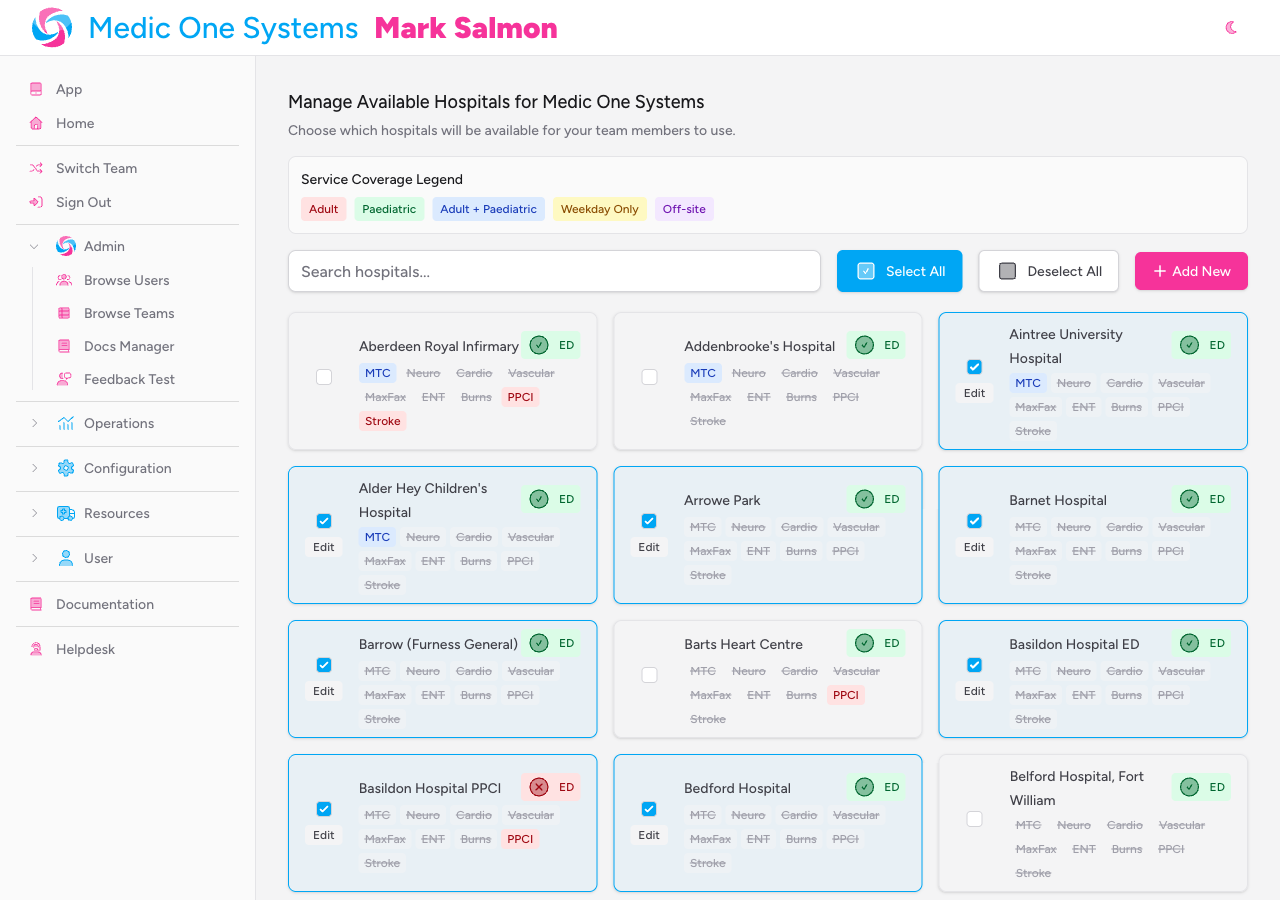
When you open the Hospitals page, you'll see a card grid displaying every hospital in the system. Each card shows:
- The hospital name
- An ED badge (green with a tick if the hospital has an Emergency Department, red with a cross if it does not)
- Coloured service badges for each specialist capability (see the legend at the top of the page)
- Any team notes and email addresses you have associated with that hospital for your team
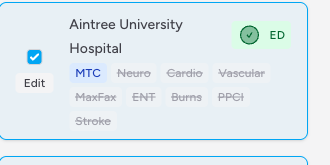
Hospitals that are currently active for your team are highlighted with a coloured border and a filled checkbox. Hospitals that are not selected appear with a plain border.
Service Coverage Legend
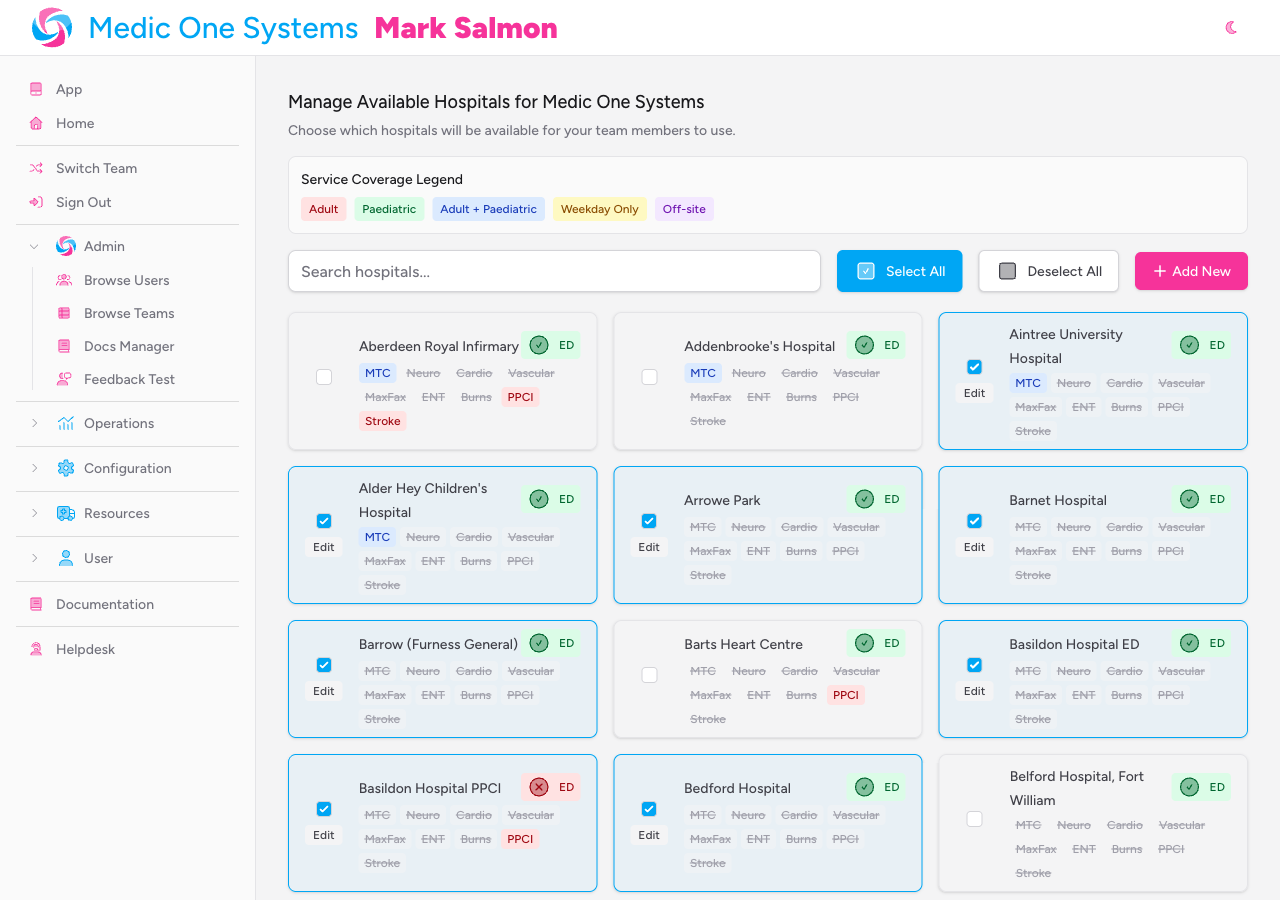
At the top of the page is a colour-coded legend explaining the coverage badge colours:
| Badge colour | Meaning |
|---|---|
| Red | Adult |
| Green | Paediatric |
| Blue | Adult + Paediatric |
| Yellow | Weekday only |
| Purple | Off-site |
A greyed-out, struck-through badge means the hospital has no coverage for that particular service.
Selecting Which Hospitals Your Team Can Access
Your team's active hospitals are controlled by the checkboxes on each hospital card. Changes take effect immediately — there is no separate save step.
Adding a hospital to your team
- Find the hospital in the grid. Use the Search hospitals... field at the top to filter by name if needed.
- Tick the checkbox on the hospital card.
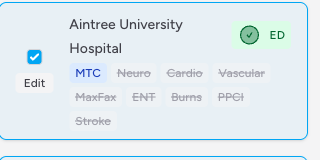
The card border highlights to confirm the hospital is now active for your team, and a success notification appears.
Removing a hospital from your team
- Find the selected hospital in the grid (it will have a highlighted border and a ticked checkbox).
- Untick the checkbox.
The hospital is immediately removed from your team's list and will no longer appear as an option in patient records.
Select All / Deselect All
Use the Select All and Deselect All buttons to quickly add or remove every hospital in the system from your team's list. This is useful if you want to start from scratch or activate all facilities in one action.
Use Deselect All with care — it removes every hospital from your team's active list immediately, which means clinicians won't be able to select a destination hospital in any patient records until you re-add hospitals.
Adding a New Hospital
If the hospital you need isn't in the system yet, you can create it. New hospitals are added to the global list and automatically activated for your team.
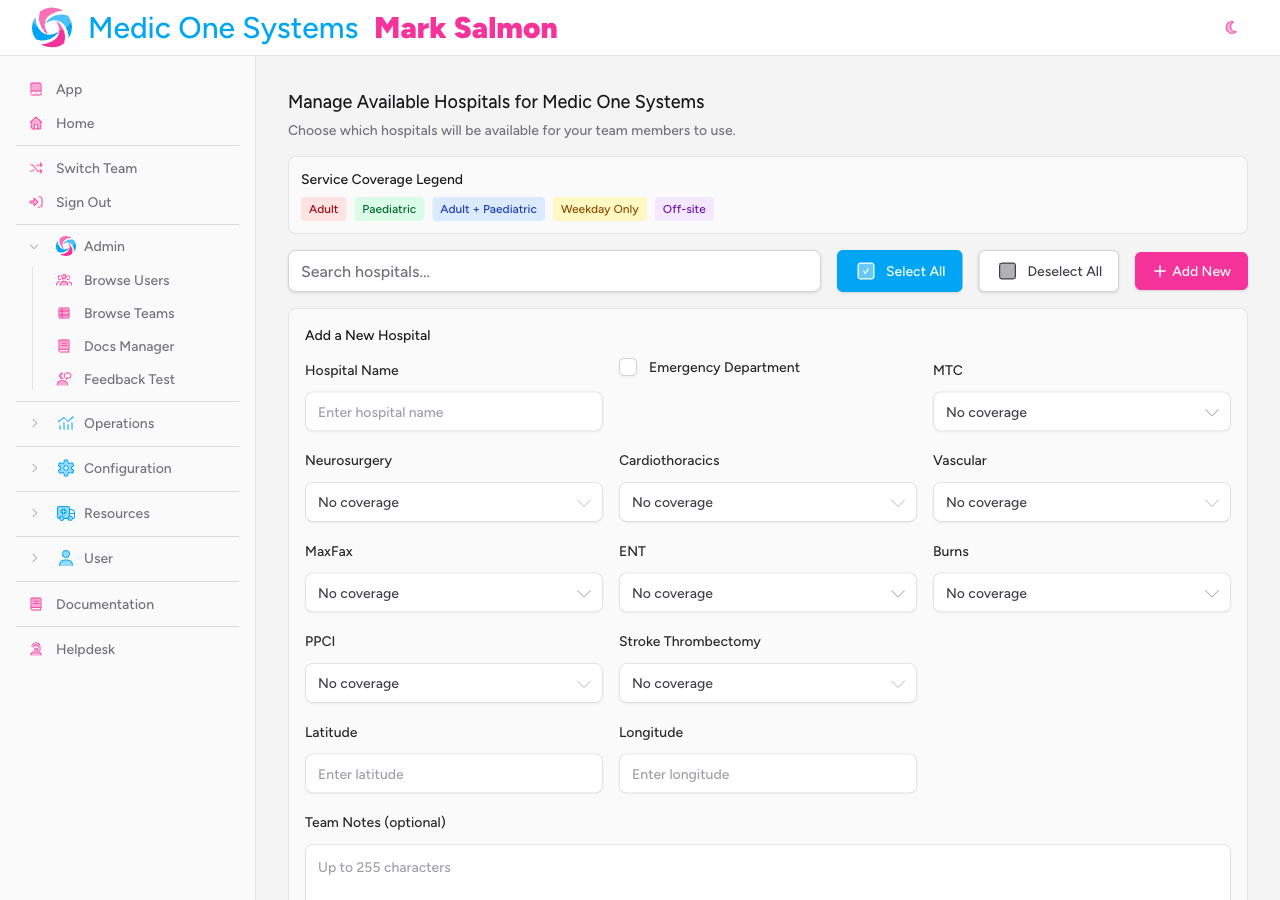
- Click Add New in the top toolbar. A form panel appears below the toolbar.
-
Fill in Hospital Name (required — minimum 2 characters, maximum 255). Hospital names must be unique across the system.
-
Tick Emergency Department if the hospital has an ED.
-
For each specialist service listed below, select the coverage type from the dropdown, or leave it as No coverage:
Field Service MTC Major Trauma Centre Neurosurgery Neurosurgery Cardiothoracics Cardiothoracic surgery Vascular Vascular surgery MaxFax Maxillofacial surgery ENT Ear, nose, and throat surgery Burns Burns unit PPCI Primary Percutaneous Coronary Intervention Stroke Thrombectomy Stroke thrombectomy For each service, the available coverage options are:
Option Meaning Adult Adult patients only Paed Paediatric patients only Adult+Paed Both adult and paediatric patients Weekday only Service available on weekdays only Off-site Service available but not on-site No coverage Hospital does not offer this service -
Optionally, enter Latitude and Longitude coordinates for the hospital. These must be valid decimal coordinates (latitude between -90 and 90; longitude between -180 and 180).
-
Optionally, add Team Notes — a free-text note of up to 255 characters specific to your team's use of this hospital. This note appears on the hospital card and is visible only to your team.
-
Optionally, add Hospital Emails specific to your team. Type an email address into the field and click Add (or press Enter). You can add multiple addresses. Each email appears as a tag beneath the input; click the × on any tag to remove it.
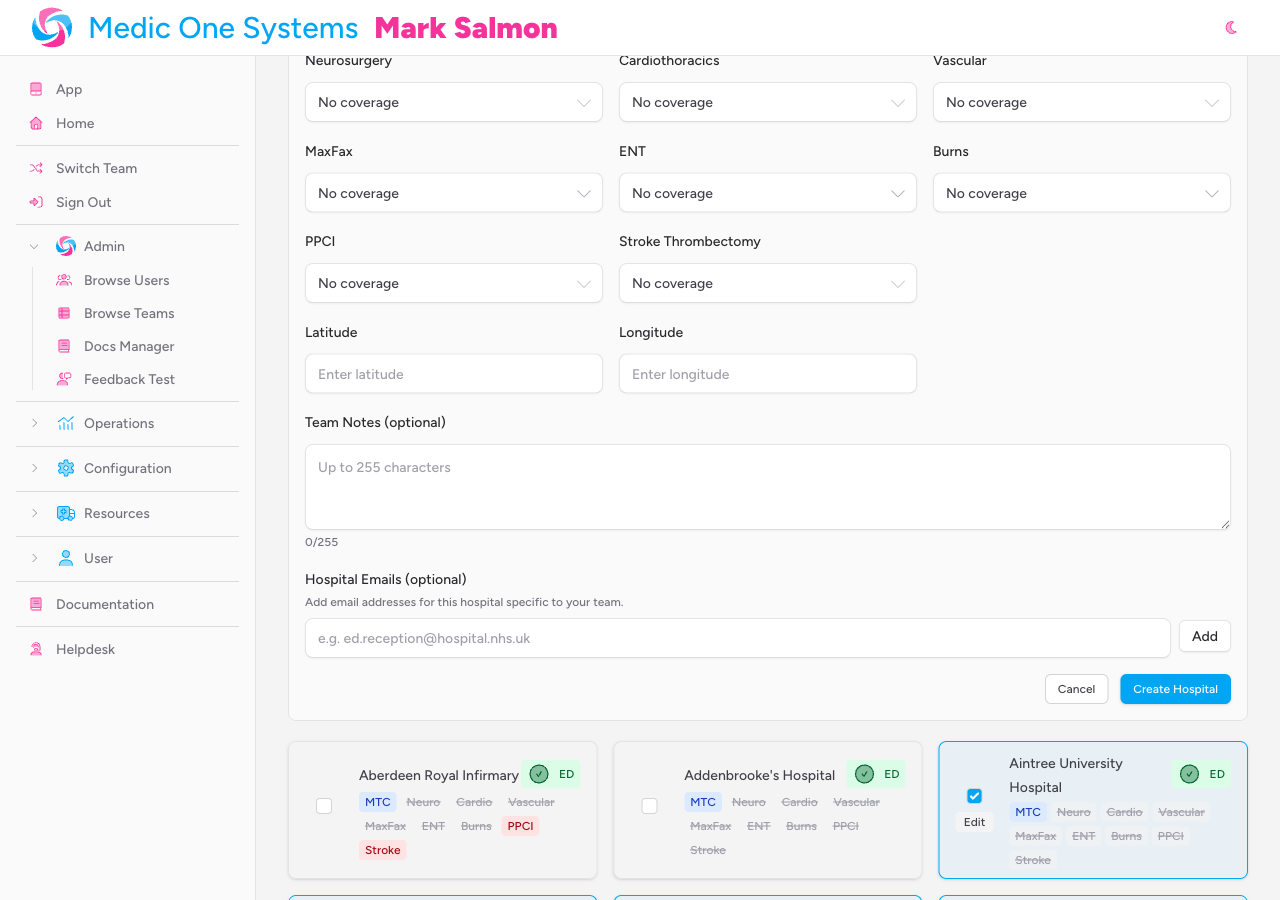
- Click Create Hospital. The new hospital is created and automatically added to your team's active list.
If a hospital with the same name already exists in the system, you'll see an error message on the Hospital Name field. Search the grid for the existing entry and select it for your team instead of creating a duplicate.
Editing a Hospital
You can edit any hospital that is currently selected for your team. Editing updates the hospital details for all teams that have it on their list, so take care when changing the hospital name or clinical capability information.
- Find the hospital card in the grid. The Edit button is only visible on cards that are currently selected for your team.
- Click Edit on the hospital card.
-
The form panel opens, pre-populated with the hospital's current details. Make your changes to any of the fields described in the Adding a New Hospital section above.
-
Note that Team Notes and Hospital Emails are team-specific — changes to these fields affect only your team's view of the hospital.
-
Click Update Hospital to save your changes, or Cancel to discard them.
A success notification confirms that the hospital has been updated.
How Hospitals Appear in Patient Records
Once a hospital is active for your team, it becomes available in the Patient Outcome section of a patient record.
The Hospital field appears automatically when the patient's Patient Result is set to an outcome that includes hospital conveyance (for example, "Conveyed to Hospital" or "Conveyed to Hospital by another service"). The field is hidden for outcomes that don't involve hospital transport.
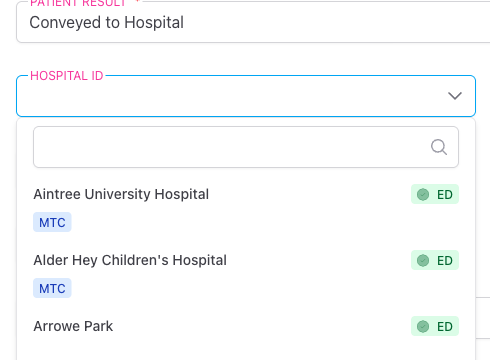
When a clinician opens the Hospital dropdown, each option in the list displays:
- The hospital name
- The ED badge (green or red)
- Coloured service capability badges
This gives the clinician an at-a-glance view of each facility's capabilities without leaving the record. The dropdown also supports filtering by name for quick selection.
When a hospital conveyance result is recorded, a Hospital Arrival Time field also appears, allowing the clinician to log the time the patient arrived at hospital.
The selected hospital name is displayed in the patient report summary under Patient Outcome.
Tips and Best Practices
- Keep hospital names consistent with how your team refers to them — the name entered here is what clinicians will see when selecting a destination in patient records.
- Fill in service coverage information accurately. This information is visible to clinicians at the point of care and can influence destination decisions for time-critical patients.
- Use Team Notes to record any operational information relevant to your team — for example, pre-alert contact details, bypass protocols, or access instructions.
- Use Hospital Emails if your team needs to store contact addresses for a specific facility. These are visible on the hospital card for reference.
- If your events are typically in a specific geographic area, use Select All and then untick the few hospitals that are not relevant, rather than ticking each one individually.
Troubleshooting
The Hospital field doesn't appear in a patient record. The hospital field only appears when the Patient Result is set to a hospital conveyance outcome. Check that the correct result has been selected. If the field is still missing, confirm that your team has at least one hospital selected on the Hospitals settings page.
I can't see an Edit button on a hospital card. The Edit button only appears on hospital cards that are currently selected (ticked) for your team. Tick the checkbox to add the hospital to your team's list, and the Edit button will appear.
I'm getting an error that a hospital name already exists. Hospital names are unique across the entire system. Search the existing card grid for the hospital — it may already be in the list under a slightly different name. If you find it, simply tick its checkbox to add it to your team.
I deselected a hospital by mistake and now I can't find a patient's recorded destination. Deselecting a hospital removes it from your team's selection list, but does not delete any historical patient records. The hospital data is still stored against those records. Re-adding the hospital to your team's list will not affect past records — they retain the association regardless.
- Managing Drugs — configure the drug formulary available to your team
- Managing Interventions — configure the intervention options available in patient records
- Patient Records — how the hospital selection appears within a patient record's outcome section