 IndieBase

Table of Contents
Managing Drugs
How to configure the drugs and medications available to your team
Managing Drugs
IndieBase lets you configure a drug formulary for your team — the list of medications that your crew can select when documenting treatment for a patient. Only drugs on your team's list will appear as options during patient care, which keeps things focused and clinically appropriate for your scope of practice.
Overview
The drug list is shared across the entire application. Your team doesn't maintain its own private catalogue of drugs; instead, you choose which drugs from the global list you want to activate for your team. If a drug you need doesn't exist in the system yet, you can add it — and once added, it becomes available for any team to select.
Drug configuration is done once during setup and then updated as your formulary changes. It has no impact on records that have already been completed.
Before You Start
- You must be a team administrator to manage drugs. Team members cannot access this page.
- Navigate to the Resources section of the sidebar. The Drugs option is listed there.
Getting to the Drug Management Page
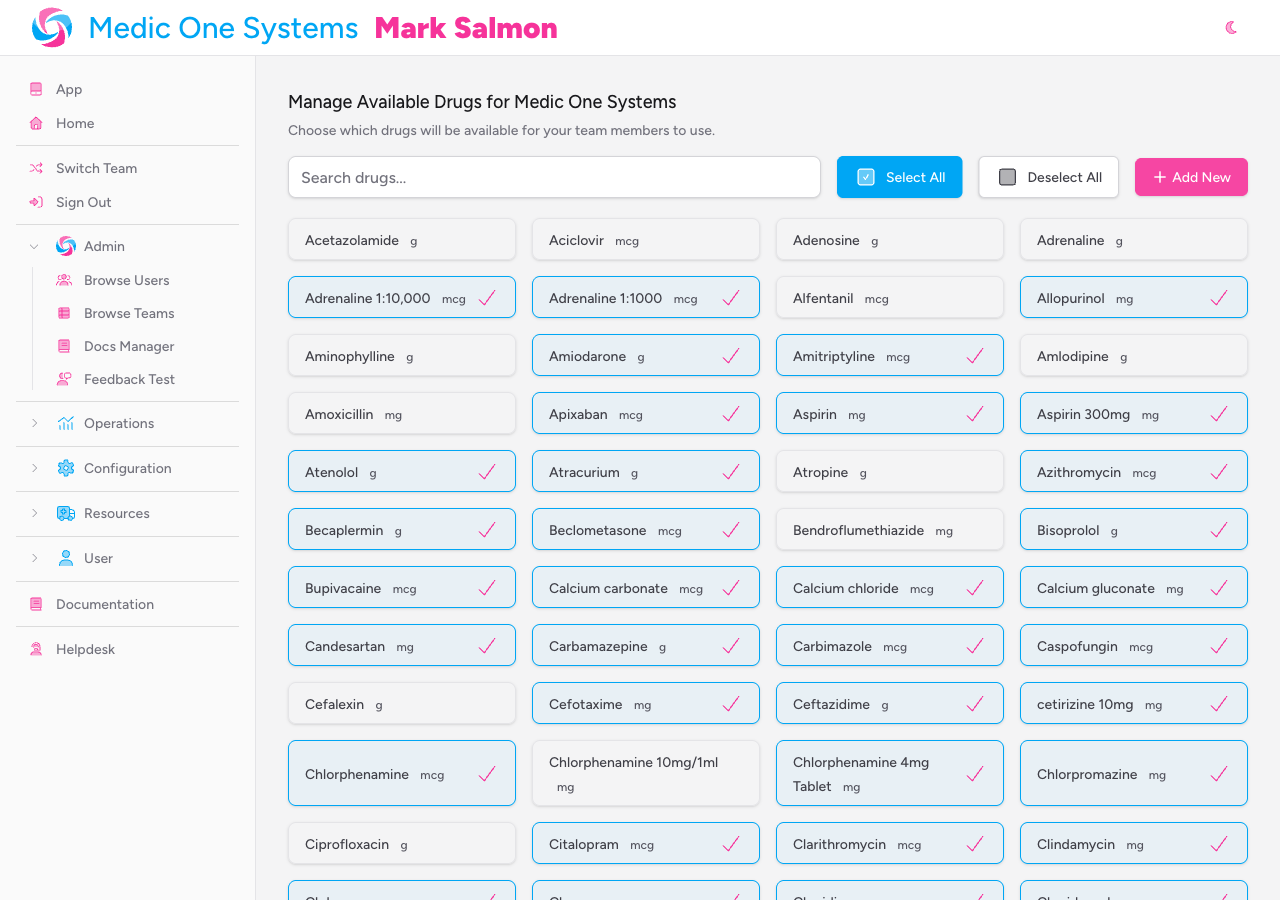
From the sidebar, expand the Resources section and click Drugs. This takes you to the Manage Available Drugs page for your team.
The page shows all drugs currently in the system, displayed as a grid of selectable cards. Drugs that are already active for your team are highlighted and show a tick.
Selecting and Deselecting Drugs
Selecting individual drugs
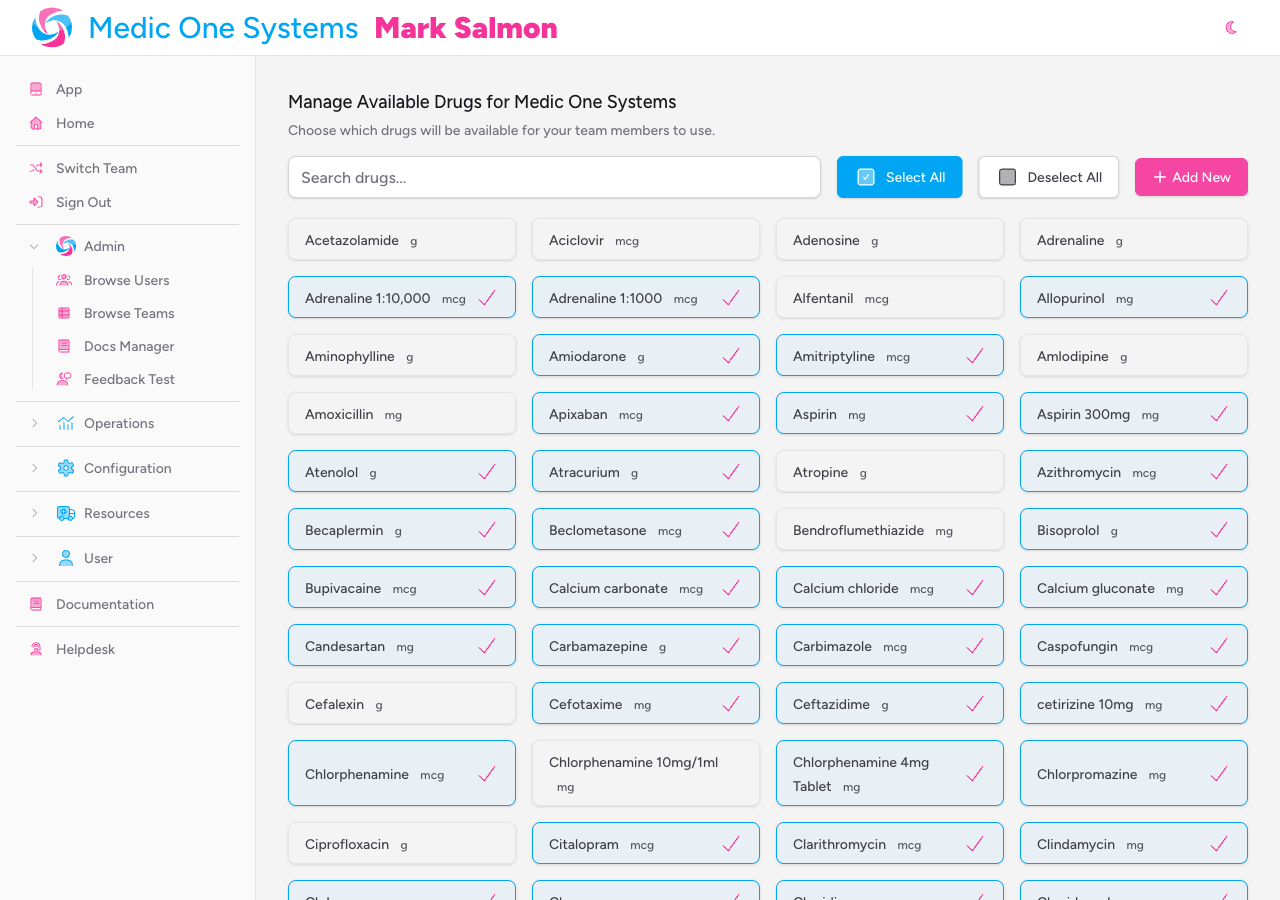
Click any drug card to toggle it on or off for your team. The card will highlight immediately, and the change saves automatically — there's no separate save button to click.
Your team's drug list updates in real time. As soon as you tick or untick a drug, it's reflected for everyone on your team.
Selecting all drugs at once
Click Select All to activate every drug in the system for your team in one go. This is useful if you want to start with everything enabled and then pare it back.
Clearing your selection
Click Deselect All to remove all drugs from your team's active list. Use this with care — your crew won't be able to record any drugs against a patient until you re-enable some.
Searching the drug list
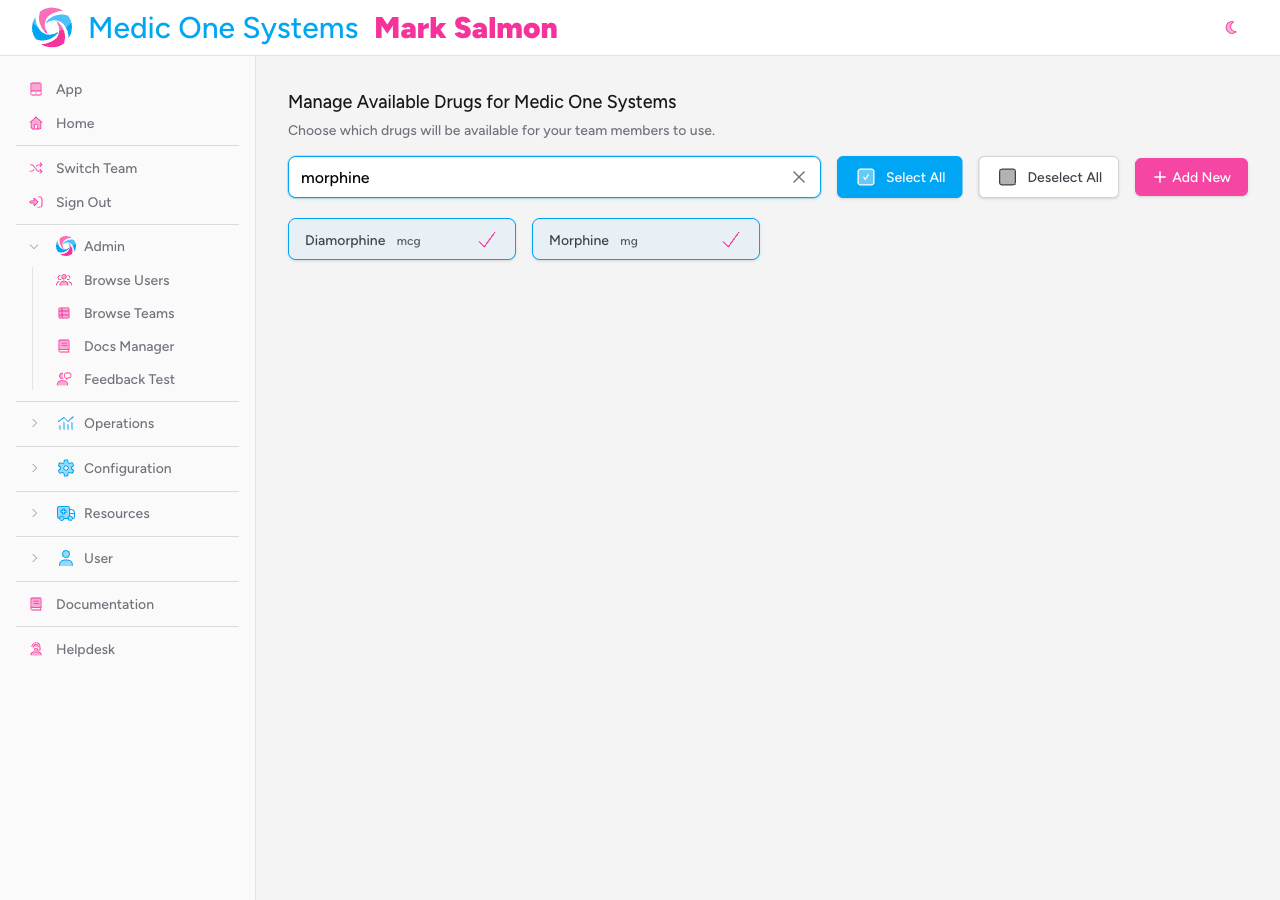
If you're looking for a specific drug, use the Search drugs... field at the top of the page to filter the grid by name. Clear the search by clicking the X that appears in the search field.
Adding a New Drug
If the drug you need isn't in the system, you can create it. Click Add New — a small form will appear beneath the toolbar.
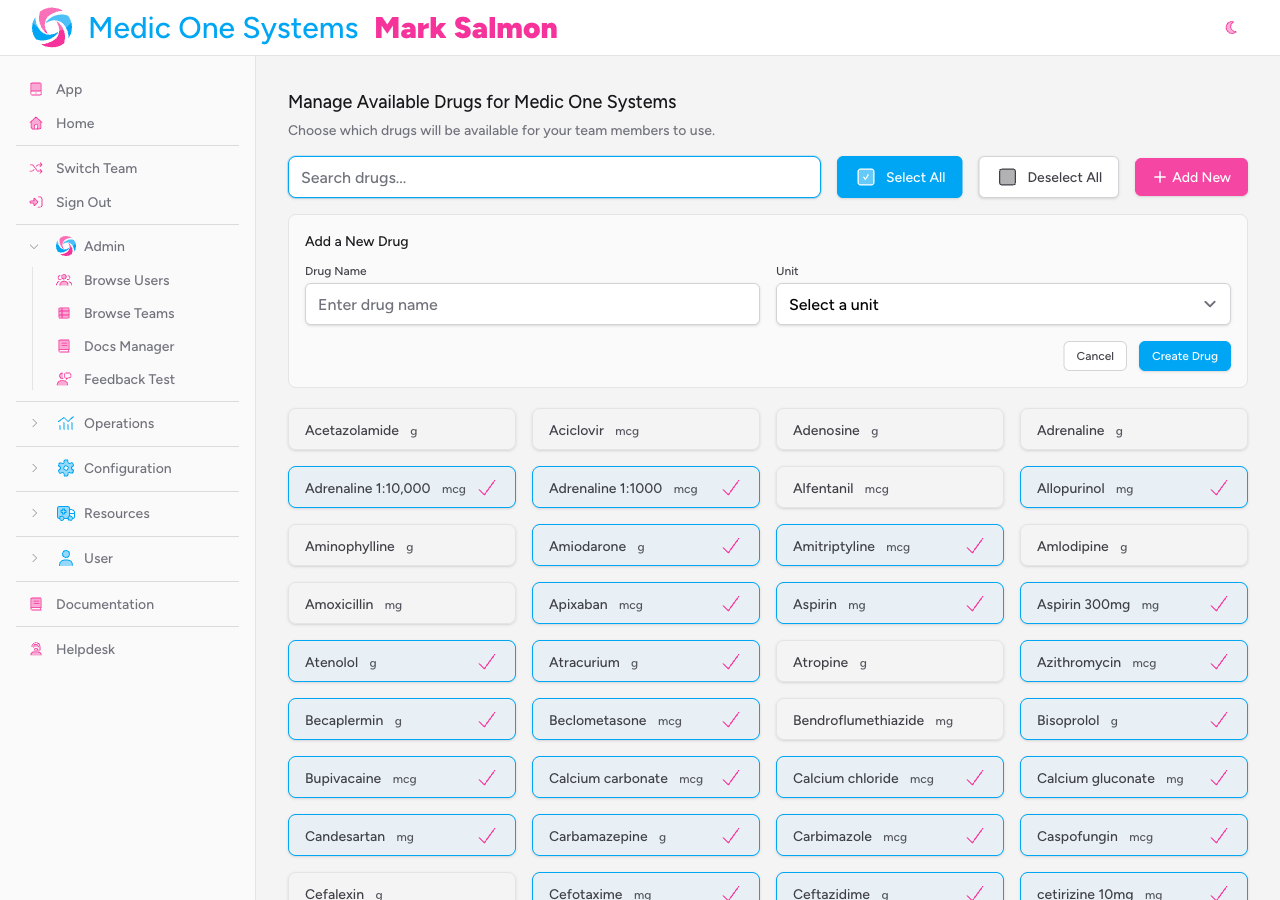
Fill in the two required fields:
- Drug Name — The name of the drug as it should appear throughout the system. Must be at least 2 characters. This name will be visible to your crew when they record a drug administration. Each drug name must be unique across the system.
- Unit — The default unit of measurement for this drug. Select from the dropdown:
g,mg,mcg,ml,l,tabs,units,amp,pcs, orvial.
Click Create Drug to save. The new drug is created in the system and immediately added to your team's active list.
Newly created drugs are shared across the platform and can be selected by any team. Choose a clear, unambiguous name — ideally using the drug's approved name rather than a brand name.
To dismiss the form without saving, click Cancel.
How Drugs Appear When Treating Patients
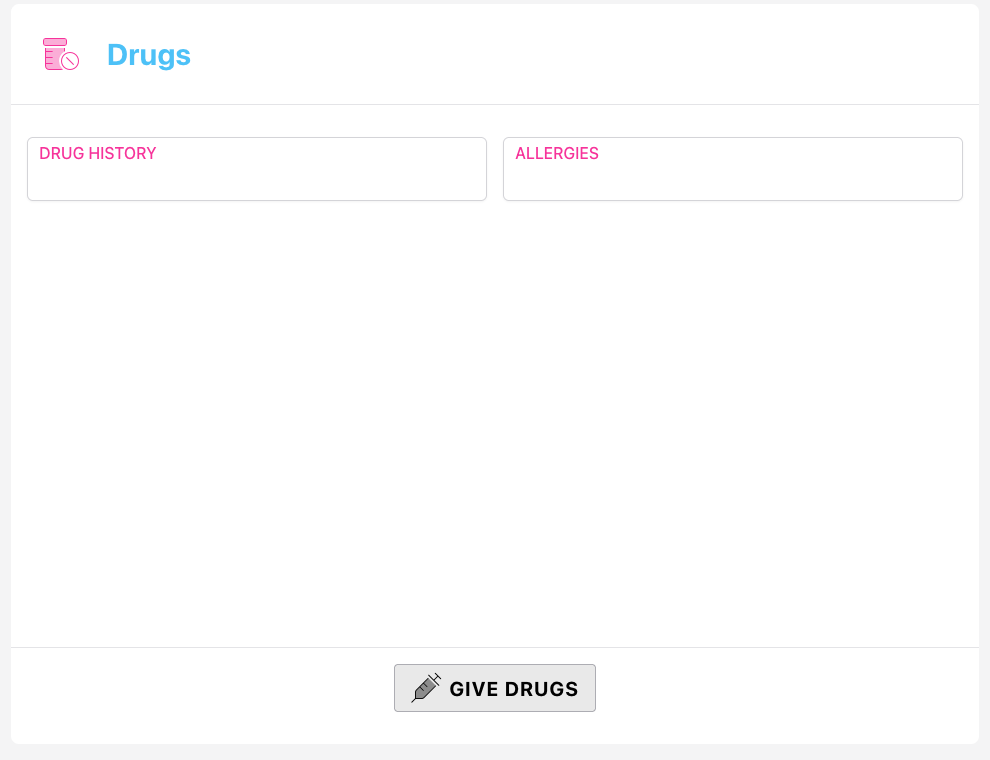
Once you've configured your team's drug list, your crew will see those drugs available in the Drugs panel on any patient record.
Inside the Drugs panel, clicking Give Drugs opens a drawer form where your crew records each drug administration. The fields they complete are:
| Field | Required | Description |
|---|---|---|
| Time | Yes | The time the drug was given. Can be set to the current time or entered manually. |
| Drug | Yes | Selected from your team's active drug list using a searchable dropdown. |
| Dose | Yes | The numeric amount given, with increment/decrement controls. |
| Unit | Yes | The unit for the dose: g, mg, mcg, ml, l/min, units, or IU. |
| Route | Yes | How the drug was administered — options include oral, intravenous, intramuscular, intraosseous, inhaler, nebuliser, mask, non-rebreath mask, venturi mask, intranasal, subcutaneous, rectal, and topical. |
| User | No | The team member who administered the drug. Defaults to the current user. |
| Note | No | Any free-text note about the administration. |
After saving, each drug entry appears in the Drugs panel as a timestamped row showing the drug name, dose, unit, route, and the user who recorded it.
Your crew can also:
- Edit a drug entry by clicking the pencil icon on any row.
- Duplicate an entry (useful for repeat doses) by clicking the copy icon — this pre-populates the form with the same drug and details, ready to adjust the time and dose.
- Delete an entry by clicking the bin icon.
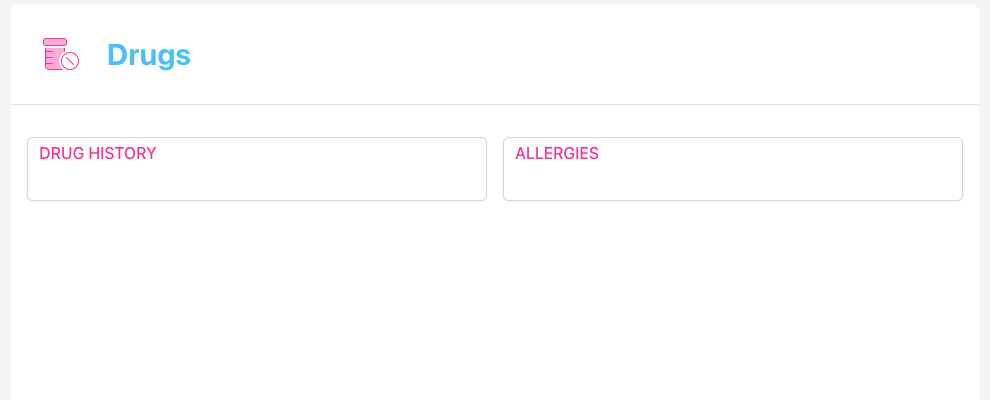
The Drugs panel also includes Drug History and Allergies fields at the top for recording the patient's existing medication history and any known allergies — these are separate from the treatment you're recording and are free-text fields.
Drugs on Patient Reports
All recorded drug administrations appear on the printed patient report (PRF), showing the time, drug name, dose, unit, and route for each entry. The patient's drug history and allergy information are also included.
Tips and Best Practices
- Keep your formulary focused. Only activate the drugs your team is actually authorised and equipped to administer. A shorter, accurate list reduces the chance of documentation errors.
- Use approved names. When creating new drugs, use the drug's generic (approved) name rather than a brand name. This keeps records consistent and clinically clear.
- The unit on the drug card is a default reference, not a constraint. When your crew records a drug administration, they can choose from a range of units regardless of the unit set on the drug itself — so don't worry if a drug could be given in multiple units.
- Changes are immediate. Any changes you make to your drug list take effect straight away for all team members, including those currently logged in.
Troubleshooting
A drug I need isn't in the list. Use the Add New button to create it. Make sure the name is spelled correctly before saving — drug names must be unique, and you won't be able to create a duplicate.
I get an error saying a drug already exists when I try to create one. Search the existing list first — the drug may already be in the system but not yet active for your team. Check the search results and tick it rather than creating a new entry.
The Drugs panel isn't visible on patient records. Your team's configuration may have the Drugs panel hidden. Contact your team administrator to check the panel visibility settings in Template Config.
I can't access the Team Drugs page. This page requires administrator access. If you're a team member rather than an administrator, you won't be able to view or modify the drug list. Ask an administrator to make changes on your behalf.
Related: Managing Interventions | Template Config | Patient Records