 IndieBase

Table of Contents
Managing Interventions
How to configure the medical interventions and procedures available to your team
Managing Interventions
Only team owners and team admins can manage intervention settings.
Overview
IndieBase maintains a library of medical interventions and procedures — things like IV access, haemorrhage control, airway management, splintage, and surgical procedures. Your team decides which of these appear as selectable options when your clinicians are documenting patient care.
This page walks you through choosing your team's intervention list and adding custom interventions that aren't in the default library.
Before You Start
- You need to be the team owner or have the admin role on your team.
- Changes take effect immediately — there's no draft or staging step.
- Interventions you deselect won't be available to clinicians going forward, but any interventions already recorded on patient records are unaffected.
Getting There
- Log in and make sure you're on the correct team (check the team switcher at the top of the page if you manage more than one).
- In the left-hand navigation, expand the Resources section and click Interventions.
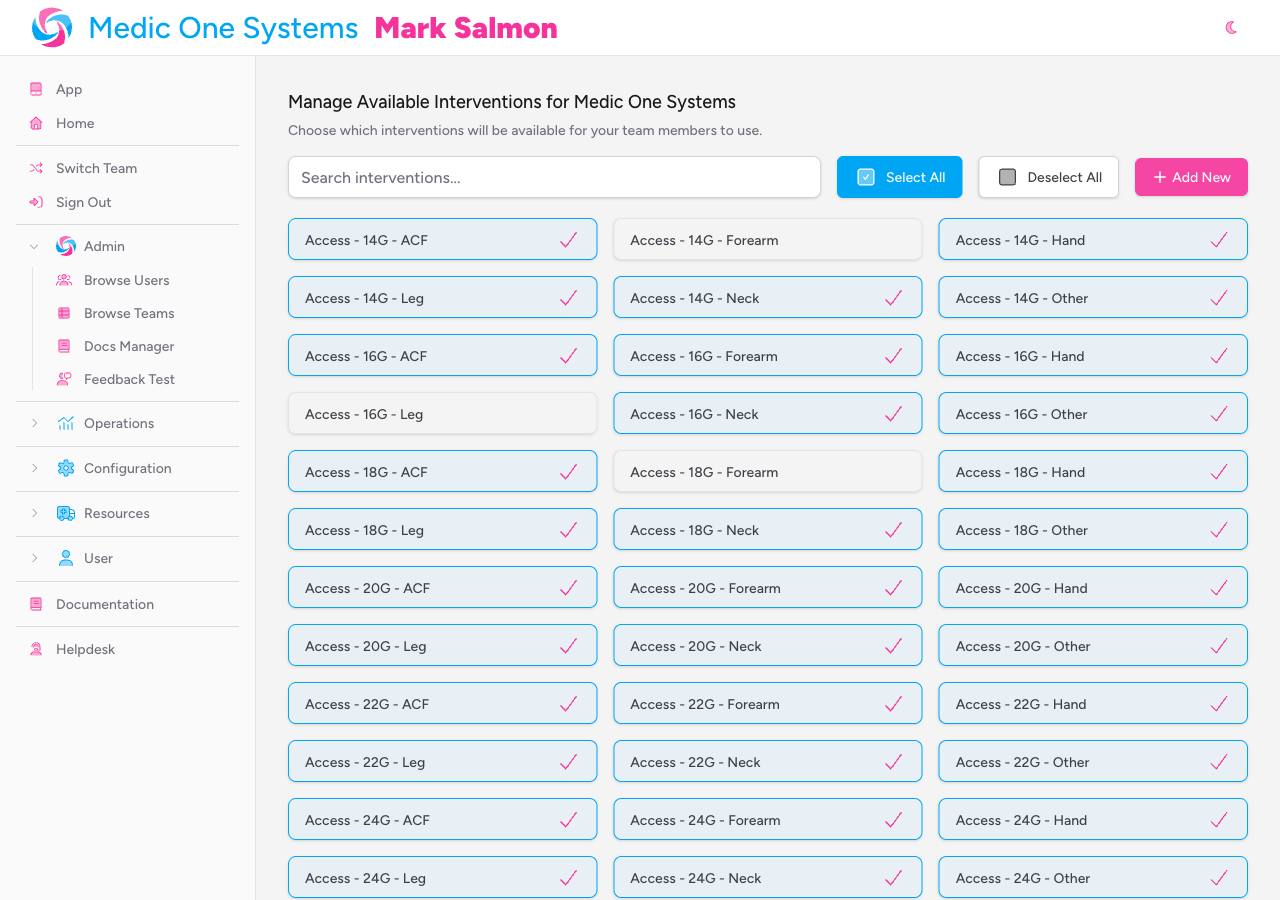
You'll land on the Manage Available Interventions page, which shows the full IndieBase intervention library as a grid of selectable tiles.
Selecting and Deselecting Interventions
Each tile in the grid represents one intervention from the library. Tiles that are currently active for your team are highlighted and show a tick in the corner.
Toggling individual interventions
Click any tile to toggle it on or off. The change saves automatically — you'll see a brief confirmation toast at the bottom of the screen.

Selecting or deselecting everything at once
If you want to start from a clean slate, or enable everything:
- Click Select All to add the entire library to your team's list.
- Click Deselect All to remove everything from your team's list.
Both actions save immediately.
If you Deselect All, clinicians will have no interventions to choose from until you re-enable some. Do this with care during an active event.
Searching the library
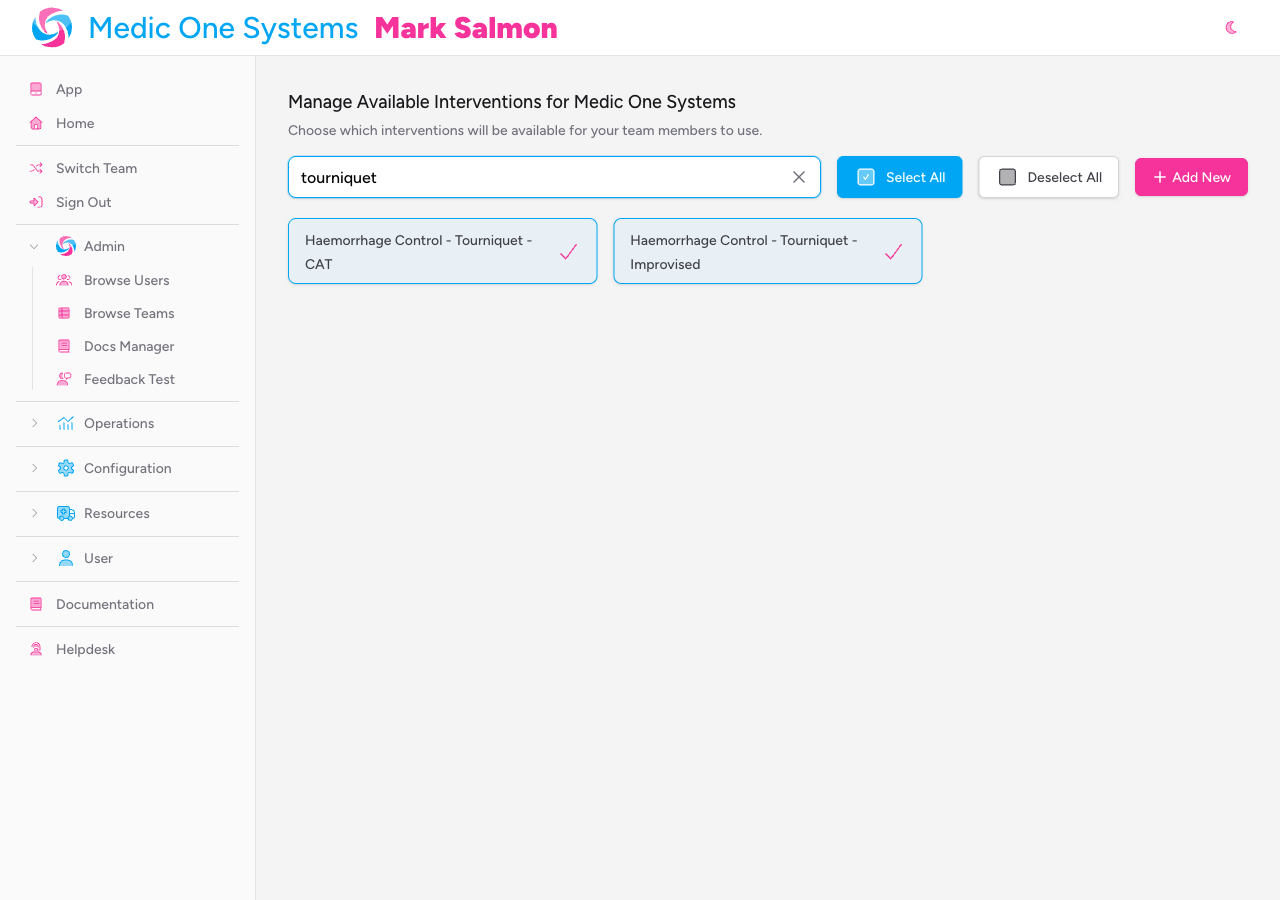
The library contains a large number of interventions across many clinical categories. Use the search field at the top of the page to filter by name — just start typing and the grid updates in real time. Click the X button inside the search field to clear the filter and see the full list again.
Adding a Custom Intervention
If your team performs a procedure that isn't in the IndieBase library, you can add it.
-
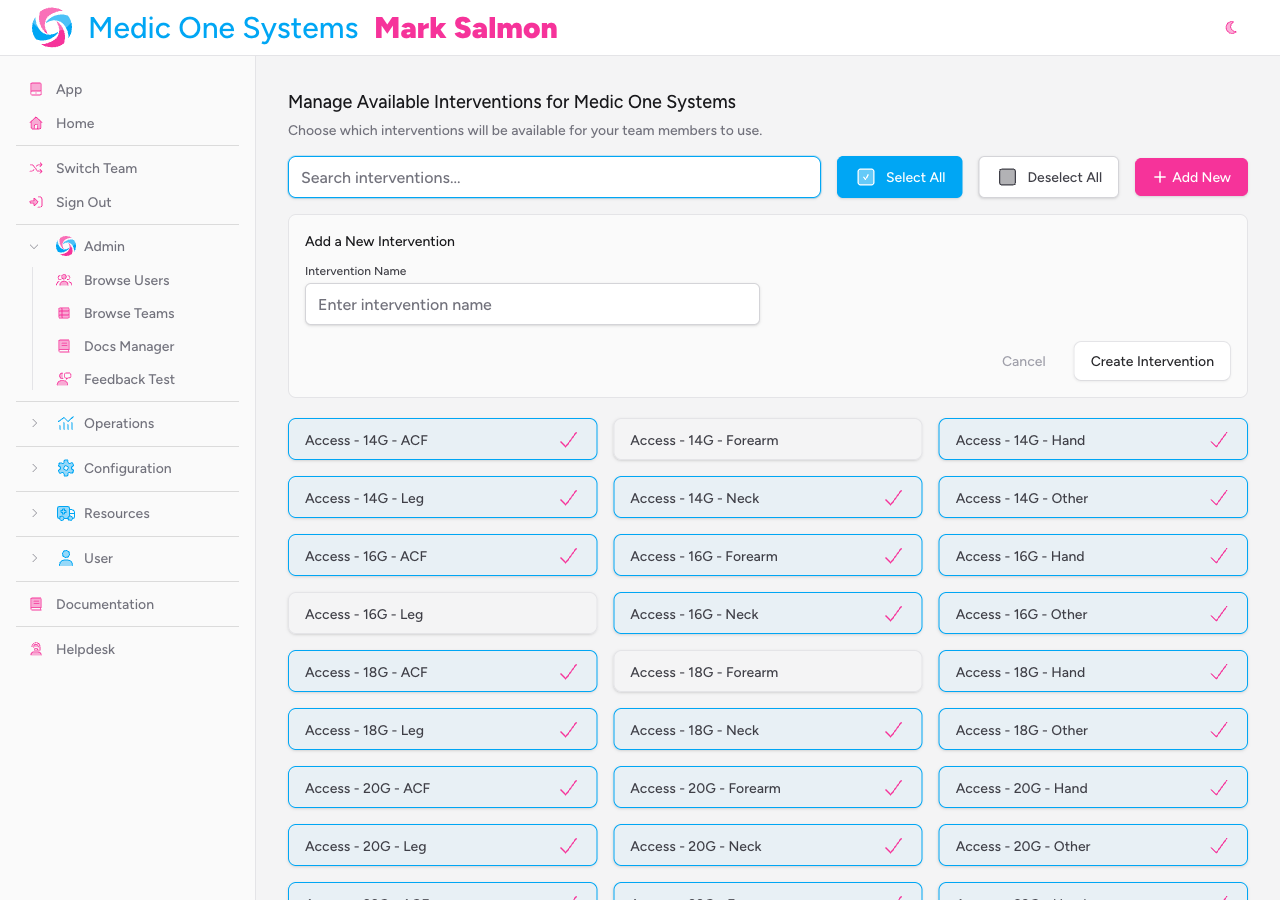
Click the Add New button (top-right of the page).
A small form appears below the toolbar.
-
Type the name of the intervention in the Intervention Name field. The name must be at least 2 characters and no more than 255.
-
Click Create Intervention.
IndieBase checks whether an intervention with that name already exists in the library. If one does, you'll see a validation error — search the grid for it instead and tick it from there.
If the name is unique, the new intervention is created and immediately added to your team's active list. It appears in the grid like any other intervention.
Custom interventions you create are added to the shared IndieBase library and will be visible to other teams searching the library. Choose clear, unambiguous names.
How Interventions Appear in Patient Records
Once you've configured your team's intervention list, clinicians can record interventions directly on patient records during a job.
On the patient record, the Interventions panel shows all interventions recorded for that patient, listed in chronological order. Clinicians add a new entry by tapping or clicking Add Interventions at the bottom of the panel.
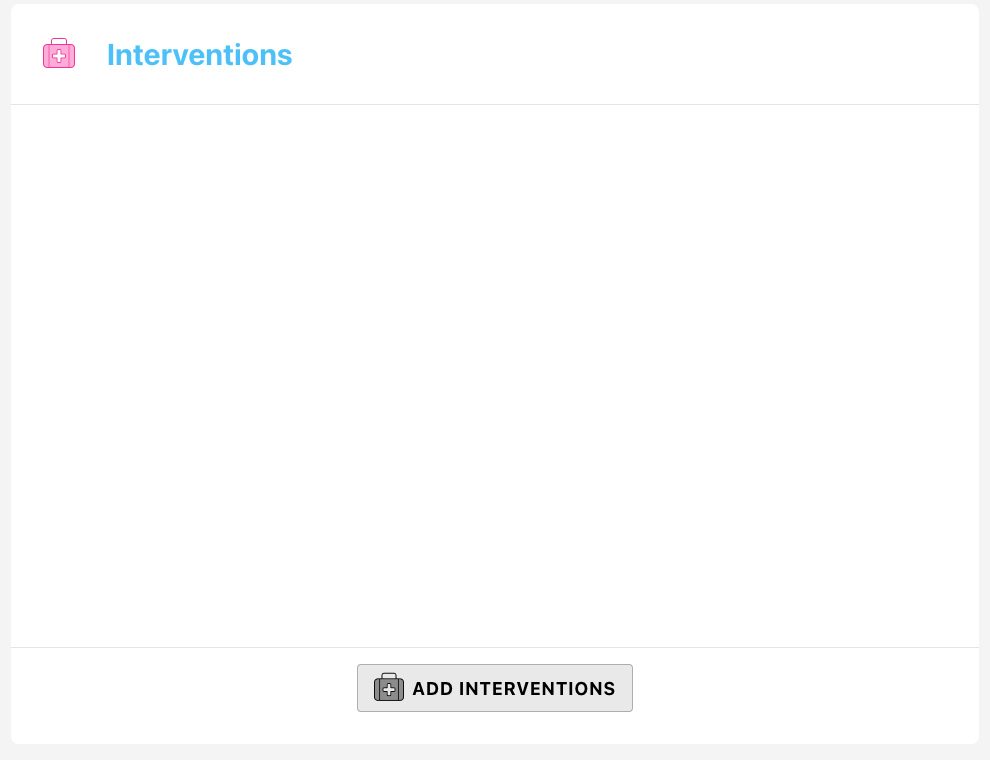
The Add Interventions drawer slides in from the side and contains the following fields:
| Field | Required | Notes |
|---|---|---|
| Time | Yes | Time the intervention was performed. Tap the clock icon to set it to now, or pick a time manually. |
| Intervention | Yes | Choose from your team's active intervention list. The dropdown is searchable. |
| Side | No | Select Left or Right for lateralised procedures. Leave blank if not applicable. |
| Performed by | No | Select the team member who carried out the intervention. Defaults to the current user. |
| Notes | No | Free text, up to 255 characters. |
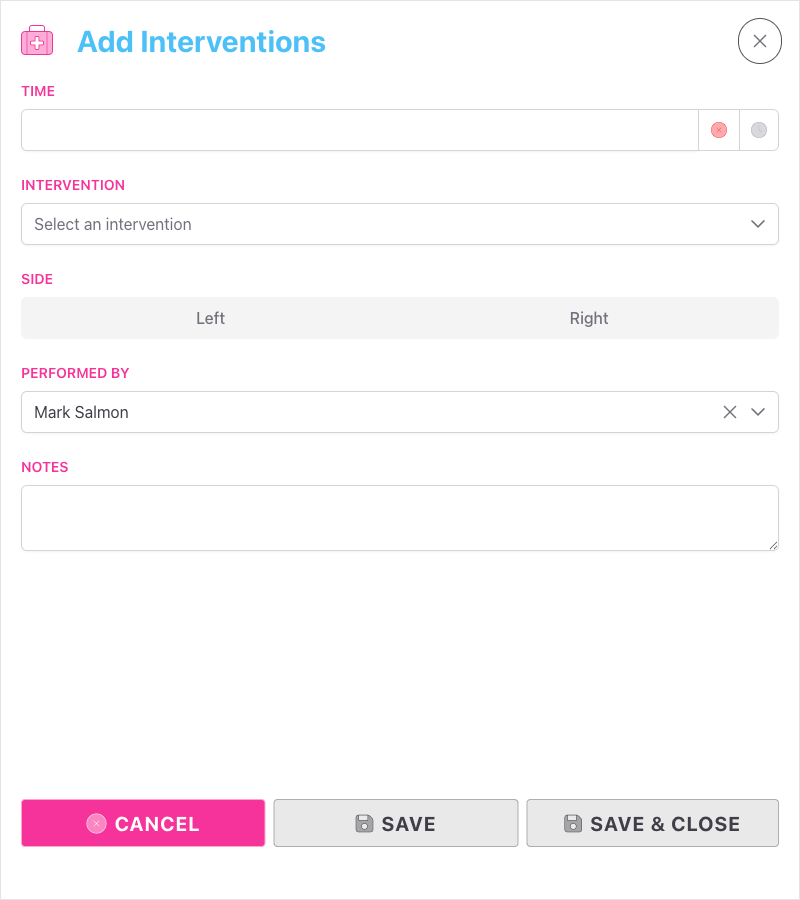
Once saved, the intervention appears in the panel table. From there, clinicians can edit it (pencil icon), duplicate it (copy icon — useful for bilateral procedures), or delete it (trash icon).
Interventions on the obs chart
Recorded interventions are plotted on the patient's observations chart as markers, so clinicians can see at a glance when a procedure was performed relative to changes in vital signs.
Interventions in PDF reports
Interventions appear in the generated patient report, grouped under an Interventions section. Each entry shows the time, intervention name, and side indicator (where recorded).
Hiding the Interventions Panel
If your team doesn't use the Interventions panel at all, a team admin can hide it via Template Config. When hidden, the panel won't appear on any patient records for your team.
See Template Config for details.
Troubleshooting
I can't see the Interventions link in the navigation. You need to be a team owner or admin. Standard team members don't have access to team settings pages.
A clinician can't find an intervention in the patient record. Check that the intervention is ticked on the Team Interventions page. If a clinician recently reported it as missing, it may have been accidentally deselected — search for it and re-enable it.
I get an error saying the intervention name already exists. The name you've entered matches an intervention already in the library (including ones your team hasn't selected). Search the grid for it and tick it rather than creating a duplicate.
The Interventions panel isn't visible on patient records. The panel may be hidden in your team's template configuration. Go to Configuration > Template Config and check whether Interventions is toggled on.
I selected an intervention but it's not showing for my clinicians. Changes are immediate, but if a clinician has the app open they may need to refresh the page for the updated list to appear.
- Template Config — show or hide clinical panels, including Interventions
- Managing Drugs — configure which medications appear in the Drugs panel
- Patient Records — overview of clinical documentation