 IndieBase

Table of Contents
Marking a Job as Done
How to mark a job as complete and what happens when you do
Marking a Job as Done
Marking a job as done is the final step in any callout. It closes the record, timestamps completion, and returns you to the job list so you're ready for the next one.
Overview
Once you've finished treating a patient, completed your documentation, and the crew is clear, you mark the job as done. This sets the job's status to Done, records the completion time, and switches the job into a read-only view. If your team's configuration has required fields, the app will check these before it lets you proceed — so it's worth making sure your paperwork is in order first.
Before You Start
- You must have the job open on your device.
- Any required fields in your team's configuration must be completed. The app validates these automatically when you tap Job Done and will point you to the first panel with missing information.
- Your crew's clear time does not need to be set manually — the app will fill it in automatically if it's missing.
How to Mark a Job as Done
Step 1: Open the Job
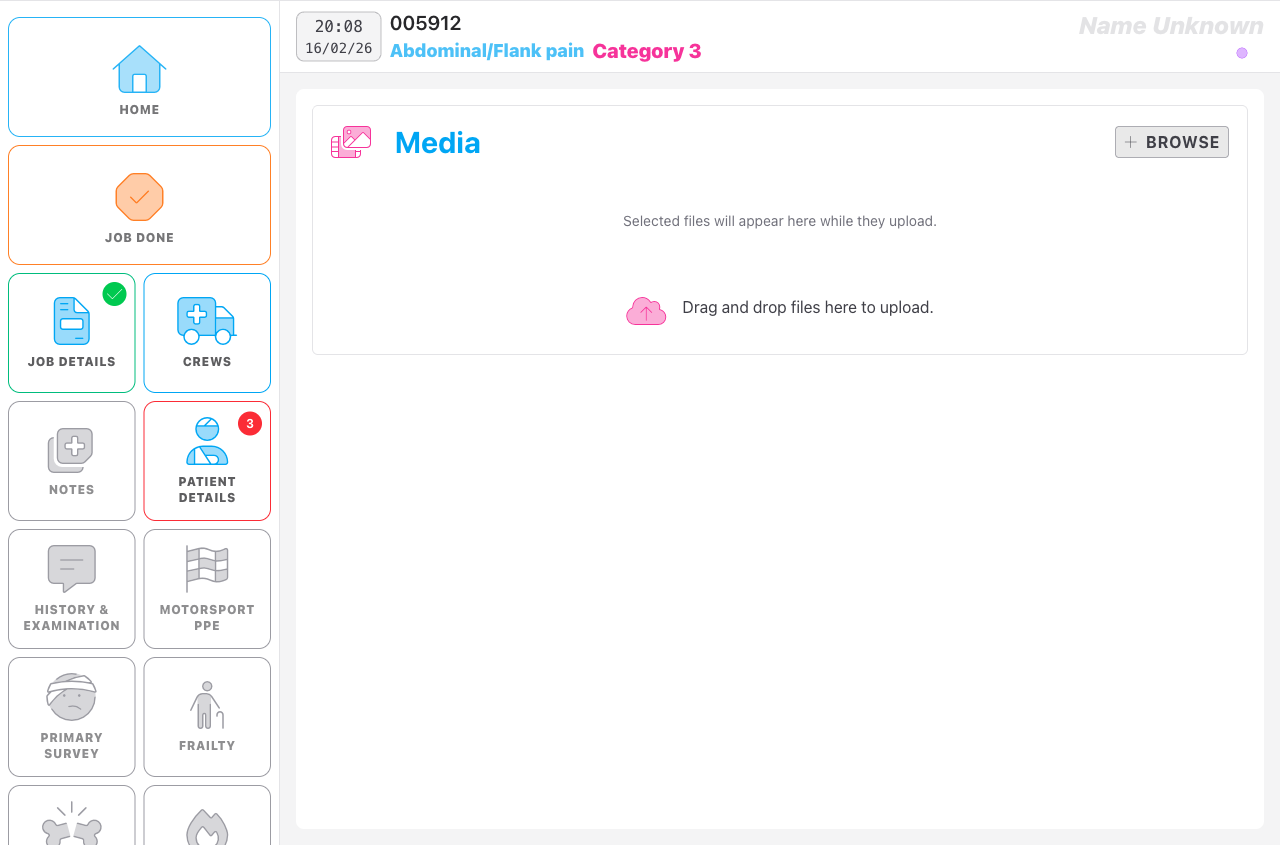
From the job list, tap the job you want to close. It opens in edit mode — you'll see the side panel on the left and the job details in the main area.
Step 2: Check Your Documentation
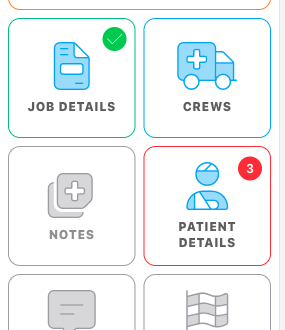
Before tapping Job Done, it's worth a quick scan of the panels in the left-hand navigation. Panels that have required fields set by your team show a badge:
- A green tick means the panel is complete.
- A number (for example,
2) means there are that many required fields still missing. - A red border on the panel button highlights panels with errors.
If any panels are showing missing fields, open them and fill in the required information before continuing.
Step 3: Tap Job Done
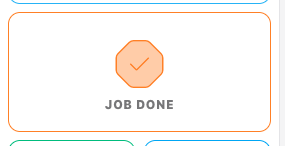
When you're satisfied the record is complete, tap Job Done in the upper section of the left-hand navigation panel. It has an orange border and a tick-in-octagon icon.
Step 4: The App Validates Your Record
When you tap Job Done, the app does two things automatically before closing the job:
- Sets the clear time — If any crew assigned to the job doesn't have a clear time recorded, the app sets it to the current time. You don't need to do this manually.
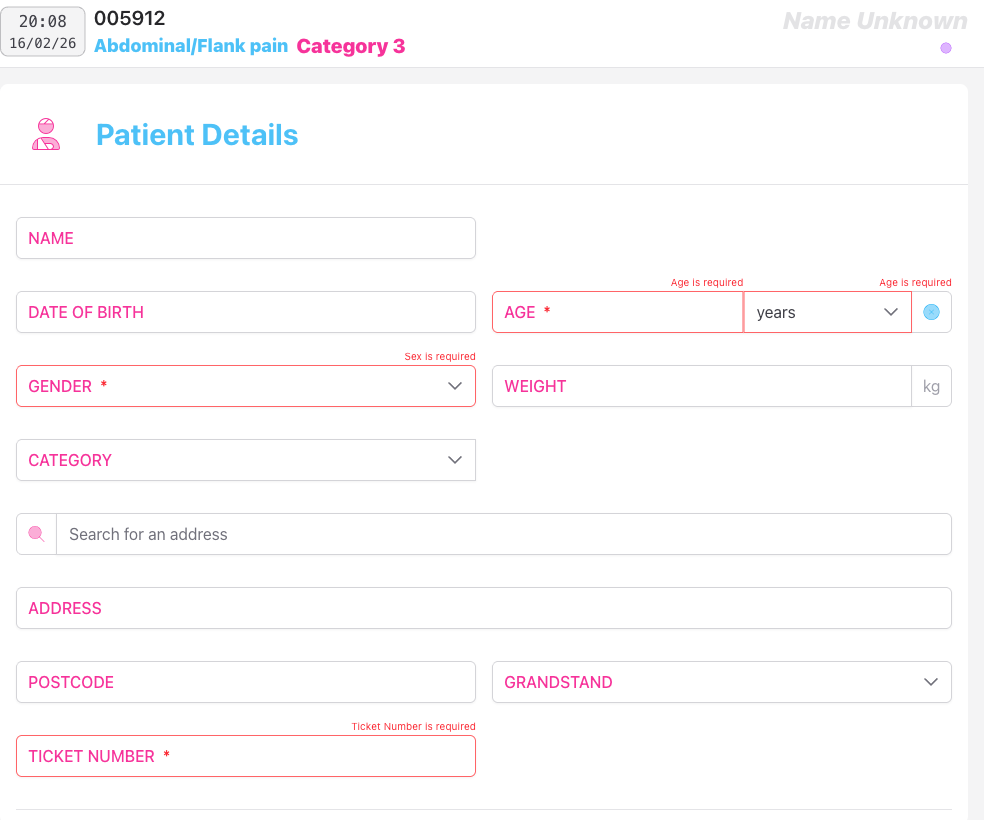
- Validates required fields — The app checks every panel that has required fields configured by your team. If anything is missing, it navigates you straight to the first panel with incomplete information and highlights the fields that need attention.
If validation fails, fill in the highlighted fields and tap Job Done again.
Step 5: Job Closed
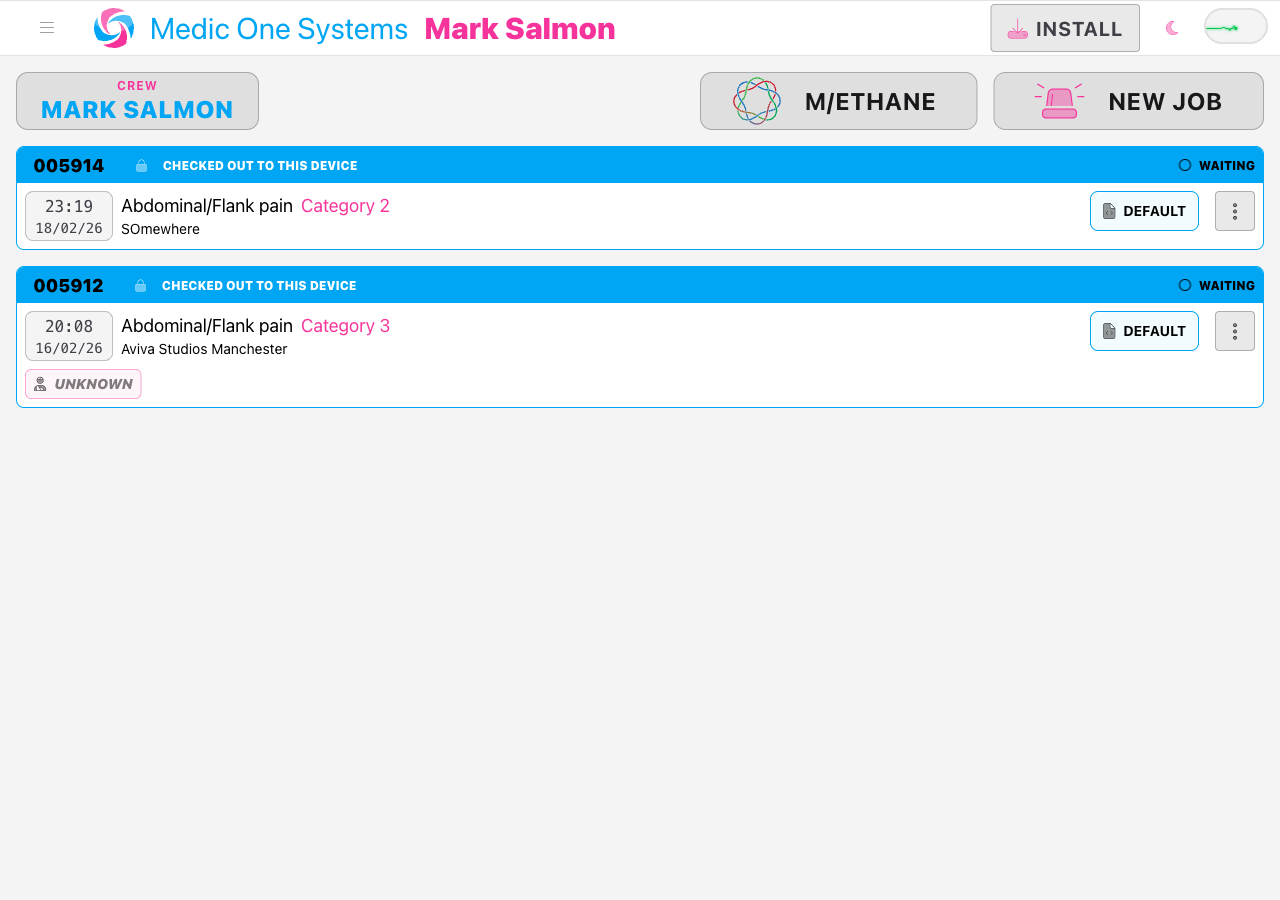
Once all required fields are satisfied, the job is marked as done and you're returned to the job list home screen.
The job's status is set to Done, the completion timestamp is recorded, and the job switches to a read-only view.
What Happens After You Mark a Job as Done
The Job Switches to a Read-Only View
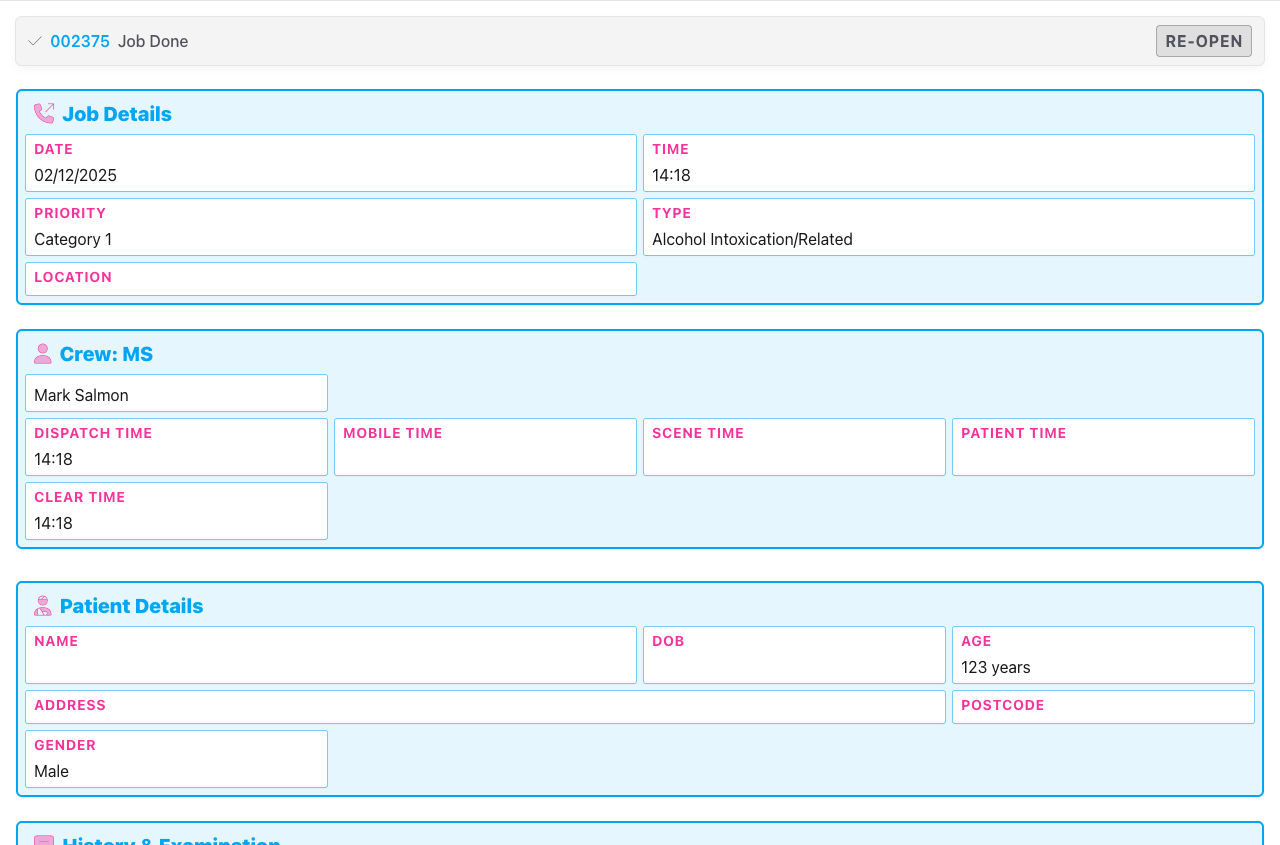
If you navigate back to the completed job — for example, from the job list — it opens in a view-only mode. You'll see a banner at the top confirming the job is done.
The Job Status Shows as Done
On the job list, the job's status indicator updates to Done (displayed in grey). It remains visible in your list alongside any other active jobs from the same period.
Your Clear Time is Recorded
If any crew didn't have a clear time set, the app filled it in automatically when you tapped Job Done. You can see these times in the read-only view under each crew's details.
Reopening a Done Job
If you need to edit a job after it's been marked as done, it can be reopened — but only if you have the appropriate permissions.
When viewing a completed job, look for the Re-open button in the done banner at the top of the screen. Tapping it reopens the job for editing and takes you back into the edit view.
If you don't see a Re-open button and instead see a padlock icon, you don't have permission to reopen this job. This is typically the case if the editing window set by your team has passed, or if you're not an administrator. Contact your team admin if you need the job reopened.

Who Can Reopen a Job
Whether you can reopen a job depends on your role and your team's settings:
- Crew members can reopen jobs they were assigned to, provided the job's call time falls within the editing window your team has configured.
- Team administrators can reopen any job on the team, regardless of the editing window.
If the Re-open button is not visible, the job is outside your editing window or you don't have sufficient permissions.
Troubleshooting
The app has found required fields that aren't filled in. The panel with the missing information is displayed automatically — fill in the highlighted fields and tap Job Done again. Repeat this until the app accepts the submission and returns you to the home screen.
The Job Done button is only visible when the job is open in edit mode. If you're viewing a completed job in read-only mode, you won't see the button. If the job has already been marked as done by another crew member, you'll see a done banner instead.
I marked the job as done by mistake
Navigate back to the completed job from the job list. If you have permission to reopen it, you'll see a Re-open button in the banner at the top. Tap it to reopen the job and resume editing.
You may not have permission to reopen this job. This happens when the job's call time is older than your team's editing window, or if you're not an administrator. Speak to your team admin.
The job doesn't appear to be syncing after I mark it done
IndieBase works offline-first, so the completion is saved locally to your device straight away. The sync to the server happens when you have a connection. If you're offline, the job will show as done on your device and will sync as soon as connectivity is restored.
- Adding a Job — creating a job and filling in the details before marking it done
- Filling In the Patient Record — completing the clinical panels that must pass validation before the job can be closed
- Completing and Handing Over a Job — recording the patient outcome and completing the job