 IndieBase

Table of Contents
Sending a PRF to Hospital
How to email a Patient Report Form directly to a receiving hospital from the Patient Reports panel.
Sending a PRF to Hospital
Email a completed Patient Report Form directly to a receiving hospital with a couple of clicks — from the Patient Reports panel in the patient record.
Overview
When the hospital email feature is enabled for your team, the Patient Reports panel includes a Send PRF to Hospital button. You select which generated report to send, confirm the recipient details, and the system queues the email immediately.
Every send is recorded in the Sharing history table in the same panel, with live delivery status so you can see at a glance whether the hospital received the email.
If your team has set a contact email in Information Governance, hospital replies are routed straight to it rather than to Indiebase's unmonitored mailbox. If only a phone number is configured, the email tells the hospital it is unmonitored and asks them to call instead.
Before You Start
- The Email PRF to hospital switch must be enabled by a team admin in Team Settings > Information Governance > PRF Distribution. See PRF Distribution Setup.
- The patient's Hospital field (in the Outcome panel) must be set to a hospital that has at least one email address configured for your team. If a hospital has no email addresses, the button will not appear. See Managing Hospitals.
- At least one report must have been generated for this patient. The button is disabled until a report exists.
Sending the PRF
Step 1: Open the patient record and generate a report
Open the job in the app and navigate to the Patient Reports panel using the panel navigation.
If no reports have been generated yet, click Generate Report and wait a few seconds for the report to appear in the grid below. The send buttons are disabled until at least one report is present.

Step 2: Check the Outcome panel (if needed)
The Send PRF to Hospital button only appears when the selected hospital has email addresses configured. If you do not see the button, make sure a hospital is selected in the Outcome panel.
When a hospital with email addresses is selected, a hint appears in the Outcome panel: "This hospital can receive the PRF by email." Click Open Patient Reports in that hint to jump straight to the panel.

Step 3: Click Send PRF to Hospital
In the Patient Reports panel, click Send PRF to Hospital.
A confirmation dialog opens.
Step 4: Select the report and confirm
The Send PRF to Hospital dialog shows:
- A Report to send dropdown — select which generated report to send. The most recent is pre-selected.
- A confirmation message showing the hospital name and the email addresses it will be sent to — for example: "Are you sure you want to send this report to City General at handover@citygeneral.nhs.uk?"
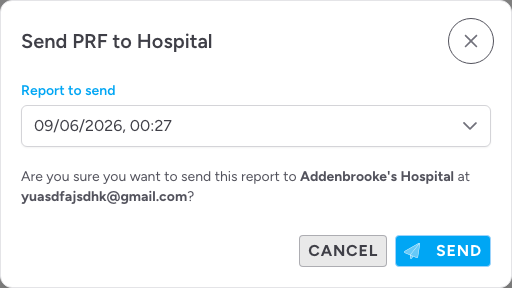
Review the recipient details, then click Send.
Step 5: Done - the PRF is queued
A success notification confirms the email has been queued. The dialog closes and a new row appears immediately in the Sharing history table below, with a status of Queued.
Tracking Delivery
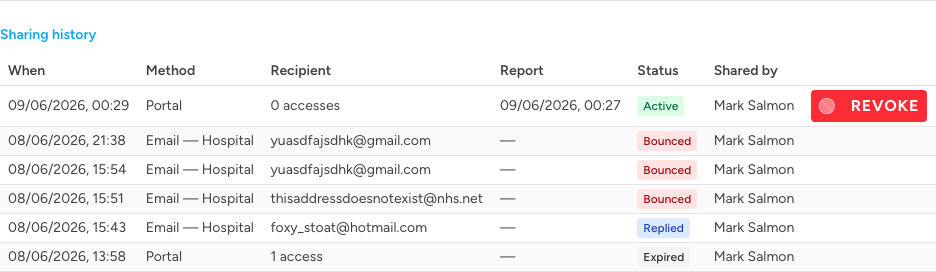
The Sharing history table at the bottom of the Patient Reports panel records every send — portal links and both email types — in one place.
Each row shows:
| Column | What it shows |
|---|---|
| When | Date and time the share was created |
| Method | "Email - Hospital", "Email - Patient", or "Portal" |
| Recipient | The email address(es) the report was sent to |
| Report | Which generated report was sent (by creation date/time) |
| Status | Current delivery status (see below) |
| Shared by | The team member who initiated the send |
Delivery status values
| Status | Meaning |
|---|---|
| Queued | The email is in the send queue |
| Sending | The email is being processed |
| Sent | The hospital's mail server accepted the message |
| Bounced | The email could not be delivered — the address may be wrong |
| Failed | The send failed — contact your team administrator |
Status updates automatically as delivery events arrive. If a row shows Queued for more than a few minutes, try reloading the panel.
Tips & Best Practices
- Send after the report is complete. Once you have generated and reviewed the report, send it straight away rather than waiting — it is easier to resend than to track down a delayed handover.
- Check the history before sending again. If you are unsure whether a previous send succeeded, check Sharing history before clicking again. Reload the page to refresh the status.
- Hospital emails are team-specific. Email addresses are configured per team for each hospital — a hospital shared across multiple teams can have different addresses for each. If a hospital email needs updating, contact your team administrator.
Troubleshooting
The Send PRF to Hospital button is not visible.
The button only appears when all three conditions are met: the Email PRF to hospital team toggle is on, the patient's selected hospital has at least one email address configured, and a report has been generated. Check each condition. If a hospital needs email addresses added, a team admin can do this via Team Settings > Hospitals.
The button is visible but greyed out.
You need to generate a report first. Click Generate Report and wait for it to appear in the grid, then try again. The button also disables briefly while the app syncs pending changes before opening the dialog.
The status shows Bounced.
The email address on record for that hospital is likely incorrect or the mailbox is unavailable. Ask your team administrator to verify and update the hospital's email addresses in Team Settings > Hospitals. You can resend after the address has been corrected.
The status has stayed at Queued for a long time.
Reload the panel to refresh the status. If it remains at Queued for an extended period, the delivery system may be delayed. Contact your team administrator.
- PRF Distribution Setup — how admins enable the hospital email feature
- Managing Hospitals — how team administrators configure hospital email addresses
- Sending a PRF to Patient — how to email a report to the patient directly
- Sharing a PRF via Portal — the secure link alternative for external recipients
- Filling In the Patient Record — completing the full clinical record